Free · No signup
Video Cropper — Crop & Resize Video Online
Crop and reframe your video right in your browser. Drop in a clip, pick an aspect ratio — 9:16, 1:1, 4:5 or 16:9 — slide the crop where you want it, and download a reframed MP4. No upload to a server, no account.

Your file never leaves your device.
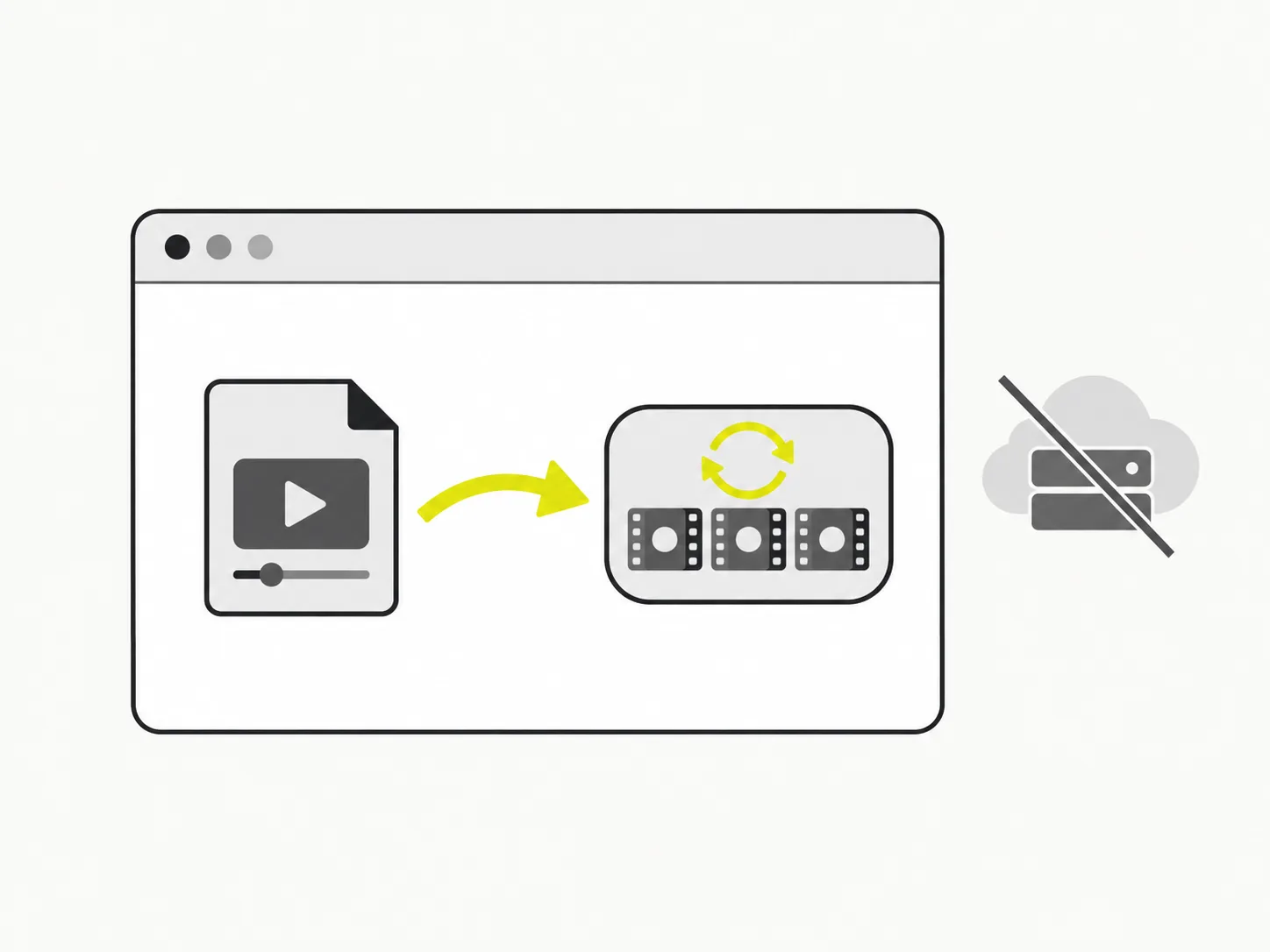
Cropping runs in your browser
VidSnappy decodes your video, crops each frame to the region you choose and re-encodes it locally — nothing is uploaded to a server. Reframing stays private and starts the moment you drop a clip in.
Presets for every platform
Reframe to the shape each platform wants: 9:16 for Reels, TikTok and Shorts, 1:1 for feed posts, 4:5 for portrait posts, or 16:9 for widescreen. Slide the crop box to keep the important part of the frame in view.

A real reframed MP4 out
The crop is baked into a new MP4 — not a CSS trick or a preview. Download a genuinely reframed video that is already the right shape for the platform you are posting to, ready to upload as-is.

Crop and reframe, in a few steps
Drop in a clip, pick an aspect ratio, slide the crop where you want it and download a genuinely reframed MP4.
How to crop a video
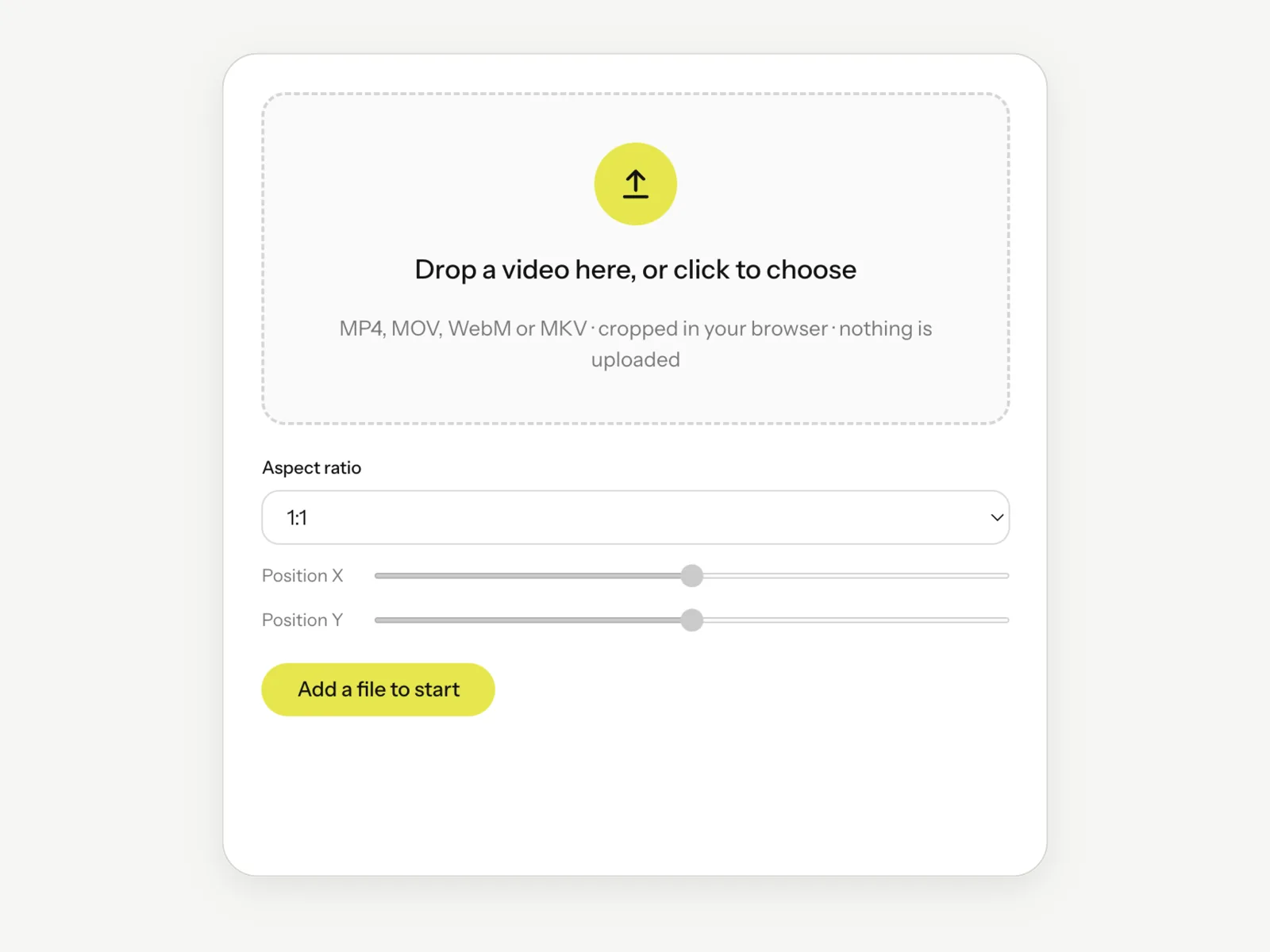
Step 01
Add your video
Drag an MP4, MOV, WebM or MKV onto the cropper, or click to choose a file. It loads straight from your device — no upload, no account.
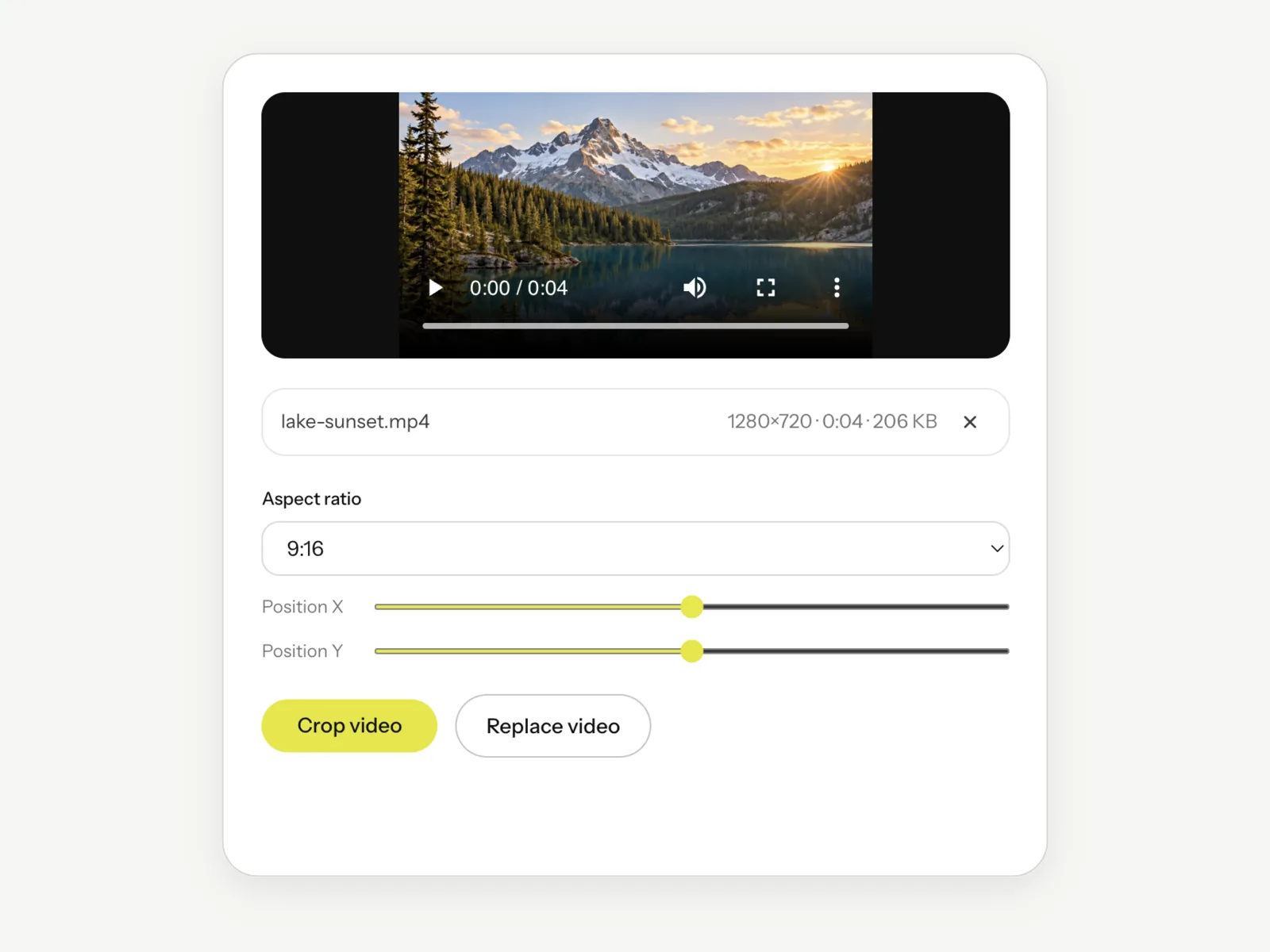
Step 02
Pick an aspect ratio
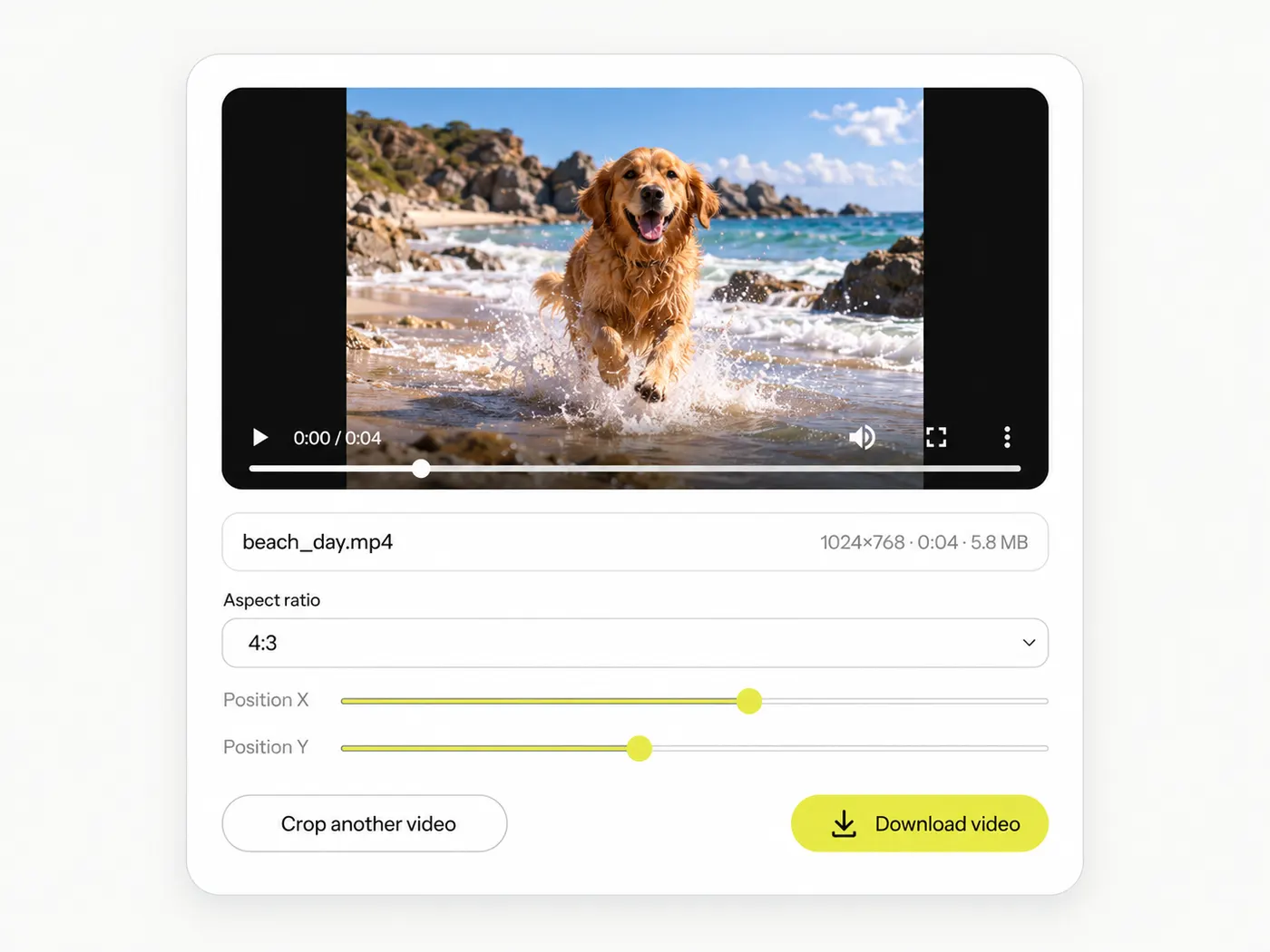
Choose 9:16, 1:1, 4:5 or 16:9. The crop box snaps to that shape at the largest size that fits your video.
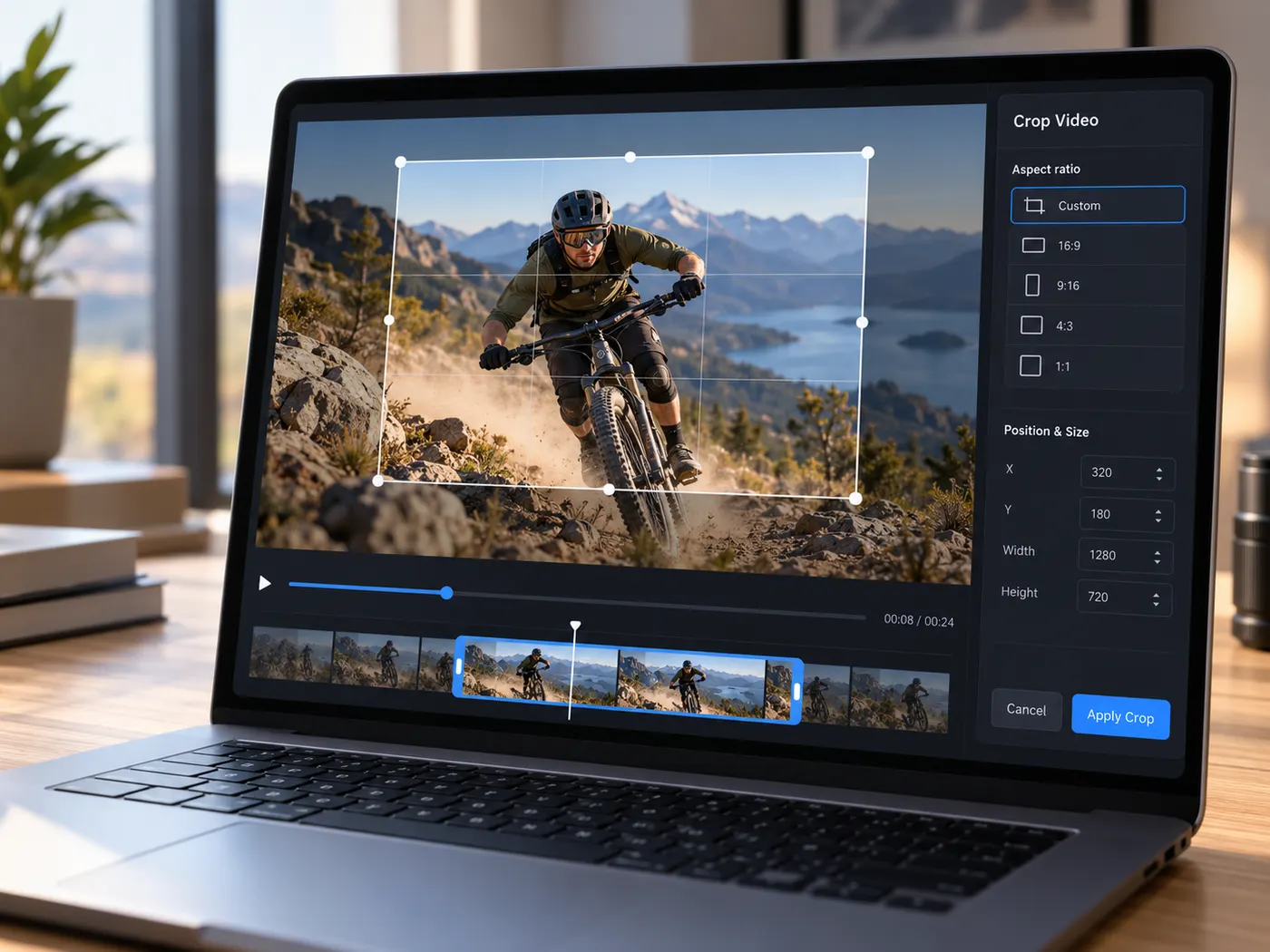
Step 03
Position the crop
Slide the crop box horizontally and vertically so the part of the frame you care about stays in view.
Step 04
Crop and download
Click Crop. VidSnappy re-encodes a reframed MP4 in your browser; play it, then download the .mp4 file. Adjust and crop again any time — it is free.
Free to use, no account needed
Crop and resize video at no cost. There is no sign-up, no hidden limit and nothing to install — open VidSnappy in your browser, add your file and reframe. It works on desktop and on modern mobile browsers.
No upload, no queue
There is no file to upload and no server queue to wait in. VidSnappy crops on your own device as soon as you add a clip, so the reframe is limited only by your machine — not by a shared server.
Private by design
Because the crop runs entirely in your browser, your video is never sent to a server. That keeps client, personal and work footage private while you reshape it for social.
A true crop, baked in
The output MP4 is genuinely cropped to the region you picked — the pixels outside the box are removed, not hidden. That means it looks right everywhere, including apps that ignore aspect-ratio metadata.
Why crop and reframe
Every platform has a preferred shape. A widescreen video looks tiny in a vertical feed, and a square post wastes space on a widescreen player. Reframing to the right ratio makes your clip fill the screen where it will be watched.
Cropping also lets you cut out distractions at the edges and center the subject — a quick way to make a raw clip look composed before you post it.
Tips & good to know
A few quick pointers to get the best result from this tool.



What people reframe video for

Reels and TikTok
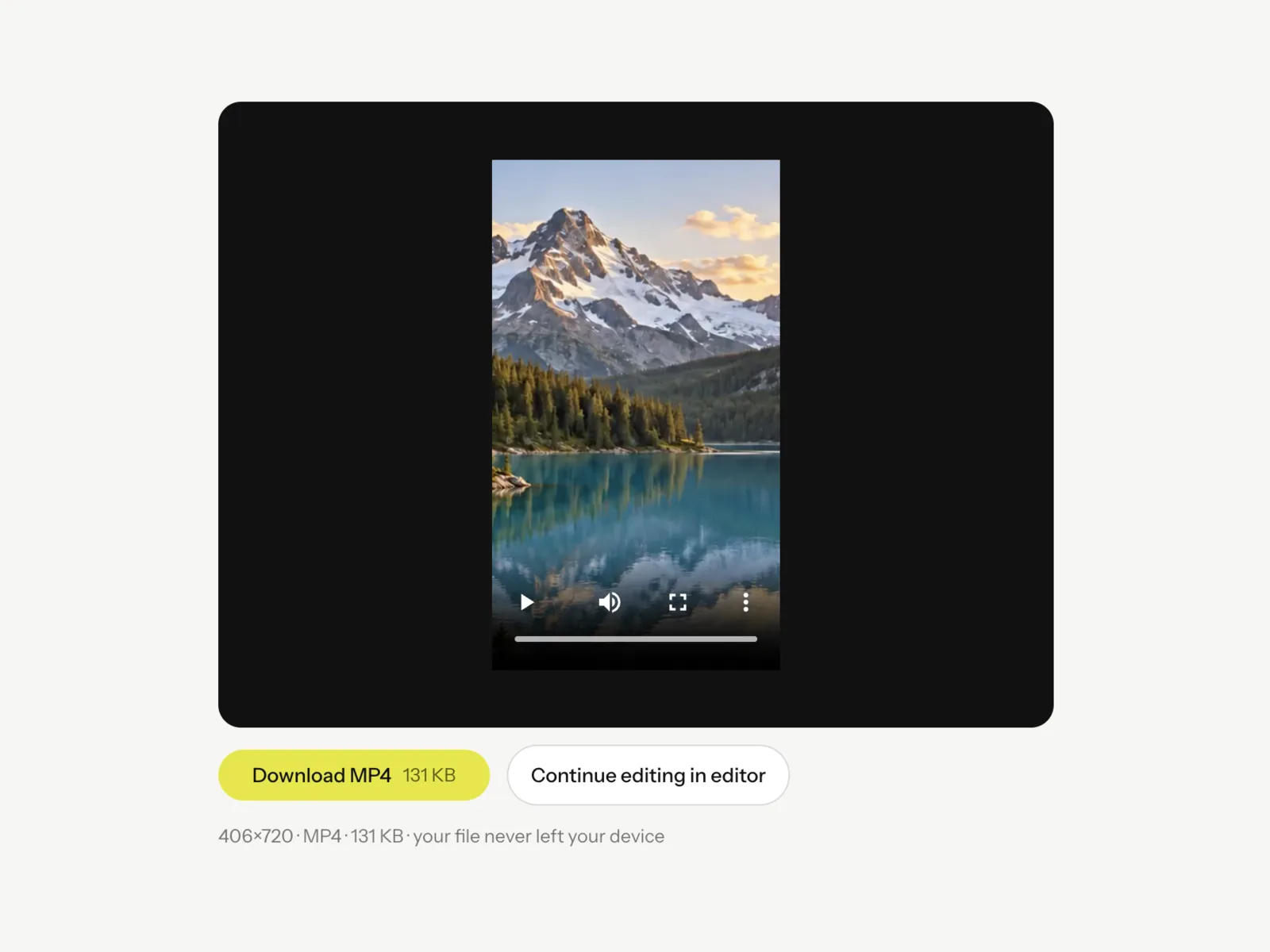
Reframe a widescreen clip to 9:16 so it fills a vertical feed.

Feed posts
Crop to 1:1 or 4:5 for a clean square or portrait post.
Removing edges
Cut distracting borders or letterboxing out of a downloaded clip.

Centering the subject
Slide the crop to keep the important part of the frame in view.
Free tools, and a plan when you need more
The everyday tools are free and run in your browser. The AI tools and the full editor run on credits — pick a plan when you need them.
- Free
- $0
- Every browser tool
- Starter
- $12/mo
- 120 credits
- Pro
- $29/mo
- 310 credits
Crop and reframe your video
Free and private — crop video to the perfect aspect ratio right in your browser and download a reframed MP4.
Choose a video