Free · No signup
WebM to MP4 Converter
Convert WebM to MP4 right in your browser. Drop in a WebM, MKV or MOV, optionally scale it down, and download a widely supported MP4 that plays on phones, editors and social platforms. No upload to a server, no account.

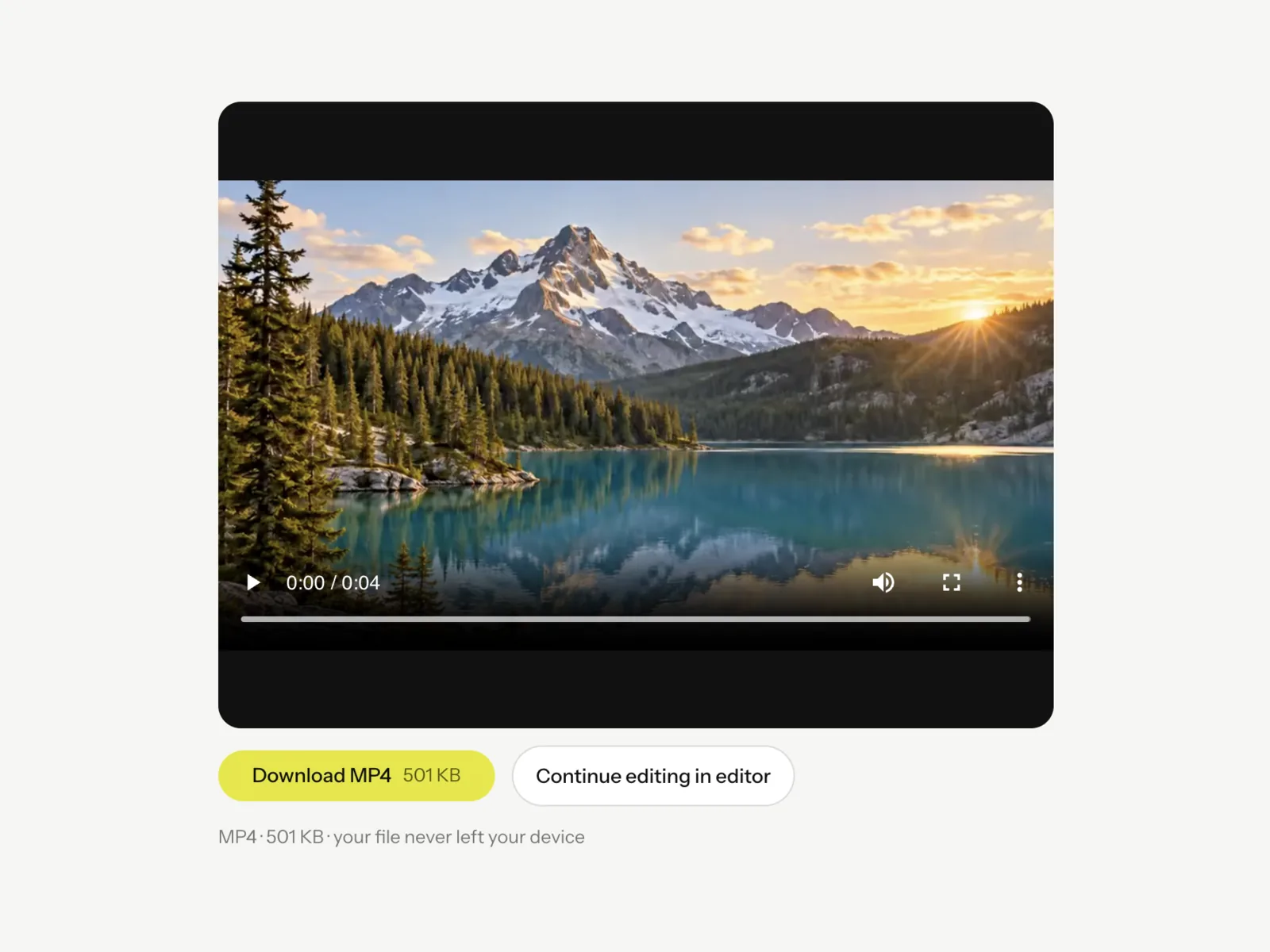
Your file never leaves your device.
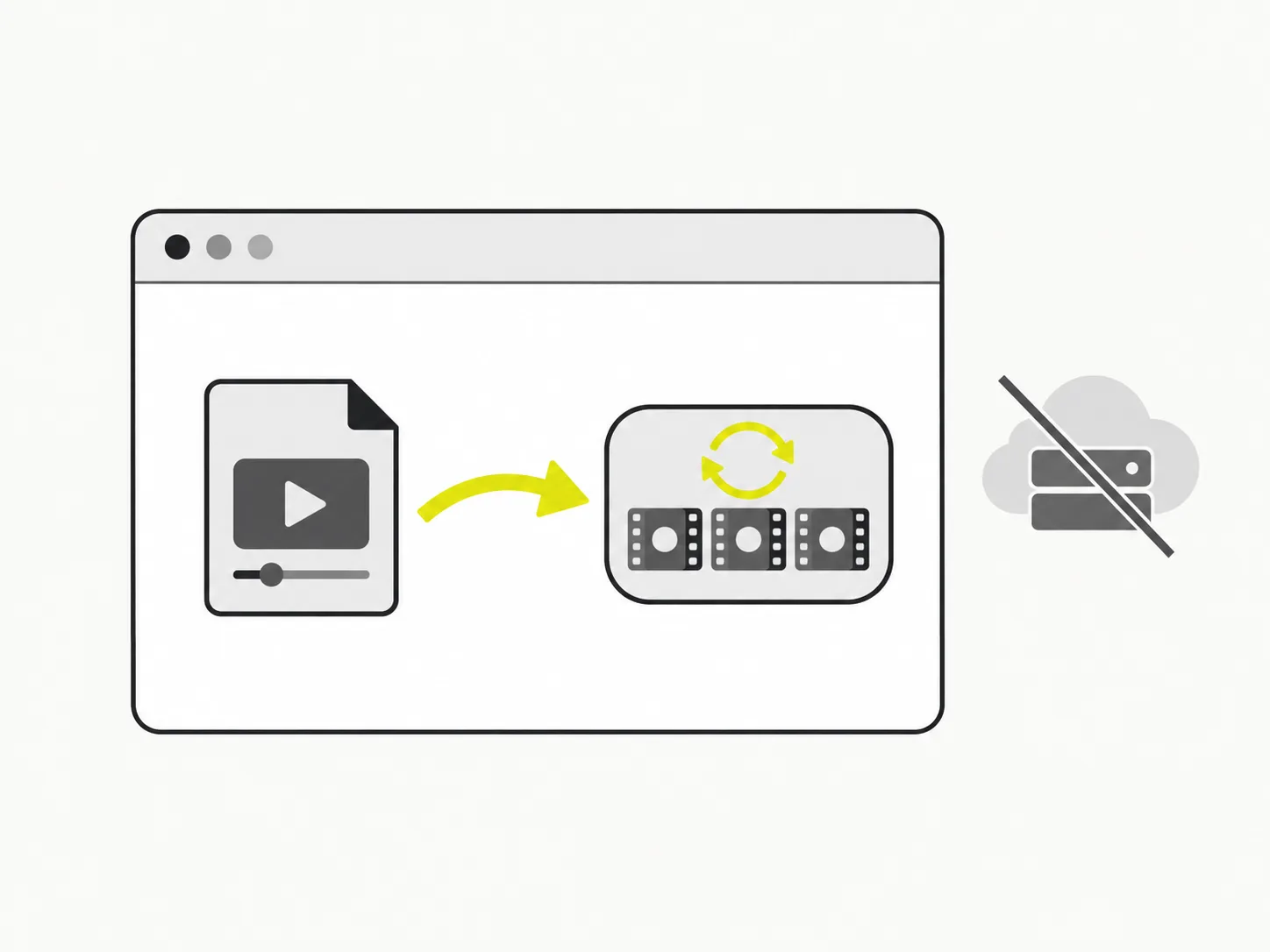
Conversion runs in your browser
VidSnappy decodes your WebM and re-encodes it to MP4 locally, with nothing uploaded to a server. That keeps the file private and means the conversion starts instantly — no waiting in an upload queue, even for a long recording.
MP4 plays almost everywhere
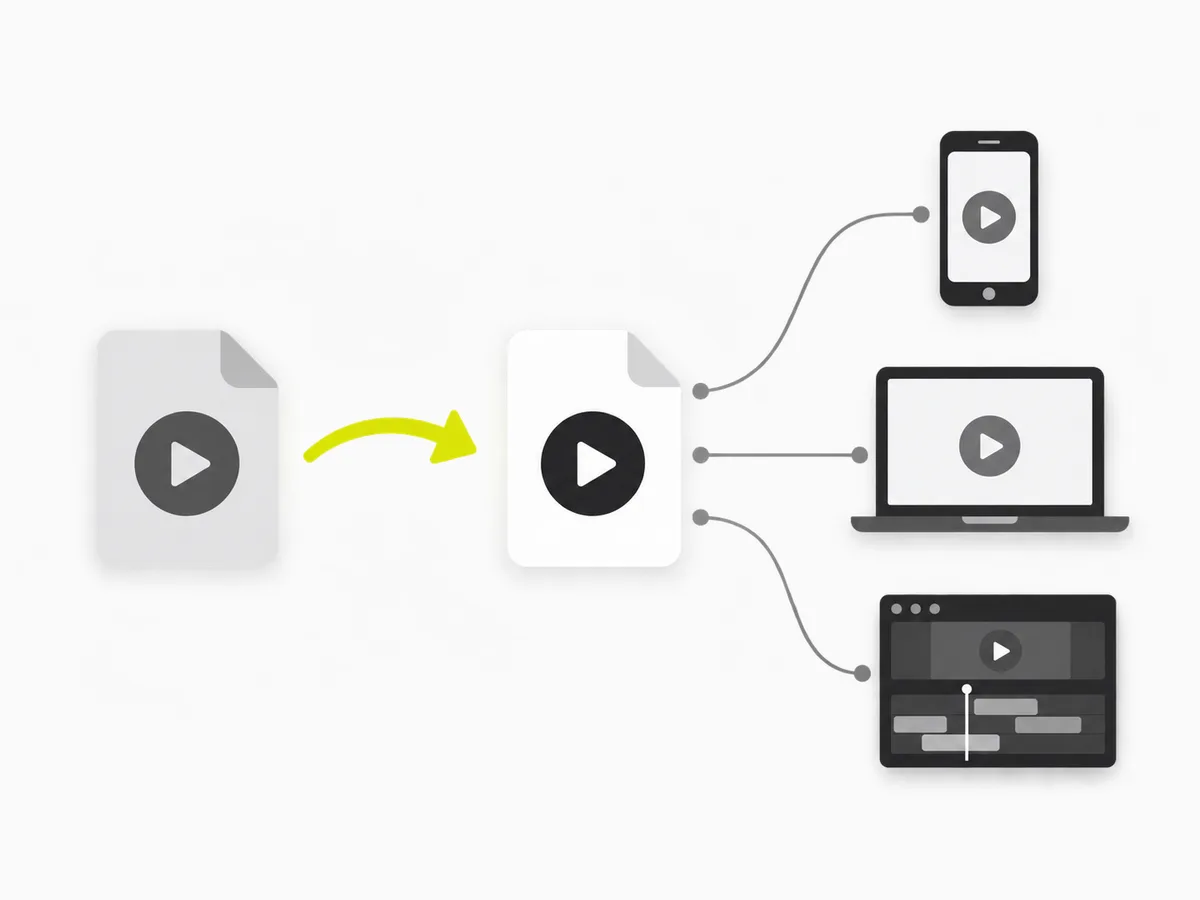
WebM is great for the web but many apps, phones and editors still expect MP4. VidSnappy re-encodes the video to H.264 inside an MP4 container, so the result imports cleanly into editing software and plays on devices that will not open a WebM.
Scale it down if you need to
Keep the original size, or cap the height at 1080p, 720p or 480p to produce a smaller MP4. It is an easy way to trim the file size of a screen recording or a downloaded clip before you share or upload it.
From WebM to MP4, in a few steps
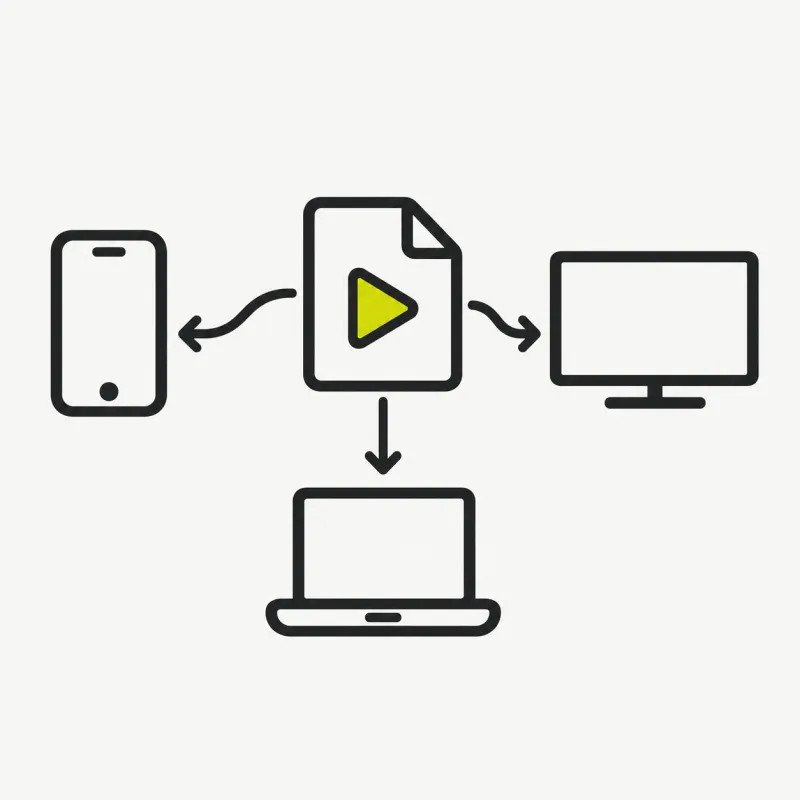
Add a WebM, choose a resolution and re-encode it to a widely supported MP4 you can play and edit anywhere.
How to convert WebM to MP4
Step 01
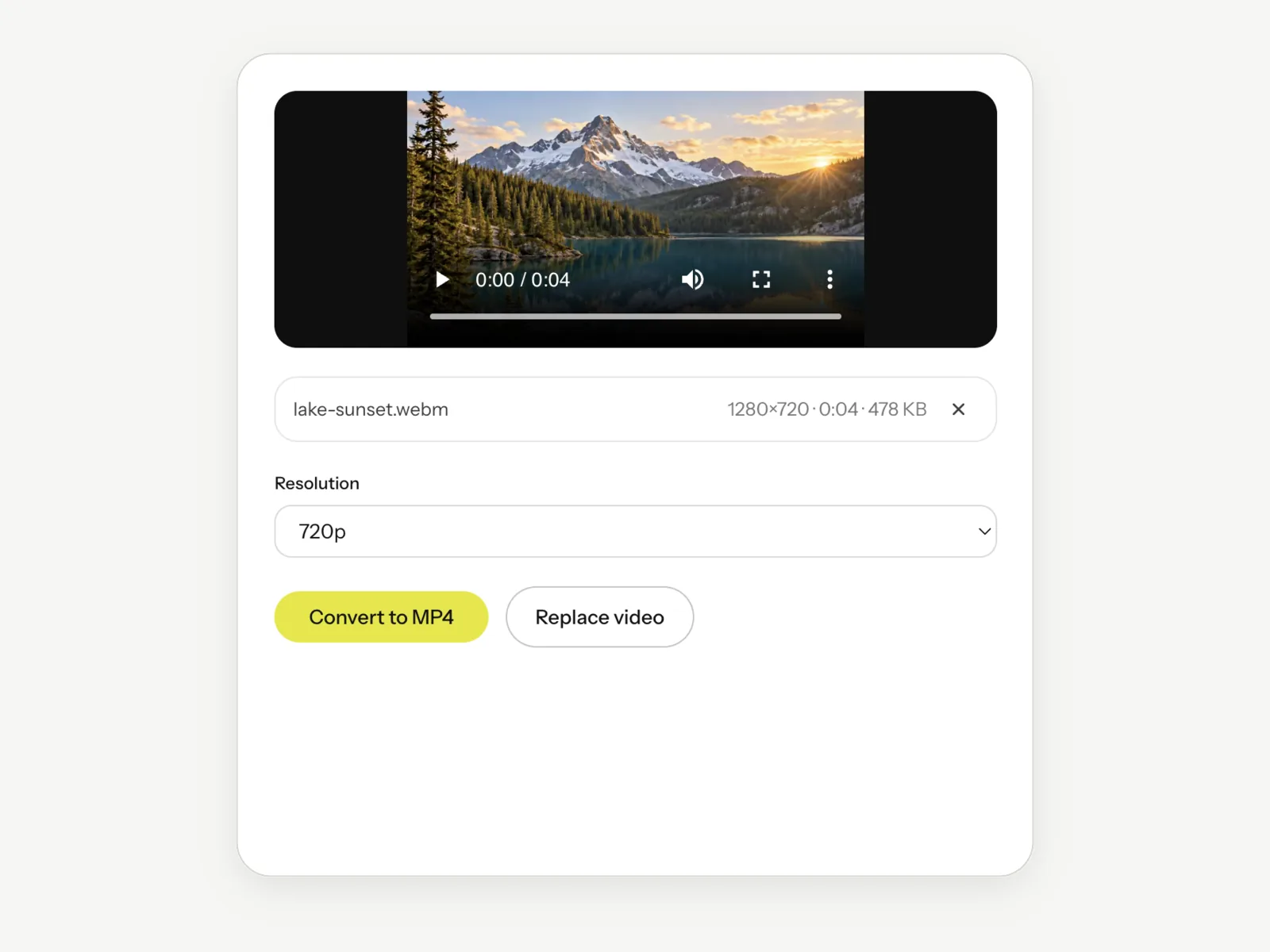
Add your WebM
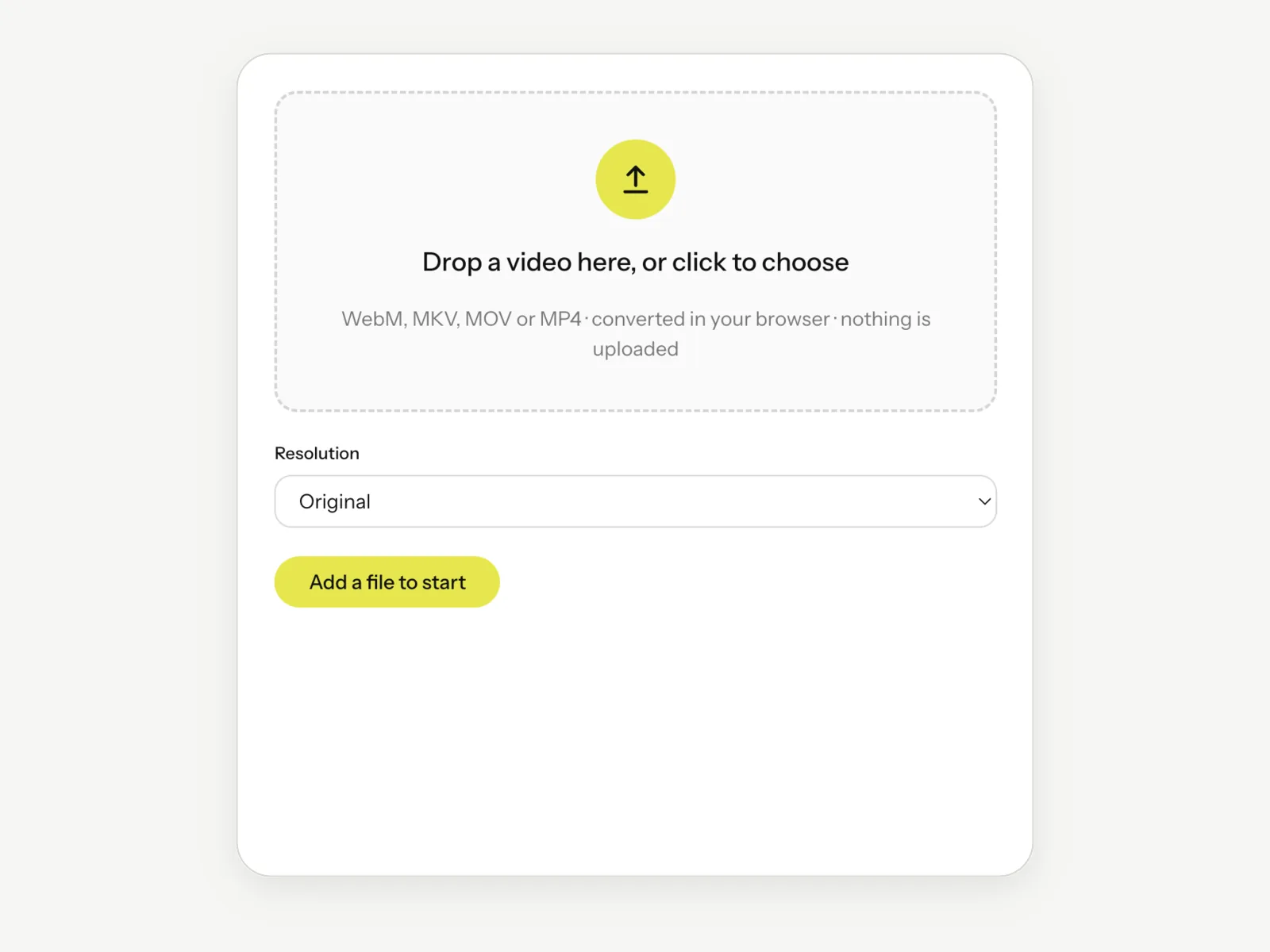
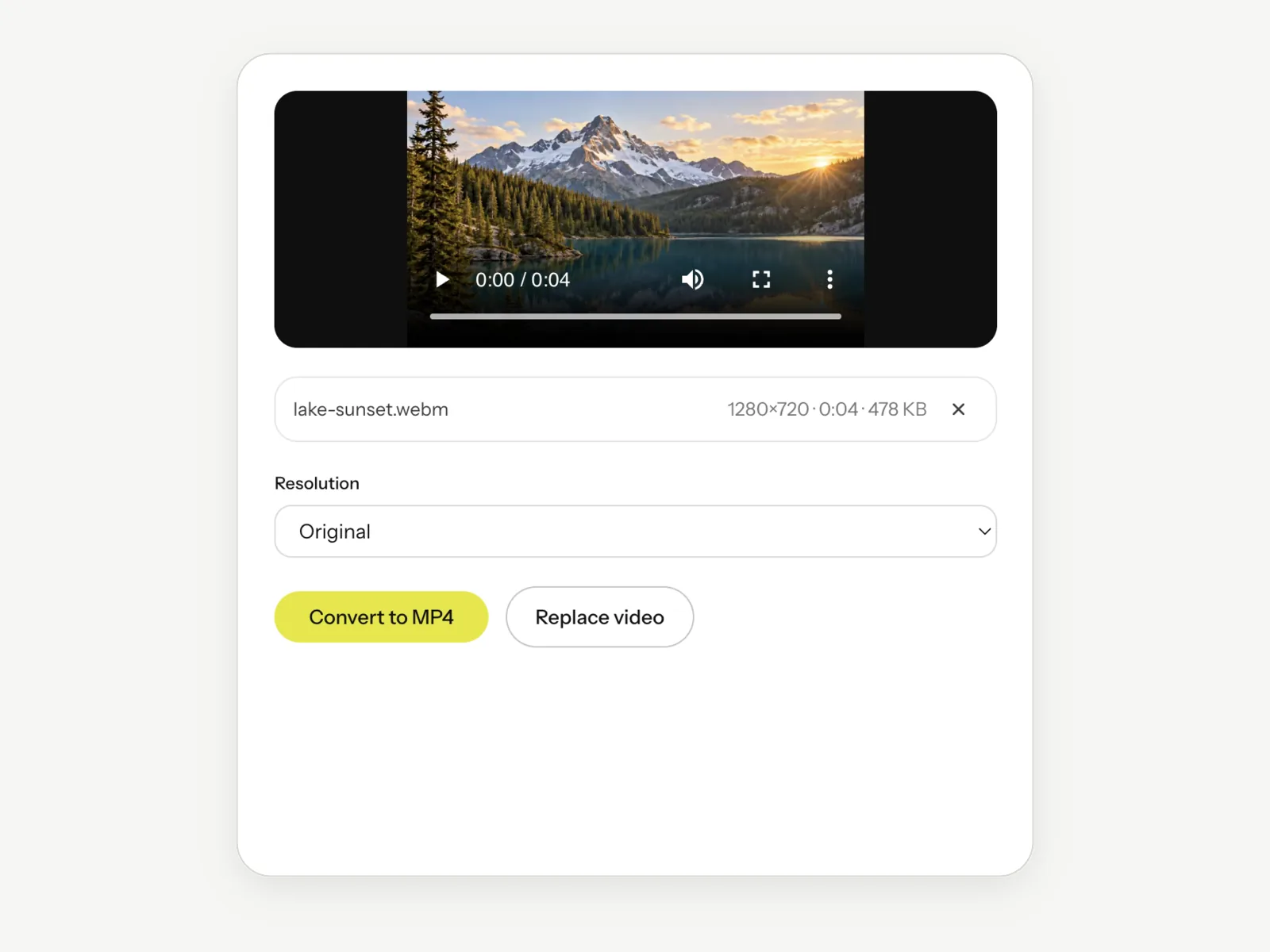
Drag a WebM, MKV or MOV onto the converter, or click to choose a file. It loads straight from your device — no upload, no account.
Step 02
Pick a resolution
Keep the original size, or scale the height down to 1080p, 720p or 480p to make a smaller MP4.
Step 03
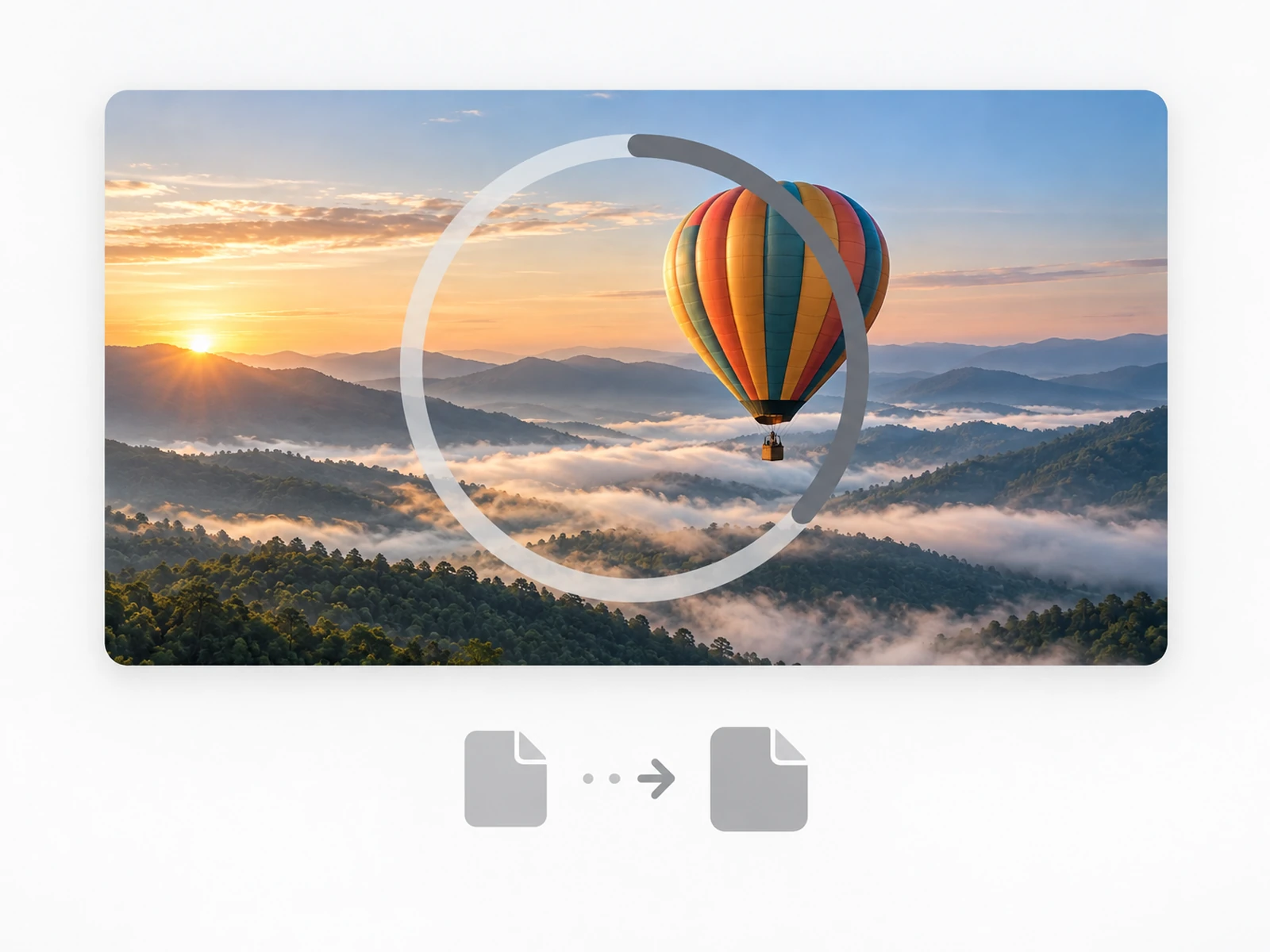
Convert to MP4
Click Convert. VidSnappy re-encodes the video to H.264 MP4 in your browser, showing progress as it works.
Step 04
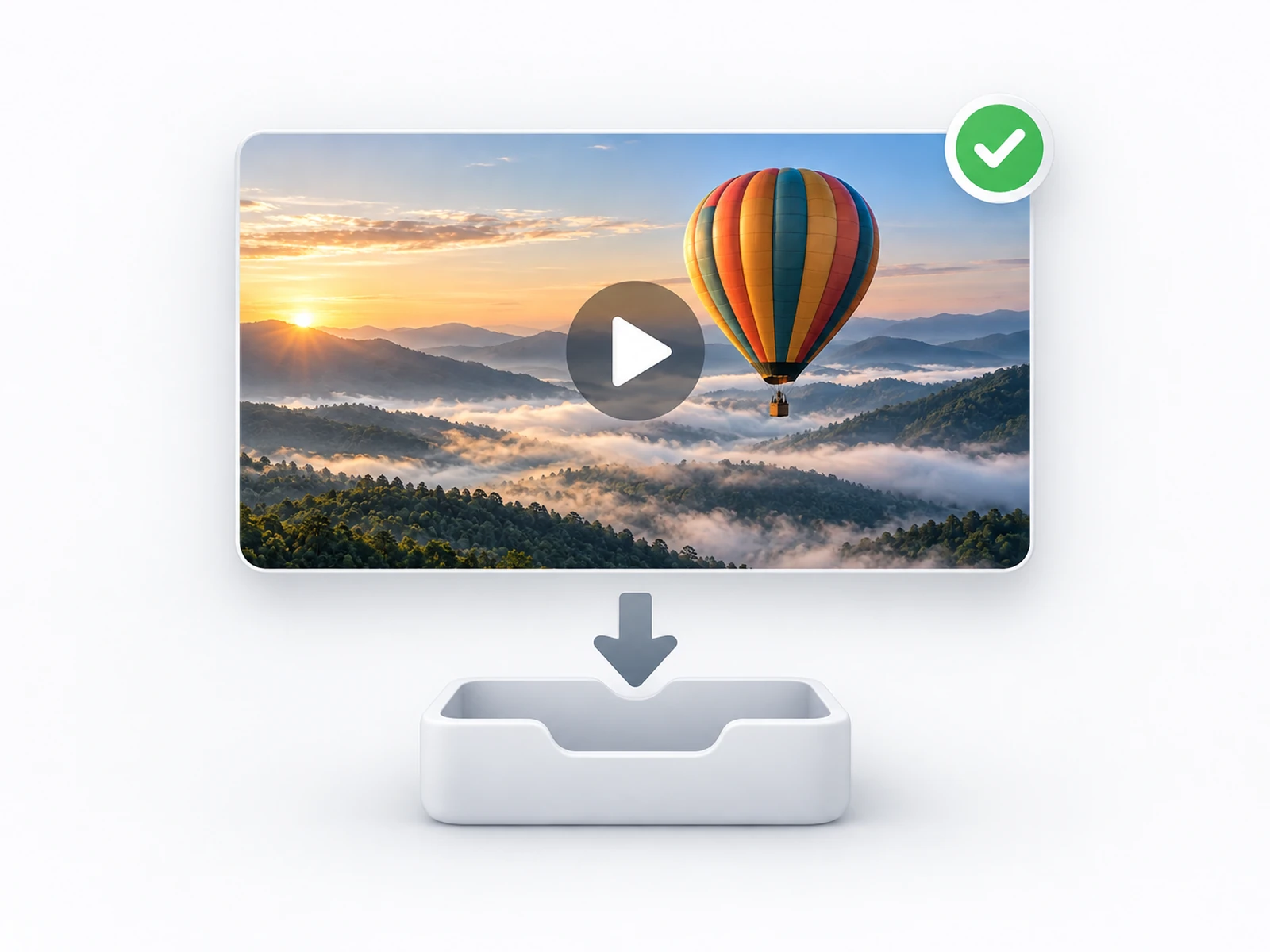
Preview and download
Play the MP4 to check it, then download the .mp4 file. Want a smaller size? Choose a lower resolution and convert again — it is free every time.
Free to use, no account needed
Convert WebM to MP4 at no cost. There is no sign-up, no hidden limit and nothing to install — open VidSnappy in your browser, add your file and export. It works on desktop and on modern mobile browsers.
No upload, no queue
There is no file to upload and no server queue to wait in. VidSnappy re-encodes the video on your own device the moment you add it, so the conversion is limited only by your machine — not by a shared server under load.
Private by design
Because the conversion runs entirely in your browser, your video is never sent to a server. That keeps screen recordings, downloads and work footage private while you turn a WebM into an MP4 you can use anywhere.
Broad compatibility
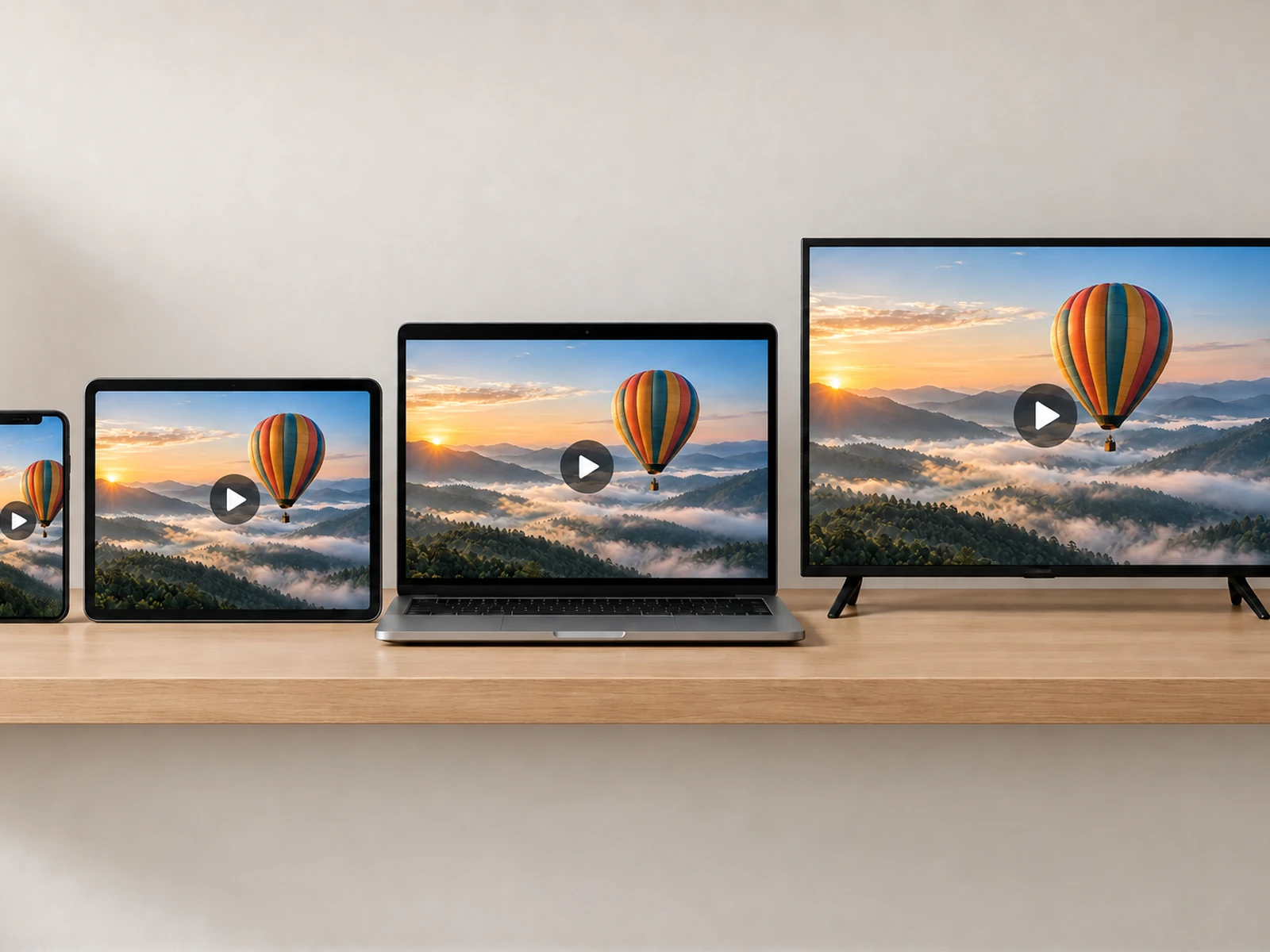
The output is a standard H.264 MP4 — the format phones, editing apps, presentation software and social platforms accept without complaint. It is the safe choice when something refuses to open your WebM.
Why convert WebM to MP4
WebM often comes out of browser recorders, screen-capture tools and some downloads. It is efficient on the web, but plenty of programs — video editors, older devices, certain upload forms — only take MP4.
Re-encoding to MP4 gives you a file that just works across those places, and capping the resolution keeps the size reasonable when you need to email or upload it.
Tips & good to know
A few quick pointers to get the best result from this tool.


What people convert to MP4
Screen recordings
Turn a WebM screen capture into an MP4 that imports into any editor or plays on any phone.
Uploads and forms
Convert to MP4 when a site or app only accepts MP4 for uploads.
Editing software
Get a clean H.264 MP4 that drops straight into your video editor.

Sharing with others
Send a file that opens for everyone, on any device, without a special player.
Free tools, and a plan when you need more
The everyday tools are free and run in your browser. The AI tools and the full editor run on credits — pick a plan when you need them.
- Free
- $0
- Every browser tool
- Starter
- $12/mo
- 120 credits
- Pro
- $29/mo
- 310 credits
Convert your WebM to MP4
Free and private — re-encode WebM to a widely supported MP4 right in your browser and download it in seconds.
Choose a file