Free browser compression · Nothing uploaded
Discord Video Compressor — Compress Video Online
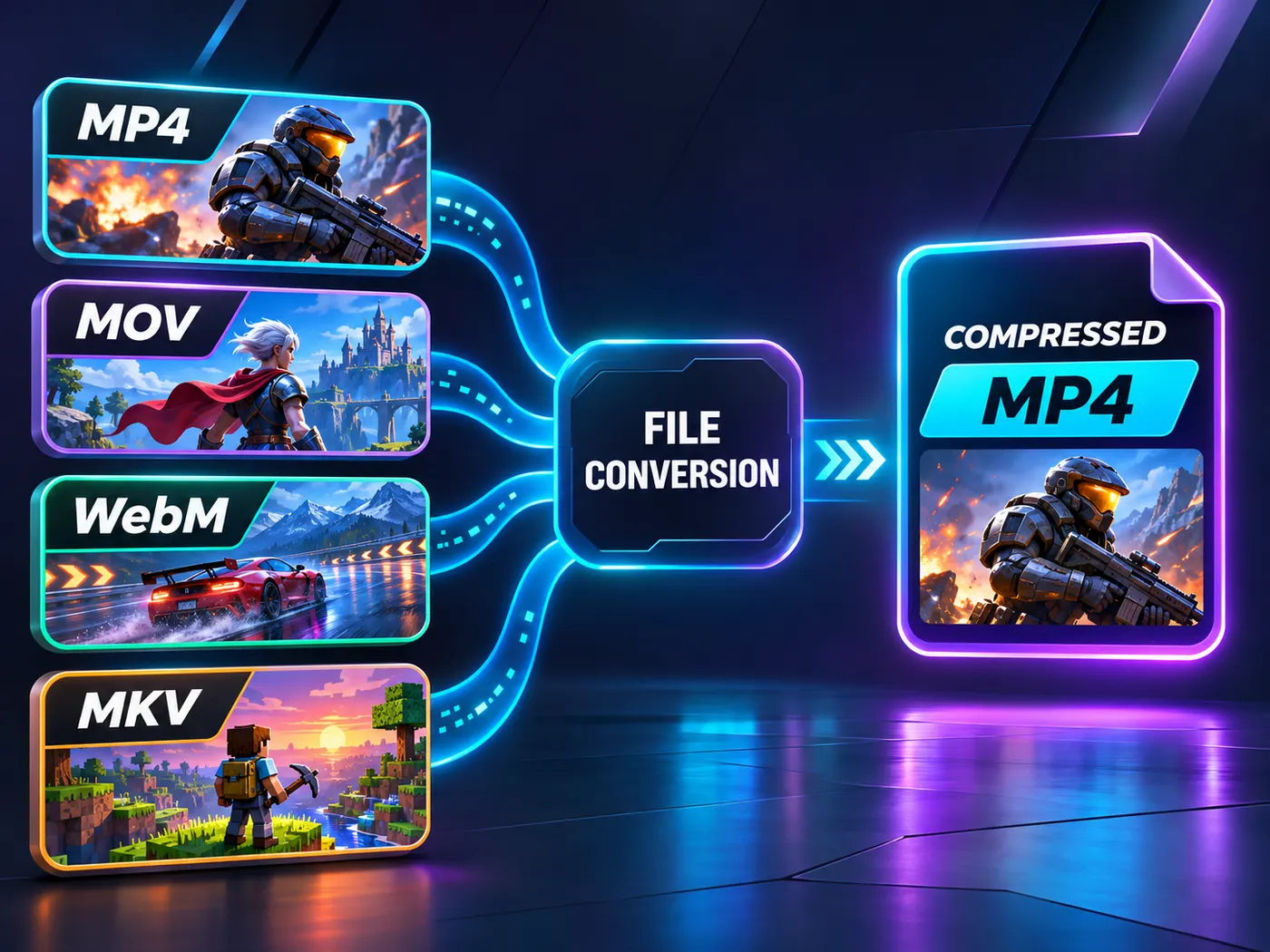
This discord video compressor shrinks one video into a smaller MP4 directly in your browser. Drop in an MP4, MOV, WebM, or MKV file, choose a compression strength and resolution, then download the result for Discord. Your video stays on your device because nothing is uploaded.

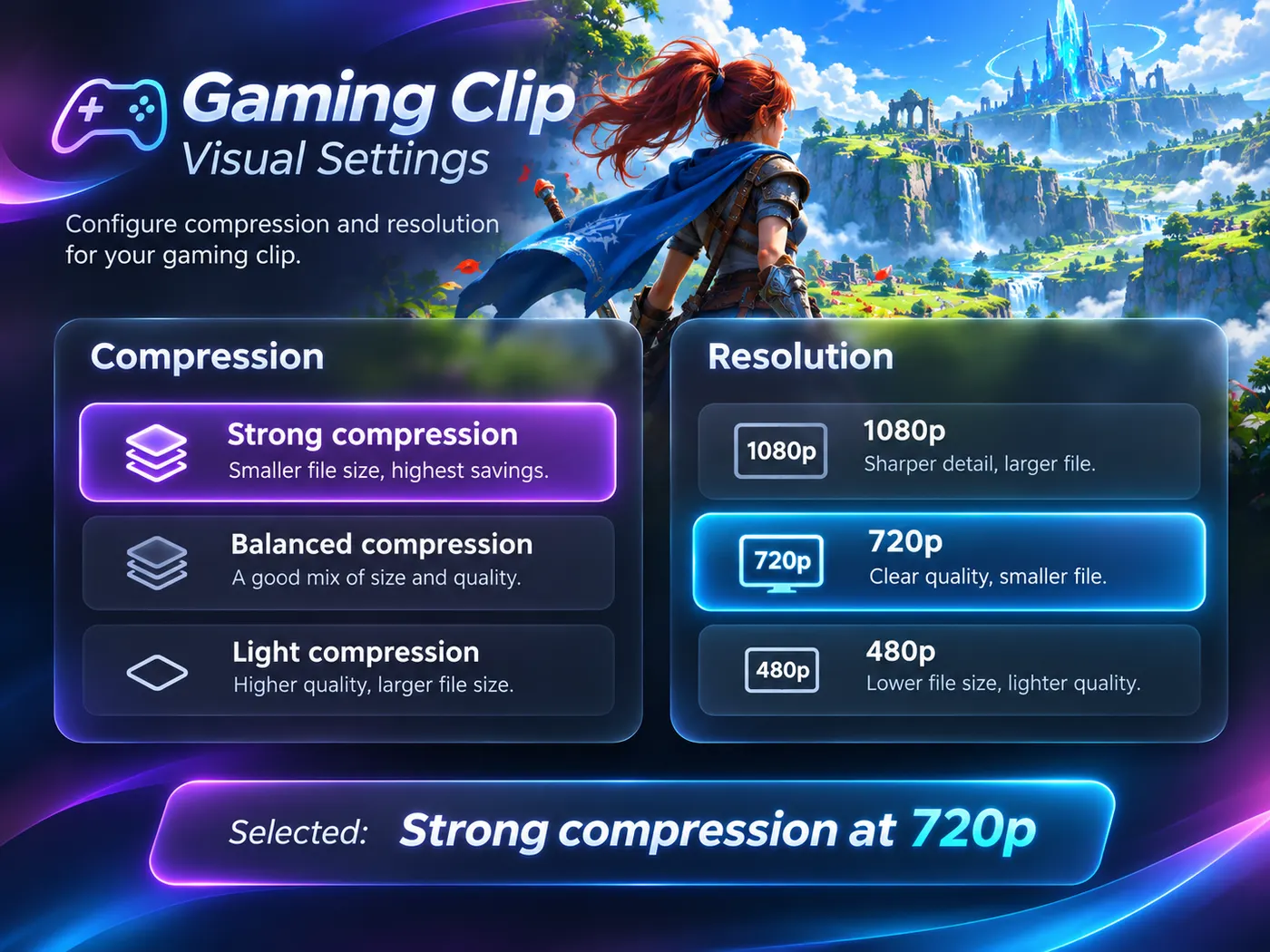
Choose Strong and 720p by default, or change Compression and Resolution before processing.
Shrink clips privately in your browser
A discord video compressor can reduce the size of one personal clip without sending it to a third-party server. Processing happens in your browser, and the finished file is a smaller MP4 you can save locally. The discord video compressor accepts MP4, MOV, WebM, and MKV input, so you can start with the file already on your device.
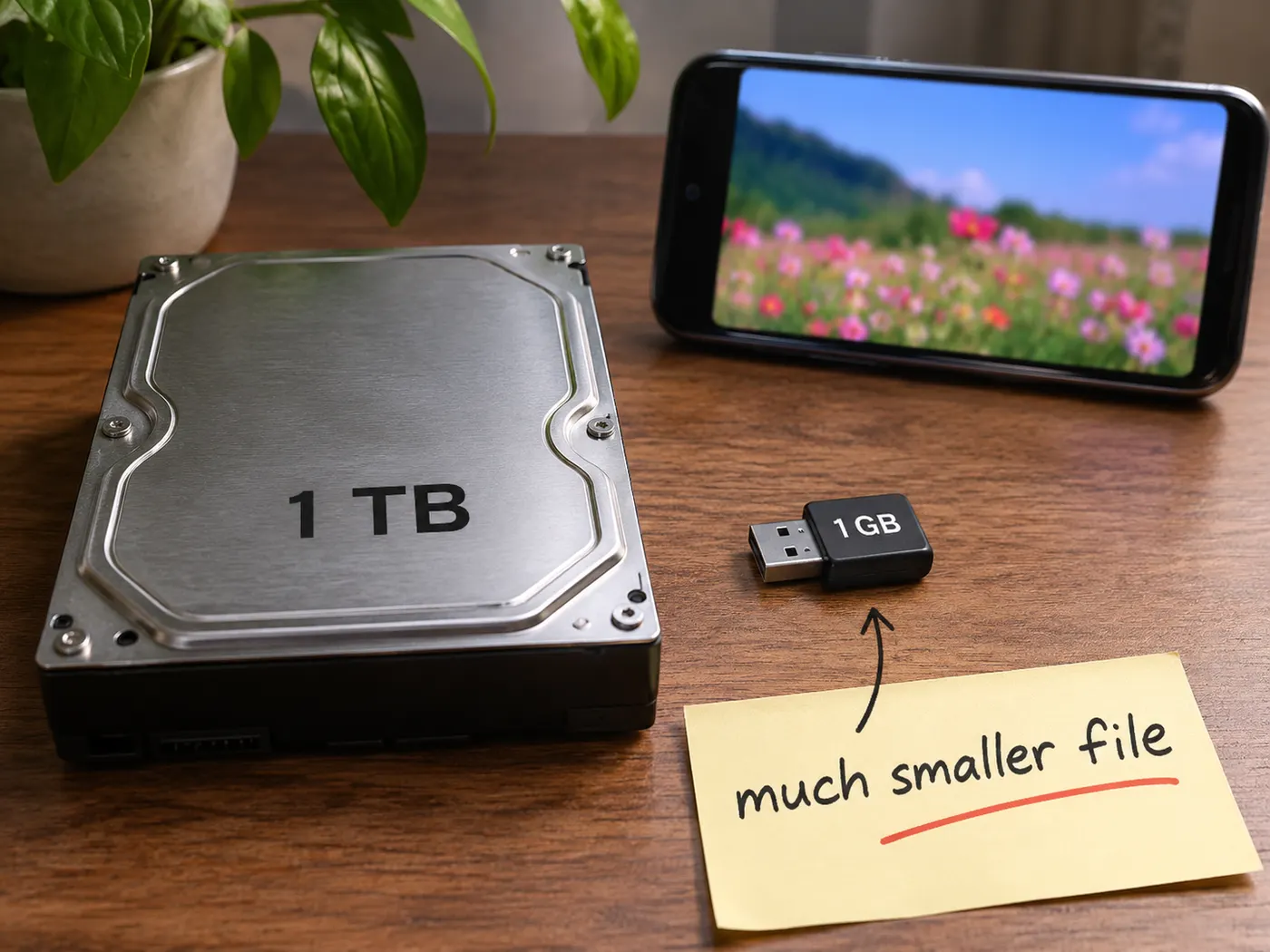
Pick the trade-off that fits
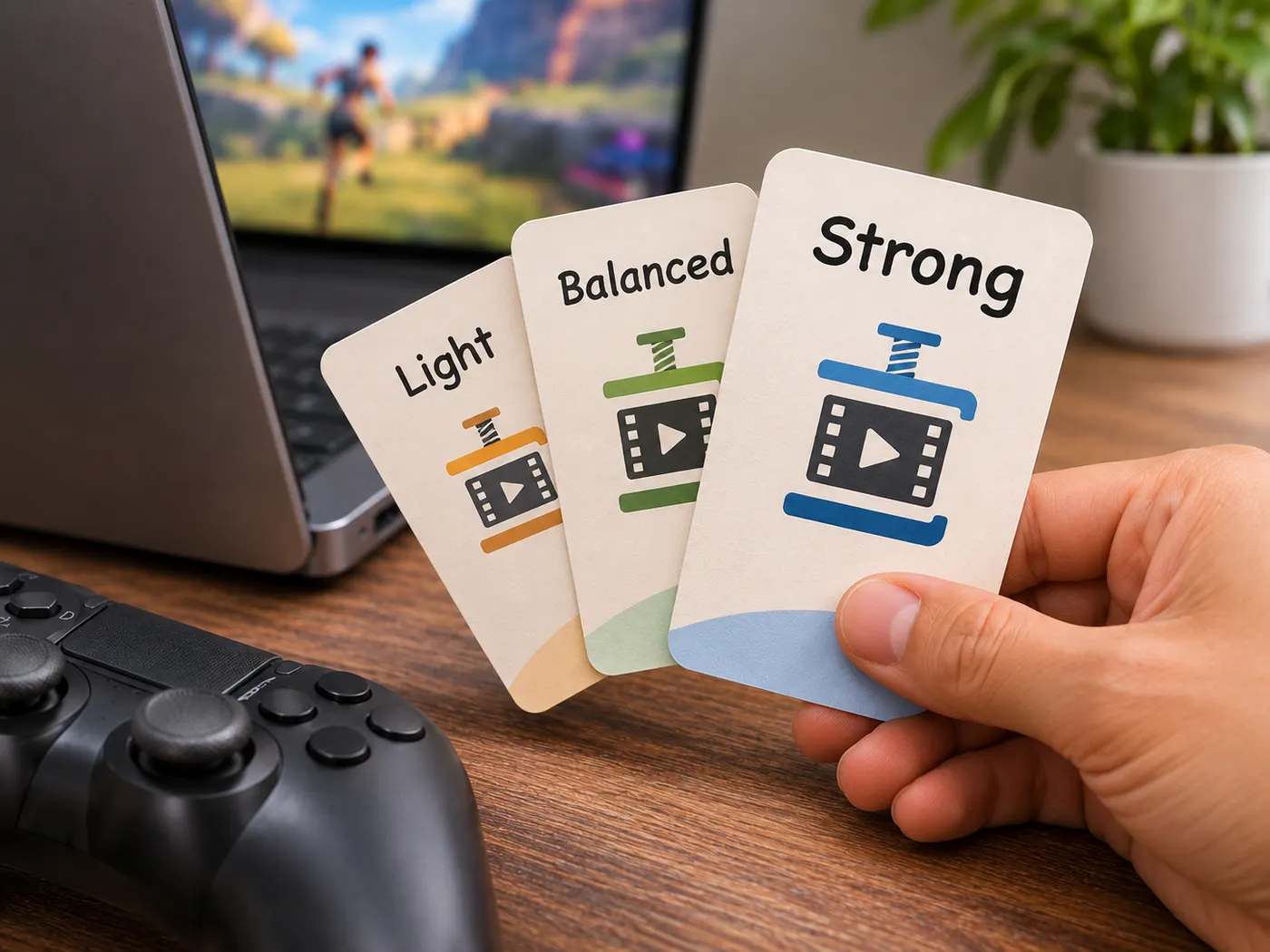
Use Light for a gentler reduction, Balanced for a middle setting, or Strong when you need more room. Resolution choices are Keep, 1080p, 720p, and 480p. This gives you a practical way to respond to the discord file size limit video uploads encounter without promising an exact output size before compression.
Download a smaller MP4
After processing, download the compressed MP4 and attach it in Discord. A smaller file can be easier to post when the original clip is rejected, while the selected resolution controls how much image detail is retained. If the first result is not suitable, use Compress again with a different strength or resolution.
A private way to prepare videos for Discord
This discord video compressor keeps the workflow focused: add one clip, adjust two controls if needed, and download a smaller MP4 without installing software.
Compress one video in four steps
01
Add your video
Drop one MP4, MOV, WebM, or MKV file into the tool. The discord video compressor works with one video at a time in your browser.
02
Choose compression
Open Compression and select Light, Balanced, or Strong. Strong is the default setting, but you can change it before starting.
03
Set resolution
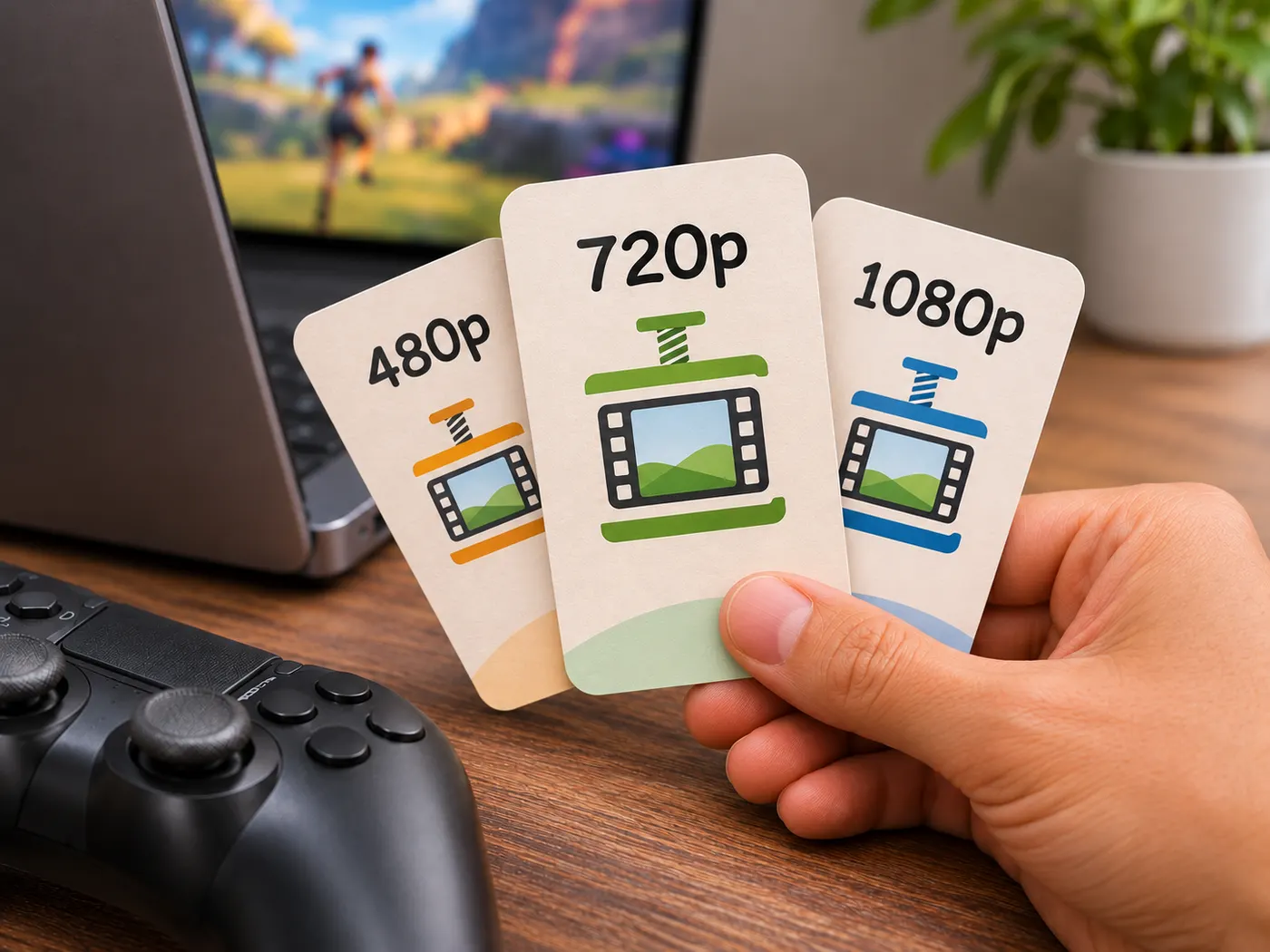
Choose Keep, 1080p, 720p, or 480p in Resolution. To reduce video size for discord and compress video for discord, 720p is the default starting point and can be changed.
04
Download the result
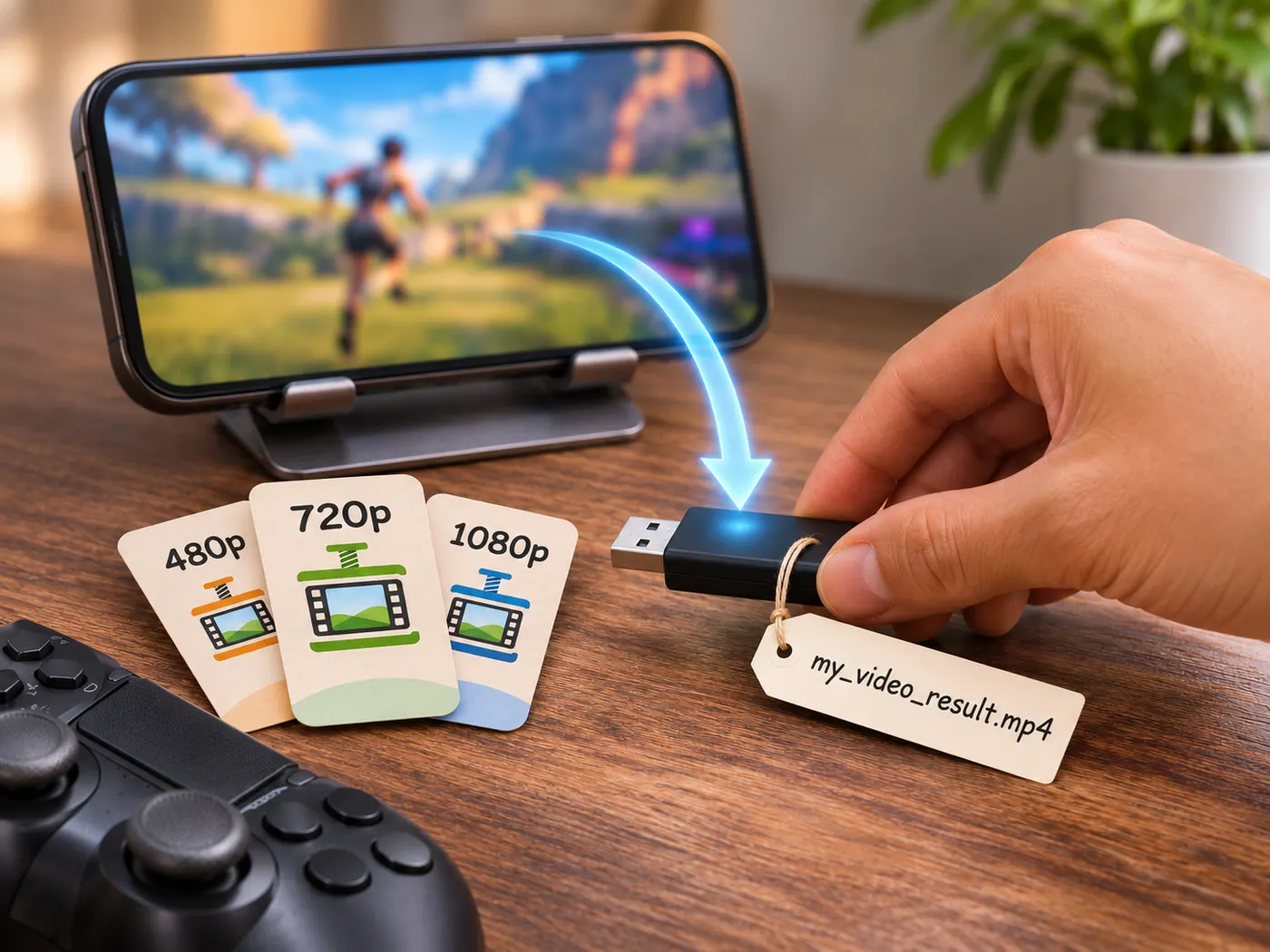
Start compression, wait for the browser to finish, and select Download MP4. If needed, choose Compress again with new settings.
One clip
Process one video at a time with a simple browser workflow.
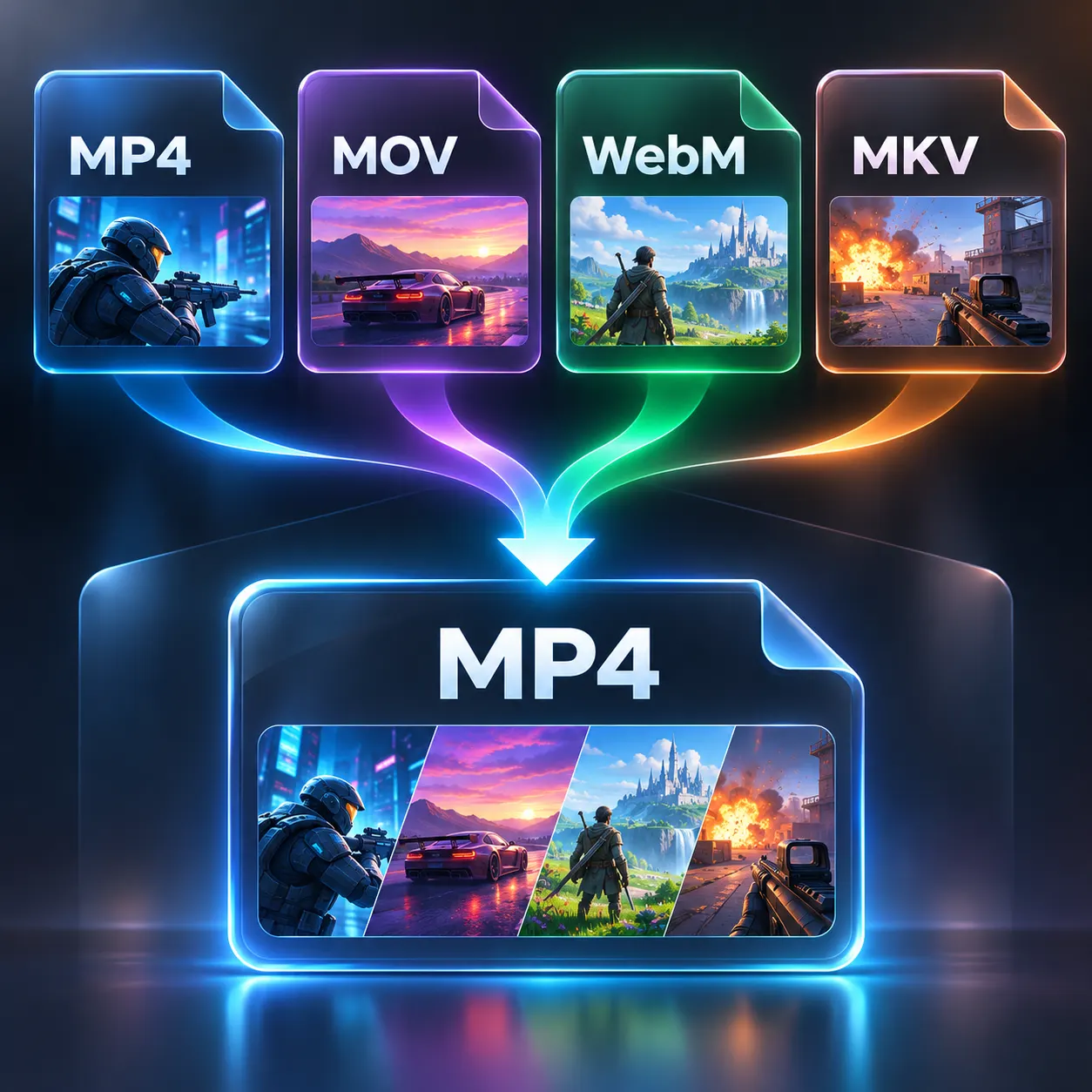
Four inputs
Accept MP4, MOV, WebM, or MKV files before creating an MP4.
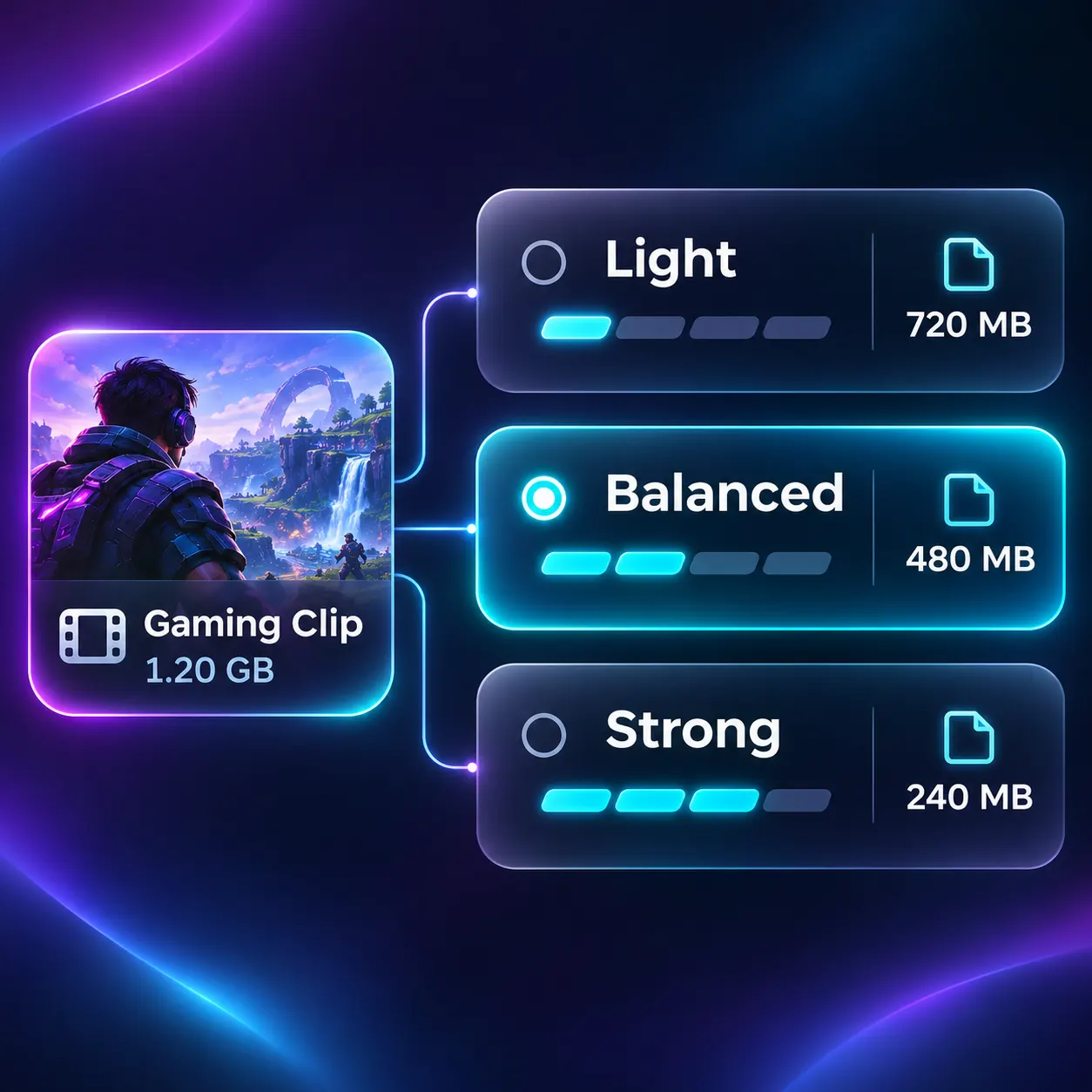
Three strengths
Choose Light, Balanced, or Strong compression for the result you want.
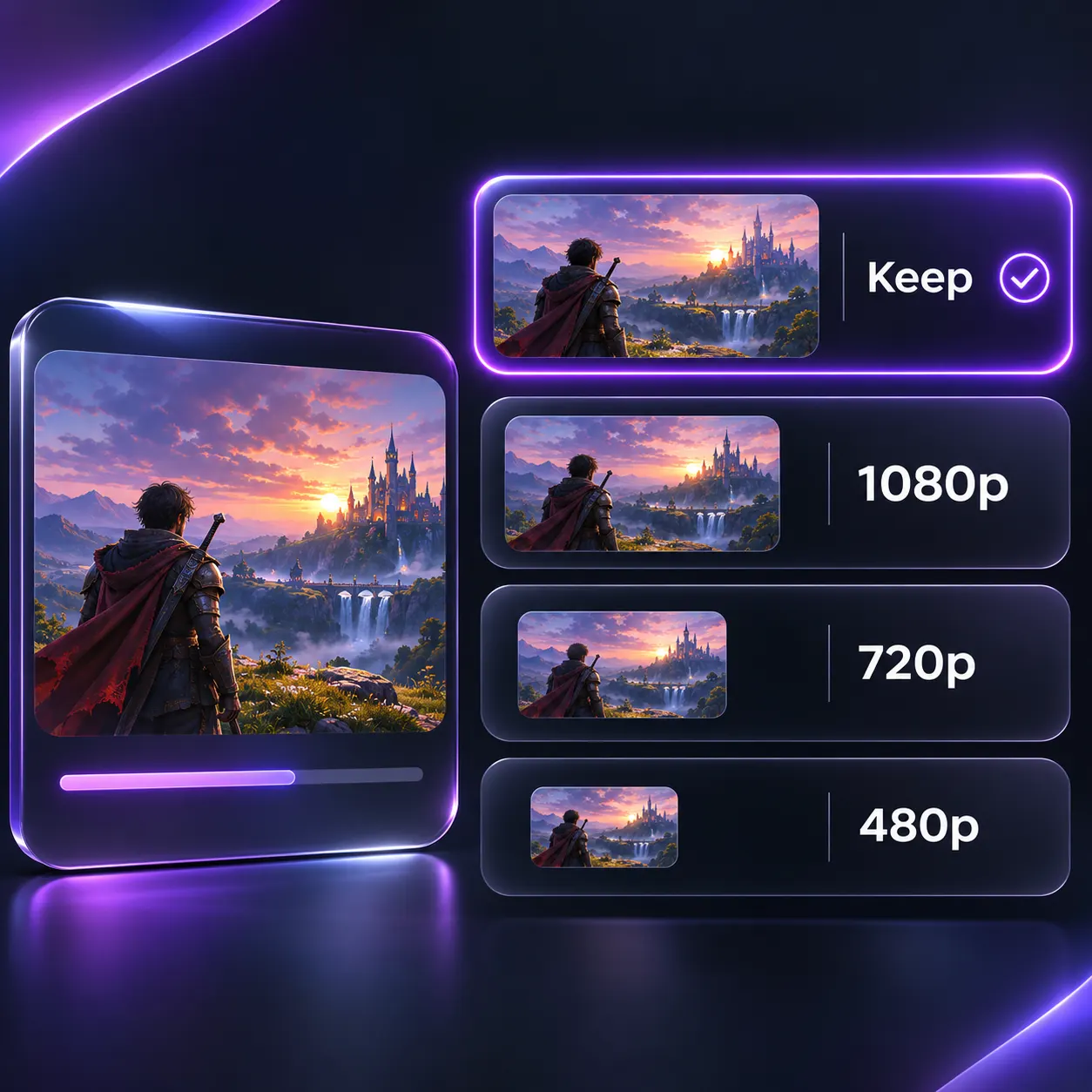
Four resolutions
Keep the source size or select 1080p, 720p, or 480p.

No upload
The privacy line states that compression happens in your browser and nothing is uploaded.
See the workflow at a glance
The interface keeps file selection, adjustable settings, processing, and MP4 download in one short path.

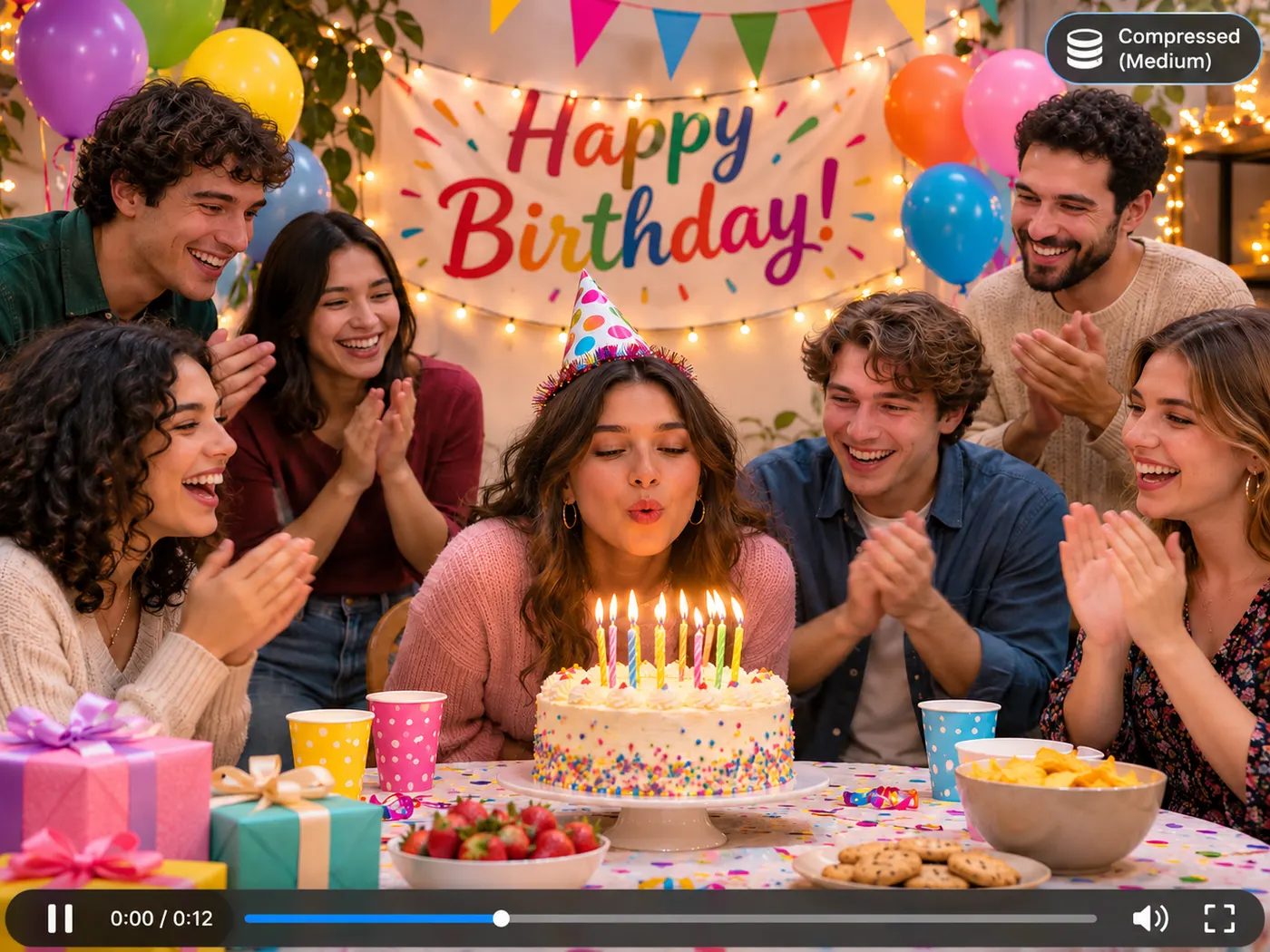
Useful for everyday Discord clips

Rejected uploads
When a clip is too large, use the discord video compressor to create a smaller MP4 before posting it. This can help when the discord video size blocks the original upload.

Private recordings
Process personal recordings in the browser because the tool states that nothing is uploaded.
Quick setting changes
Try Strong at 720p first, then adjust compression or resolution when the result needs a different balance.
Different source files
Start with an MP4, MOV, WebM, or MKV clip and download the compressed result as MP4.
Discord video compressor questions

What does this Discord video compressor do?
This discord video compressor makes one smaller MP4 from a video in your browser. Add an MP4, MOV, WebM, or MKV file, choose Compression and Resolution settings, start the process, and download the result. It is designed for shrinking a clip before you attach it in Discord, without installing separate software.
Is my video uploaded to a server?
No. The tool’s privacy line says that MP4, MOV, WebM, or MKV files are compressed in your browser and nothing is uploaded. That means the compression workflow runs on your device rather than requiring you to send the clip to a third-party upload service. A discord video compressor can therefore fit a private, local preparation workflow.
Which compression settings can I choose?
You can choose Light, Balanced, or Strong from the Compression dropdown. Strong is the default value, but the discord video compressor lets you change it before processing. Light makes a gentler choice, Balanced sits between the available options, and Strong is the more aggressive setting offered by this tool.
Which resolution should I select for a Discord clip?
Resolution offers Keep, 1080p, 720p, and 480p. The default is 720p, so it is the starting choice when you do not want to decide first. A discord video compressor cannot promise a specific final file size from a preset alone, but selecting a lower resolution can change the resulting MP4’s dimensions and size.
Can I compress a MOV, WebM, or MKV file?
Yes. The accepted inputs are MP4, MOV, WebM, and MKV, including their listed file extensions. The discord video compressor processes one video at a time and provides the result as an MP4. Add the clip, select the settings you want, and use Download MP4 after compression finishes.
Can I compress several videos at once?
No. This tool is configured for one video input at a time, so it does not provide a batch workflow. If you have several clips, run the discord video compressor separately for each one. Each run lets you choose Light, Balanced, or Strong compression and Keep, 1080p, 720p, or 480p resolution before downloading the MP4.
Free tools, and a plan when you need more

The everyday tools are free and run in your browser. The AI tools and the full editor run on credits — pick a plan when you need them.
- Free
- $0
- Every browser tool
- Starter
- $12/mo
- 120 credits
- Pro
- $29/mo
- 310 credits
Make your clip ready for Discord
Add one video, choose the settings that fit, and download a smaller MP4 directly from your browser.
Compress a Video