Free browser audio trimming with private local processing and no account required.
Cut from MP3 in Your Browser
Cut from MP3 in your browser by selecting one MP3, WAV, or M4A file, then choosing the start and end times for the section to keep. This private browser audio trimming tool supports an MP3 online workflow and can cut audio from mp3 without uploading it. Use the bitrate menu to choose 128, 160, 192, 256, or 320 kbps.
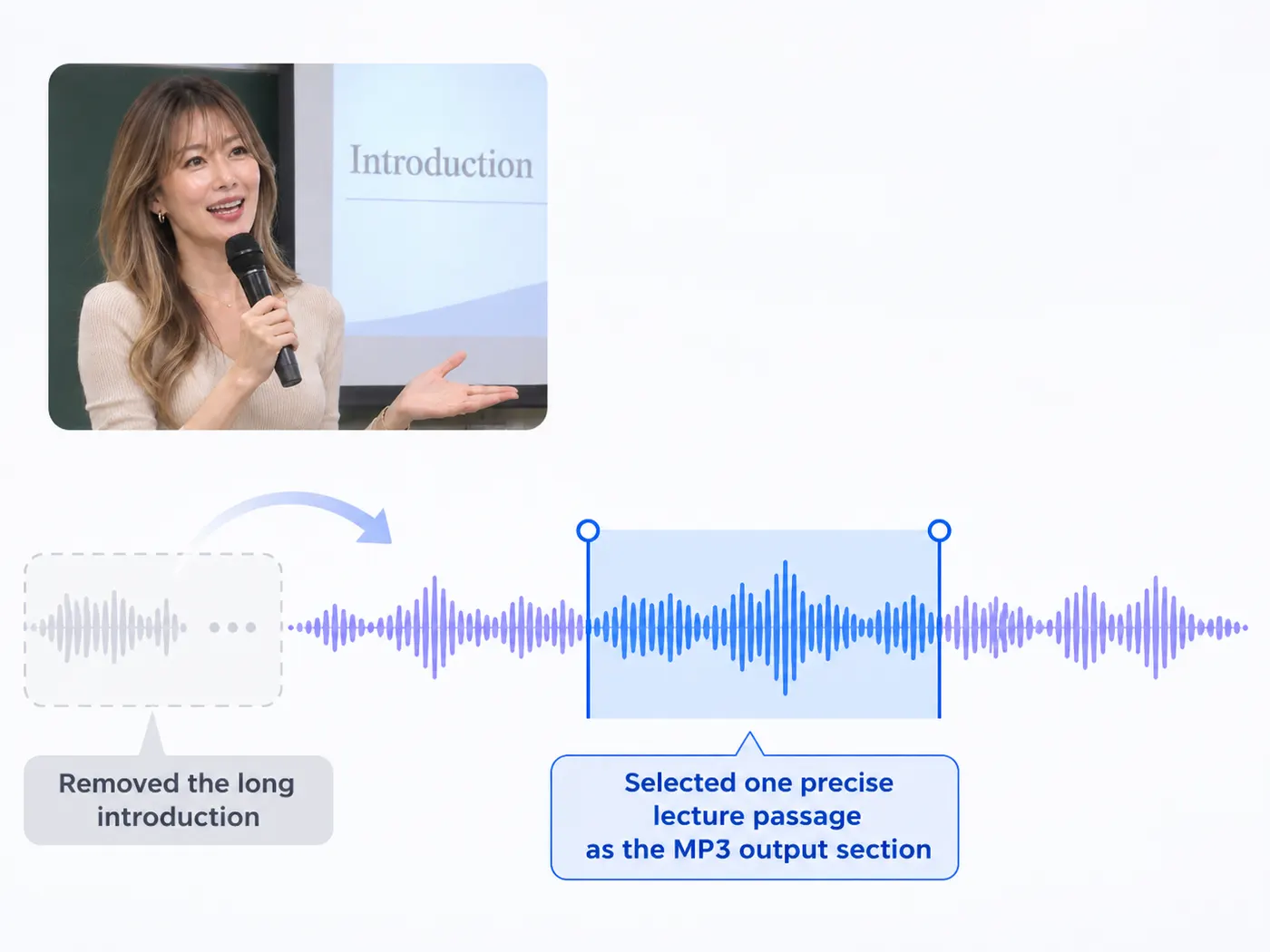
Supports MP3, WAV, and M4A; nothing is uploaded.
Keep One Precise Section
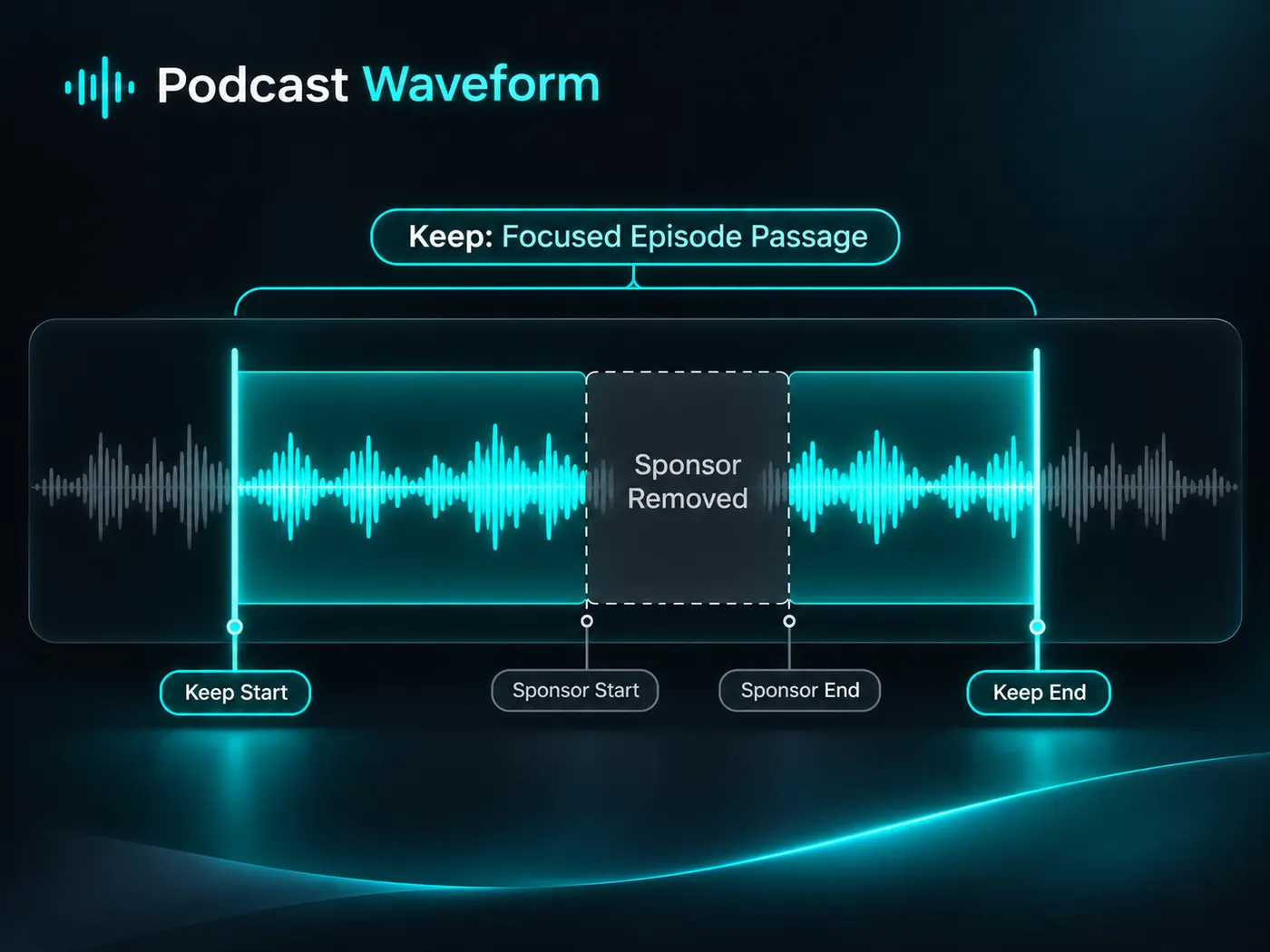
Choose a start and end time to keep only the useful passage. When you cut from mp3, the browser works on the selected range rather than asking you to edit a long recording. This mp3 cutter is suited to a ringtone, podcast excerpt, voice note, or short intro.
Private Browser Processing
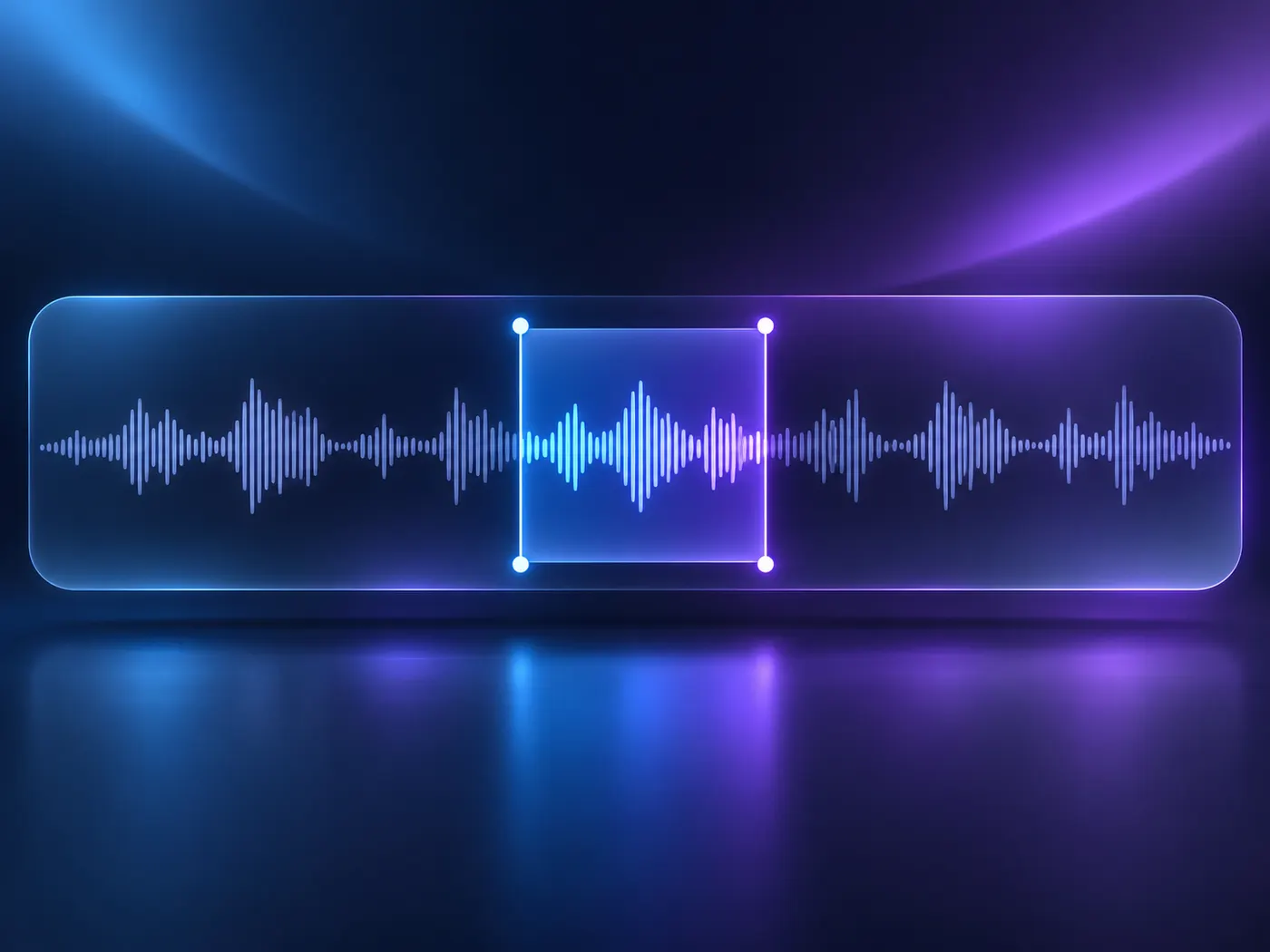
An MP3 file can be processed locally, so you can cut from mp3 without sending private audio to a server. You can also cut from mp3 when the original recording is long and you need one clearly defined section. The output is downloaded as MP3 after encoding.
Simple Export Choices
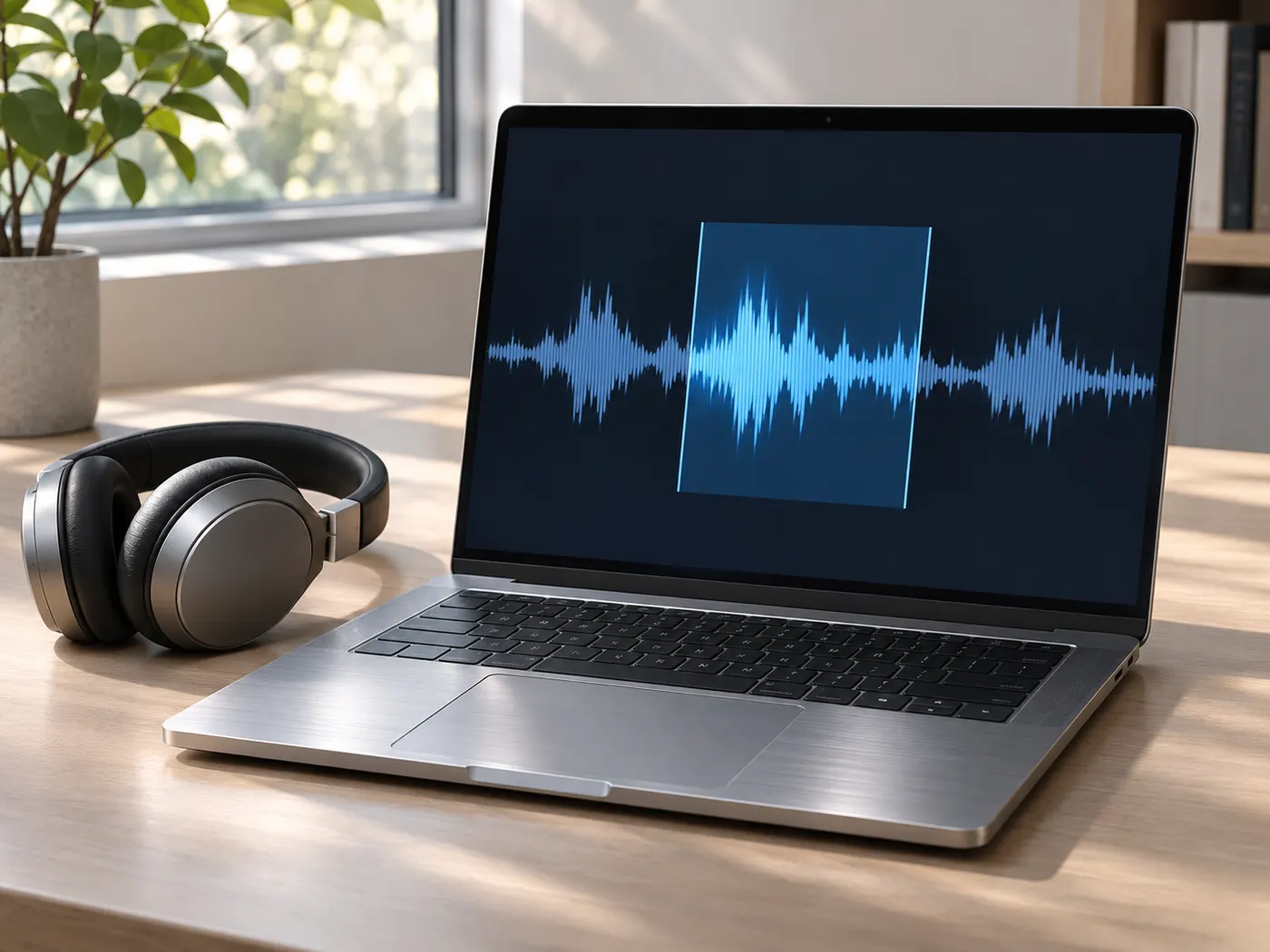
Set the boundaries before processing, then keep the section between them. The tool accepts WAV and M4A as well as MP3, and it exports the selected audio as MP3. A cut from mp3 keeps the workflow focused on one file, one range, and one download.
See the Exact Audio Section You Keep
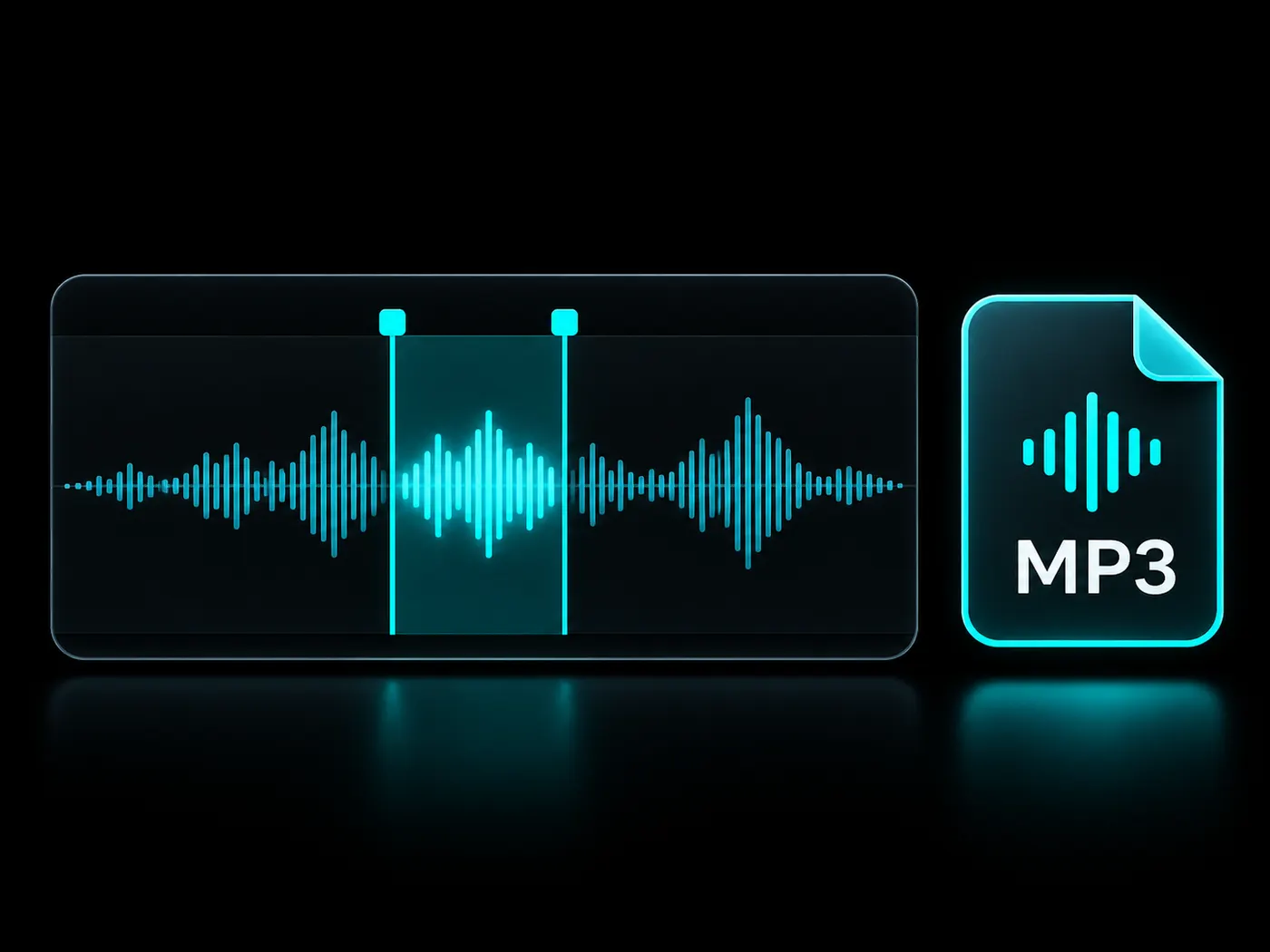
Preview the range so cut from mp3 keeps the exact portion between your chosen start and end times.
How to Cut One Audio Section
01
Choose a File
Choose one MP3, WAV, or M4A file from your device to begin.
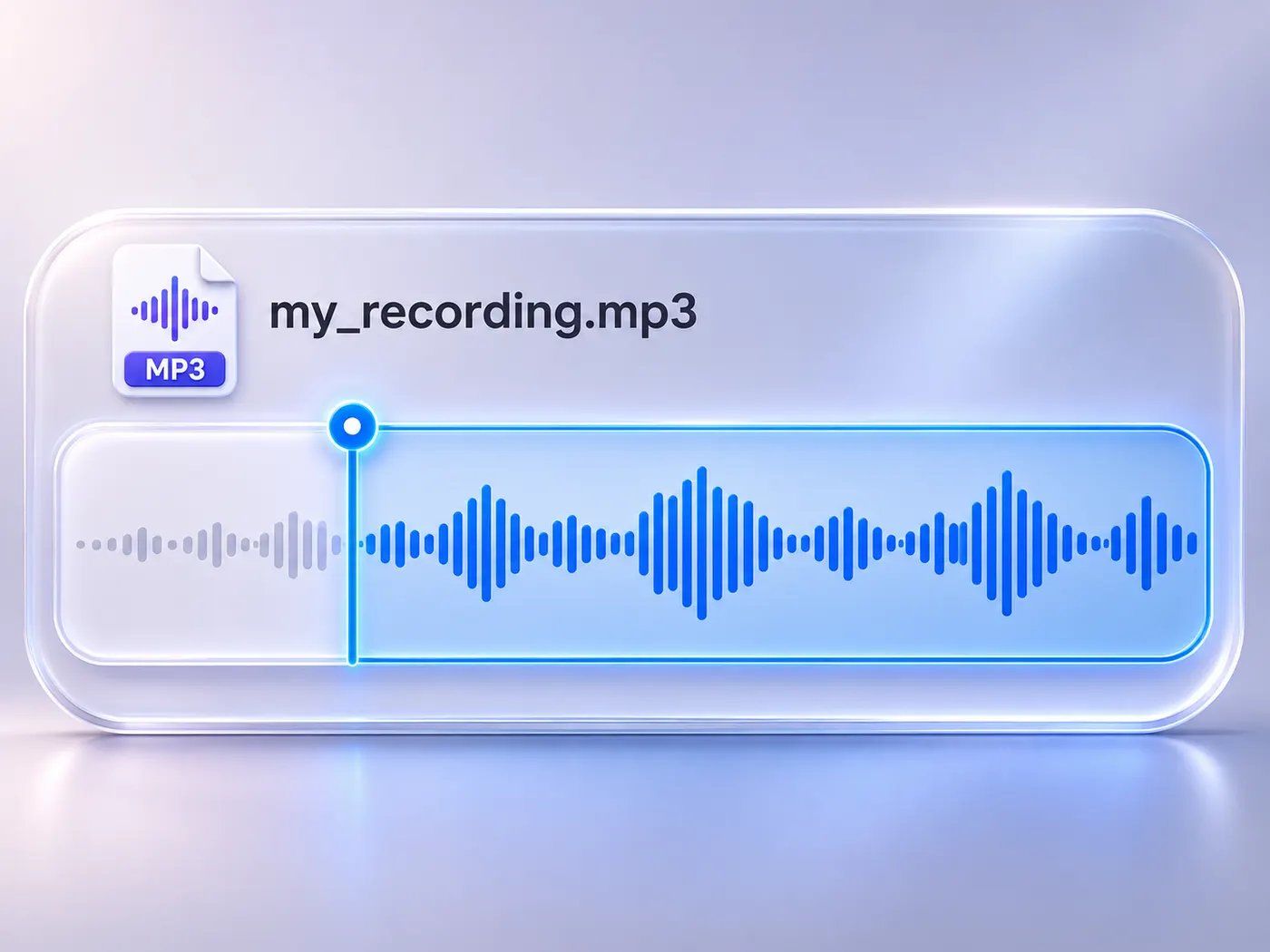
02
Set the Start
To cut mp3 online, set the start time for the section; a cut from mp3 begins at this point.
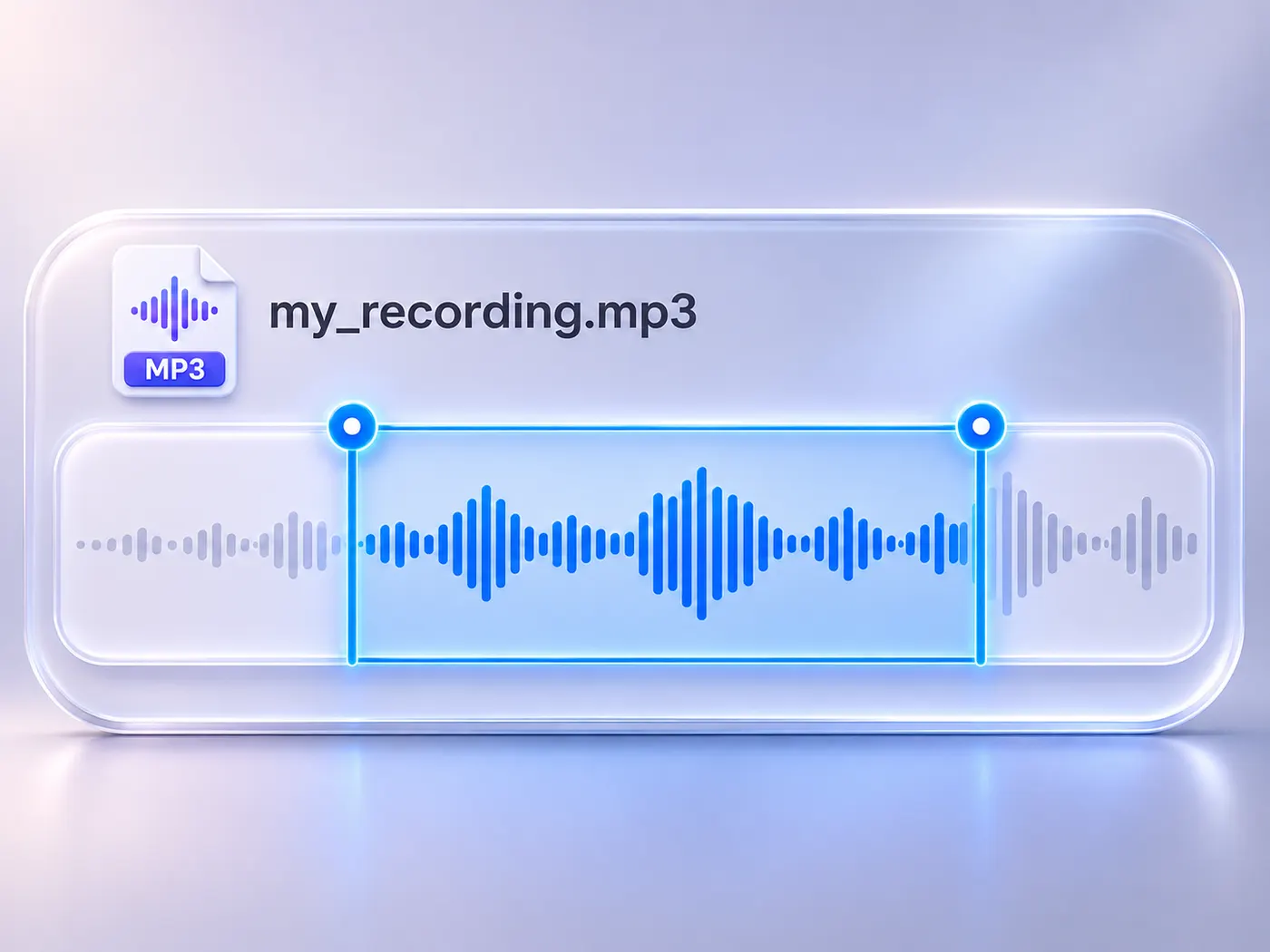
03
Set the End
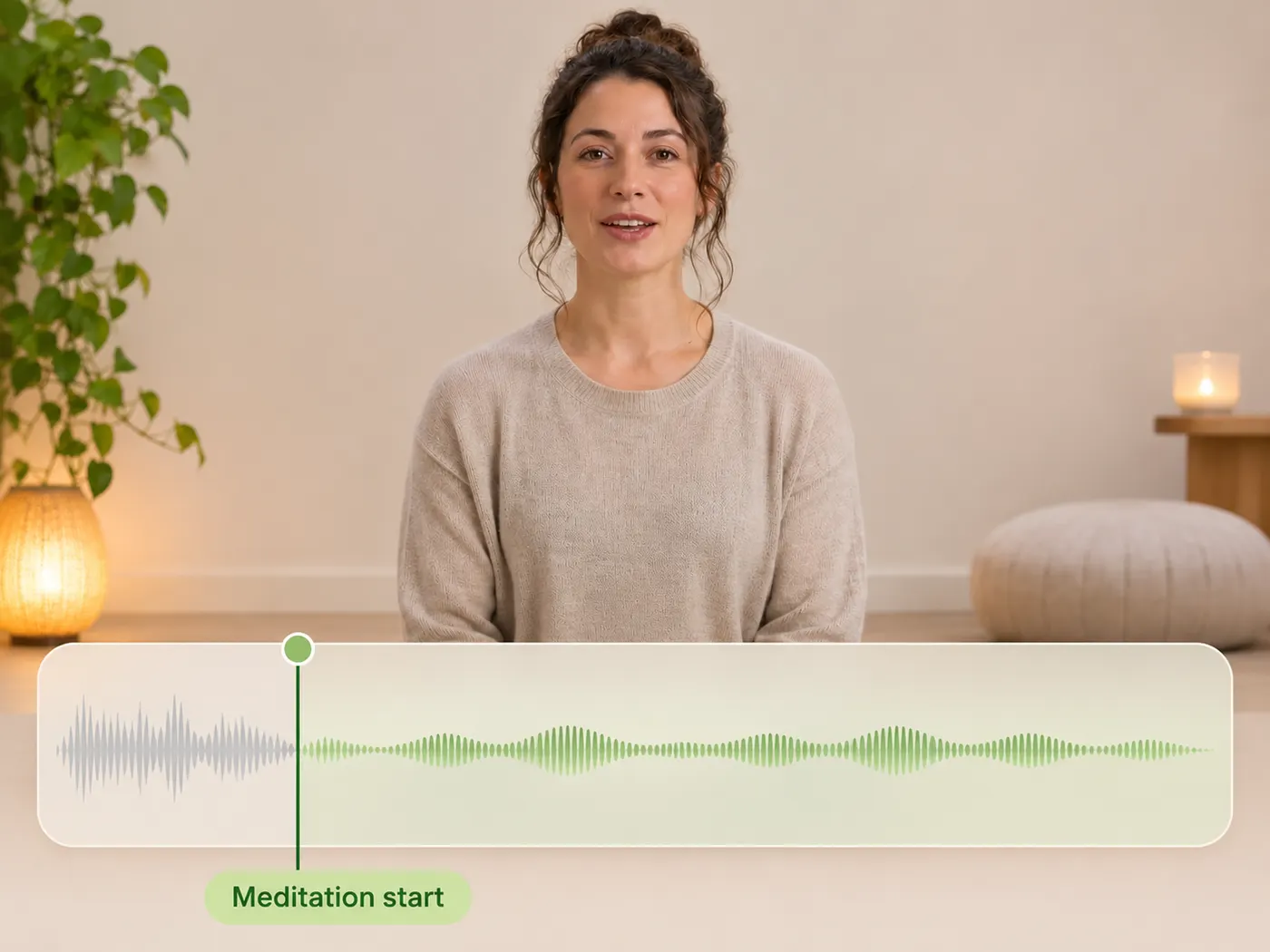
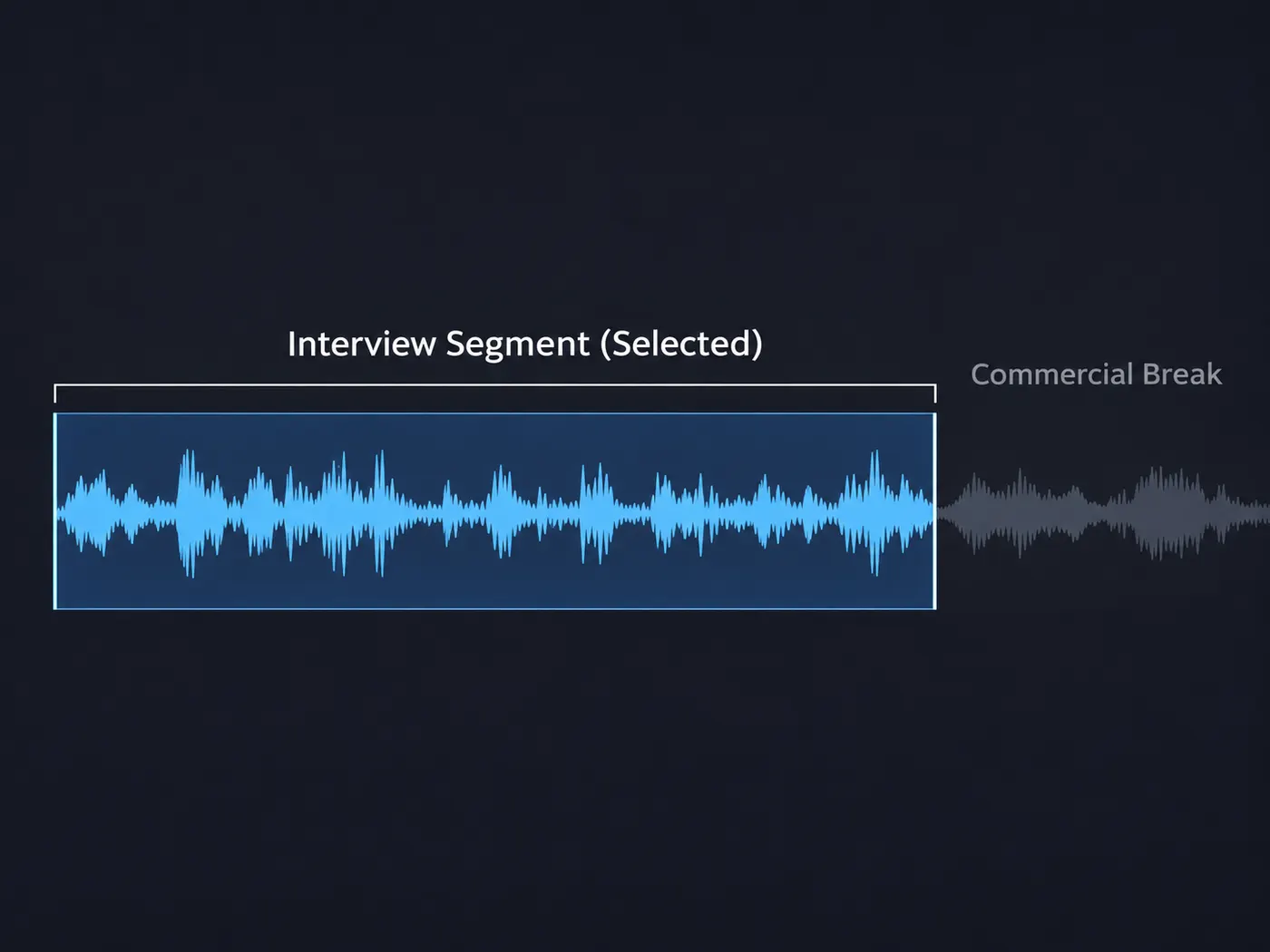
Set the end time, then check that the selected range contains only the clip you want.
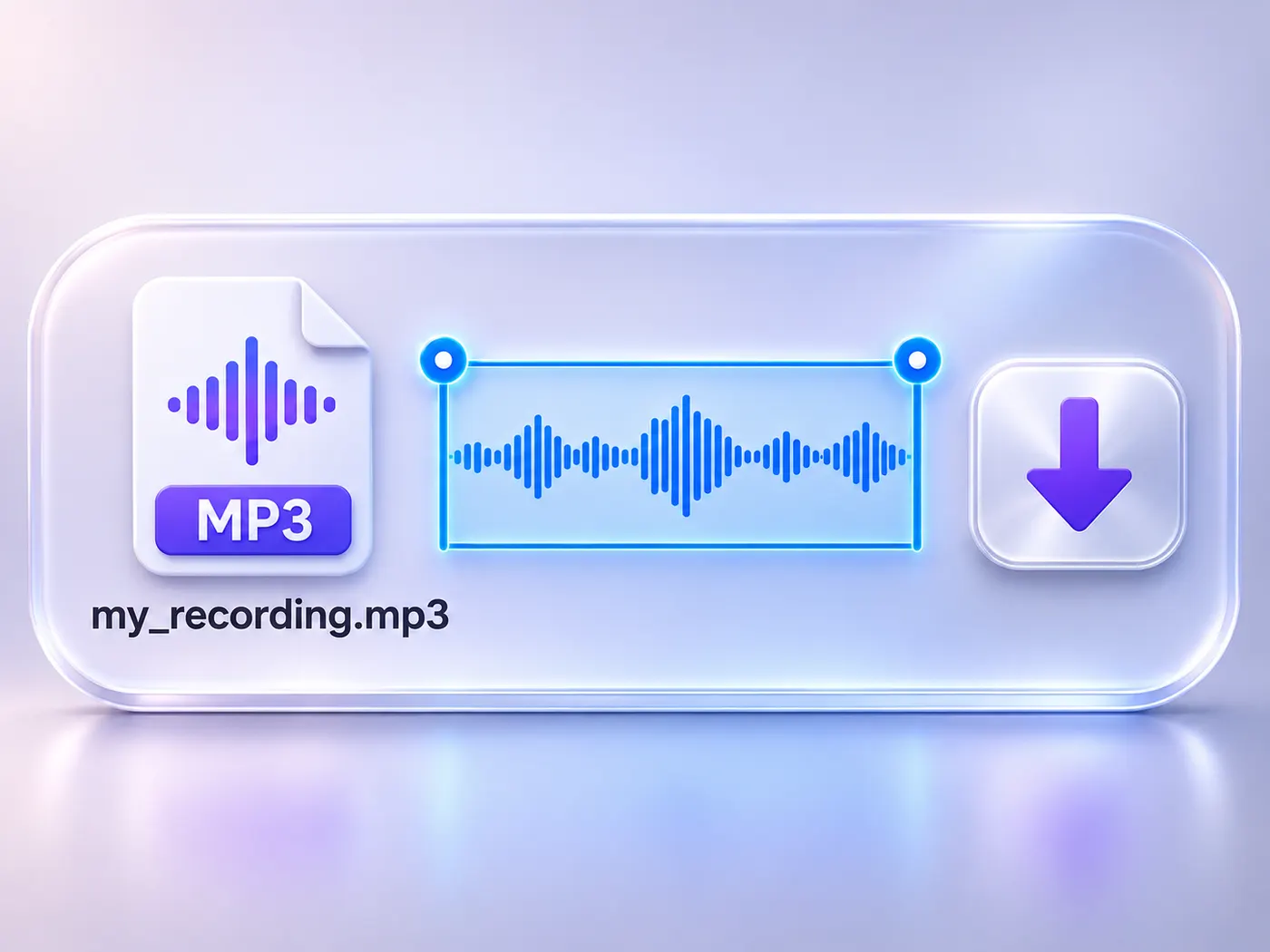
04
Download the Result
After you confirm the range, cut from mp3 finishes in the browser and offers the MP3 download.
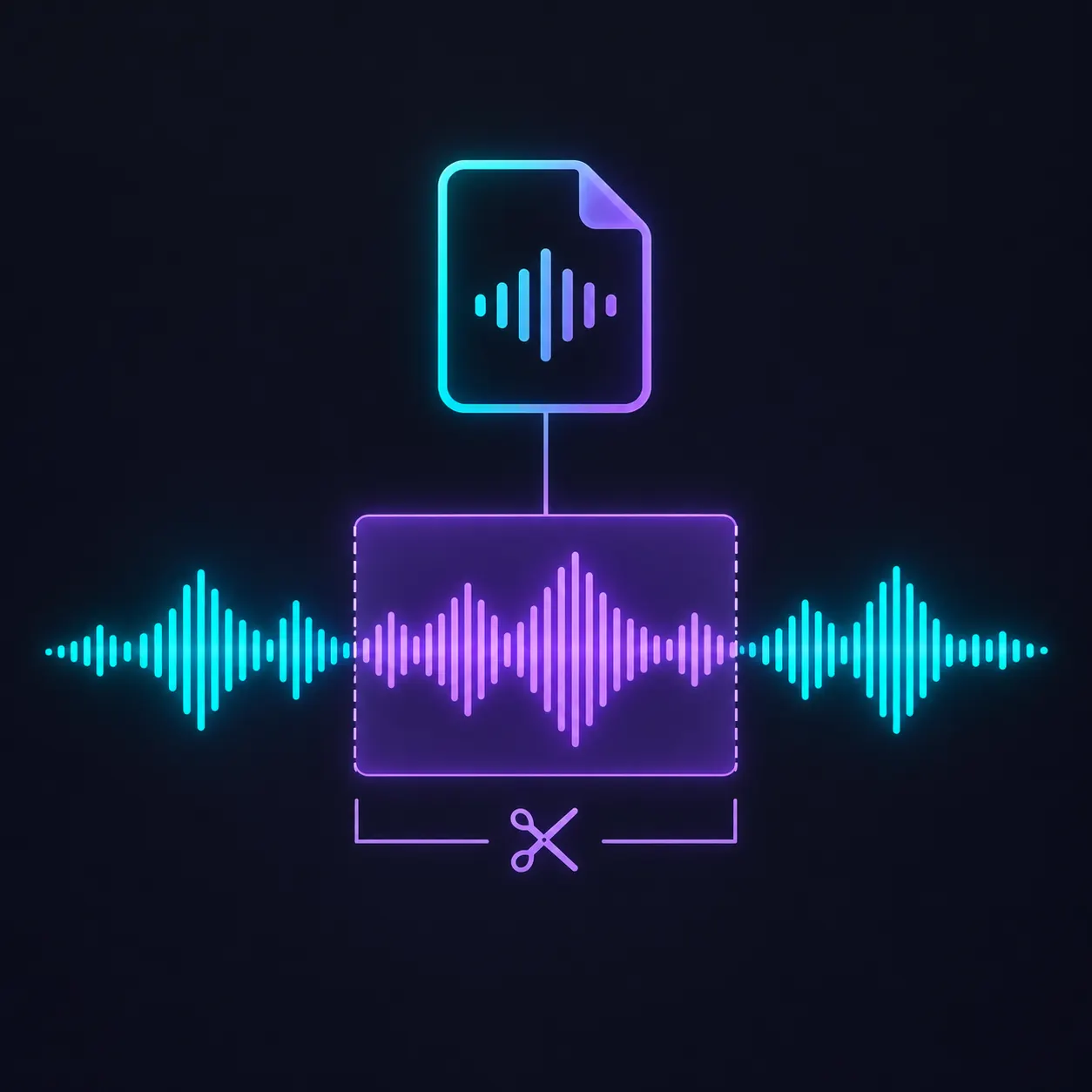
One File at a Time
Select a single supported audio file and focus on one continuous section.
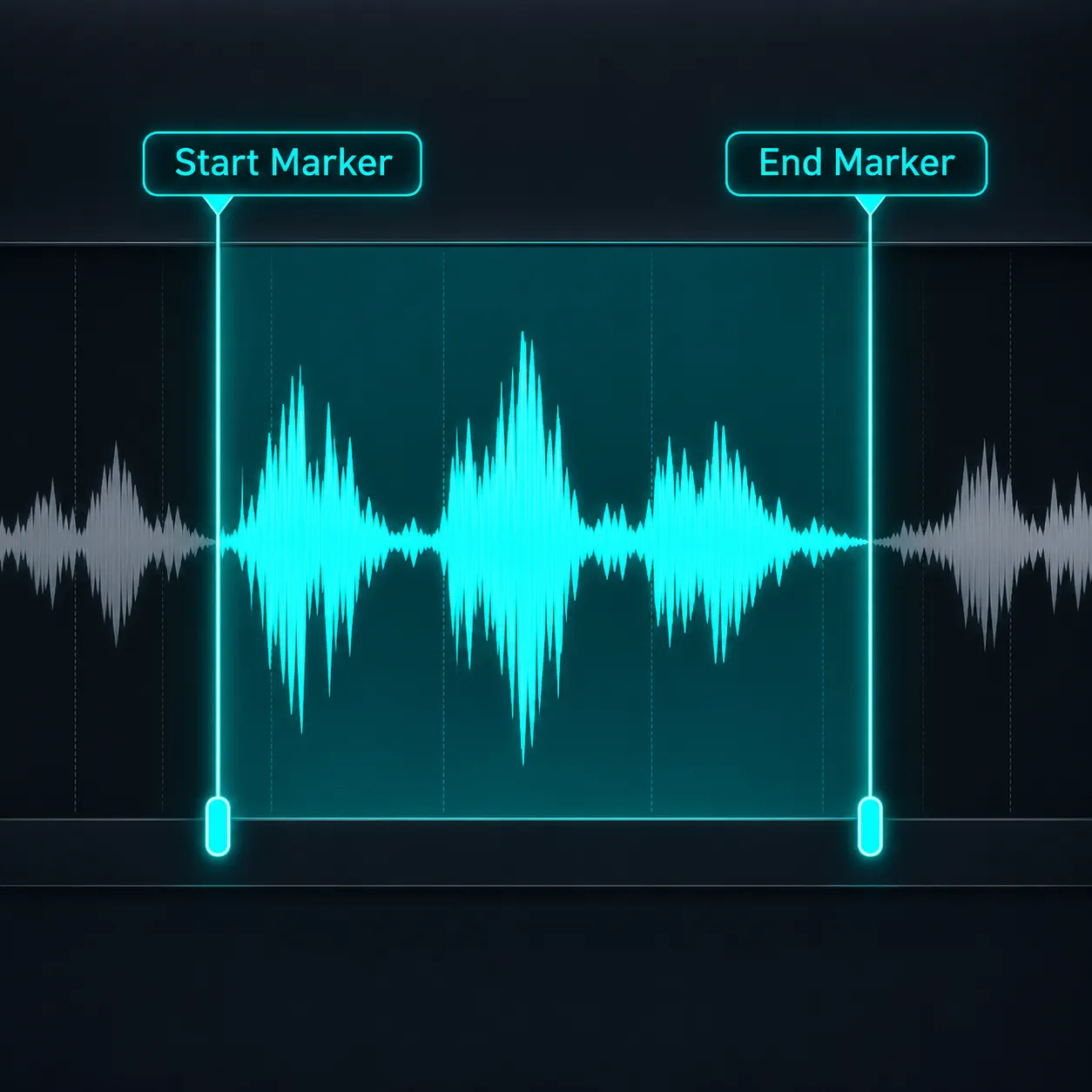
Exact Time Boundaries
Choose where the kept audio starts and where it ends before processing.

Browser-Based Privacy
Your source audio stays in the browser workflow instead of being uploaded.
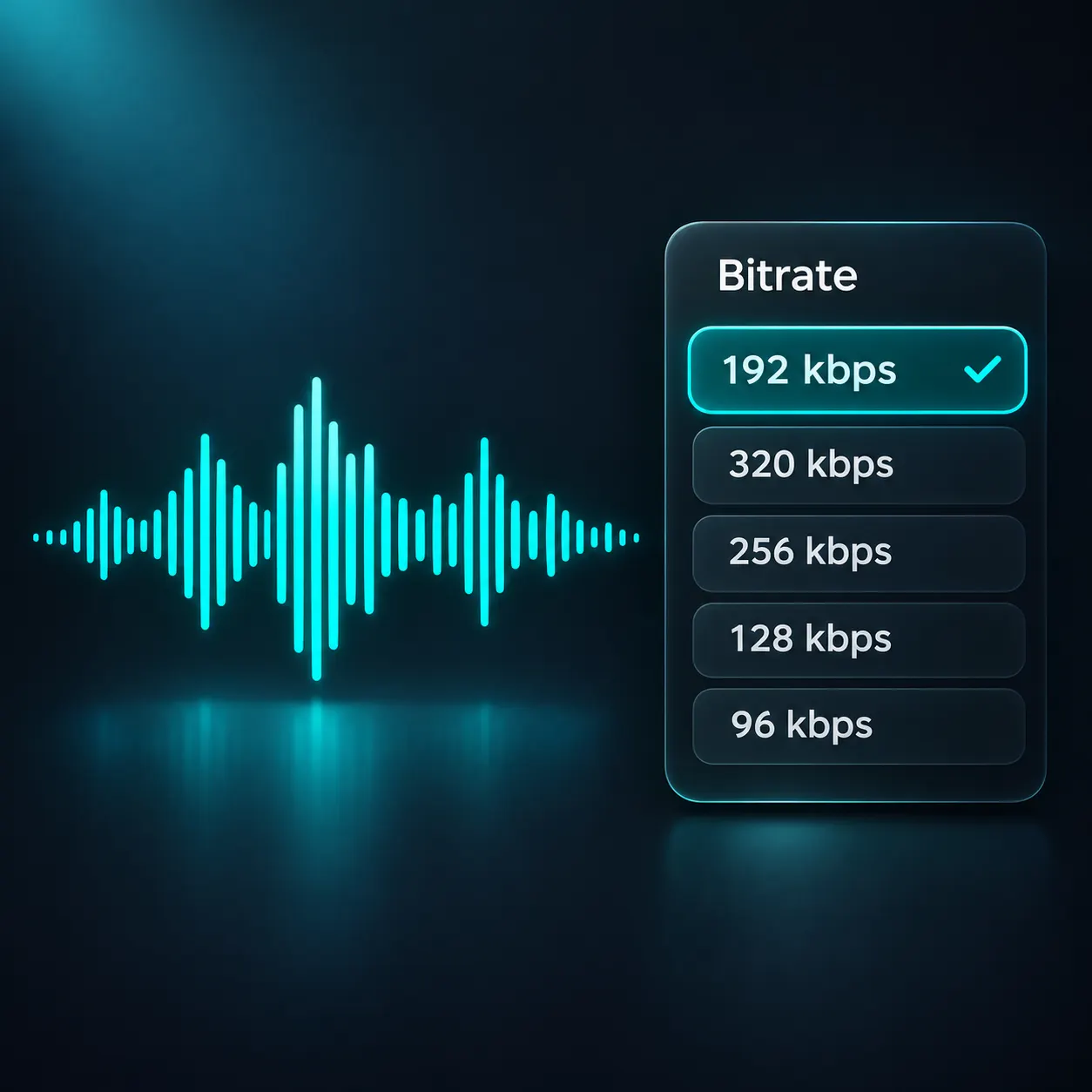
Flexible Bitrate
Keep the default 192 kbps setting or choose another available bitrate.
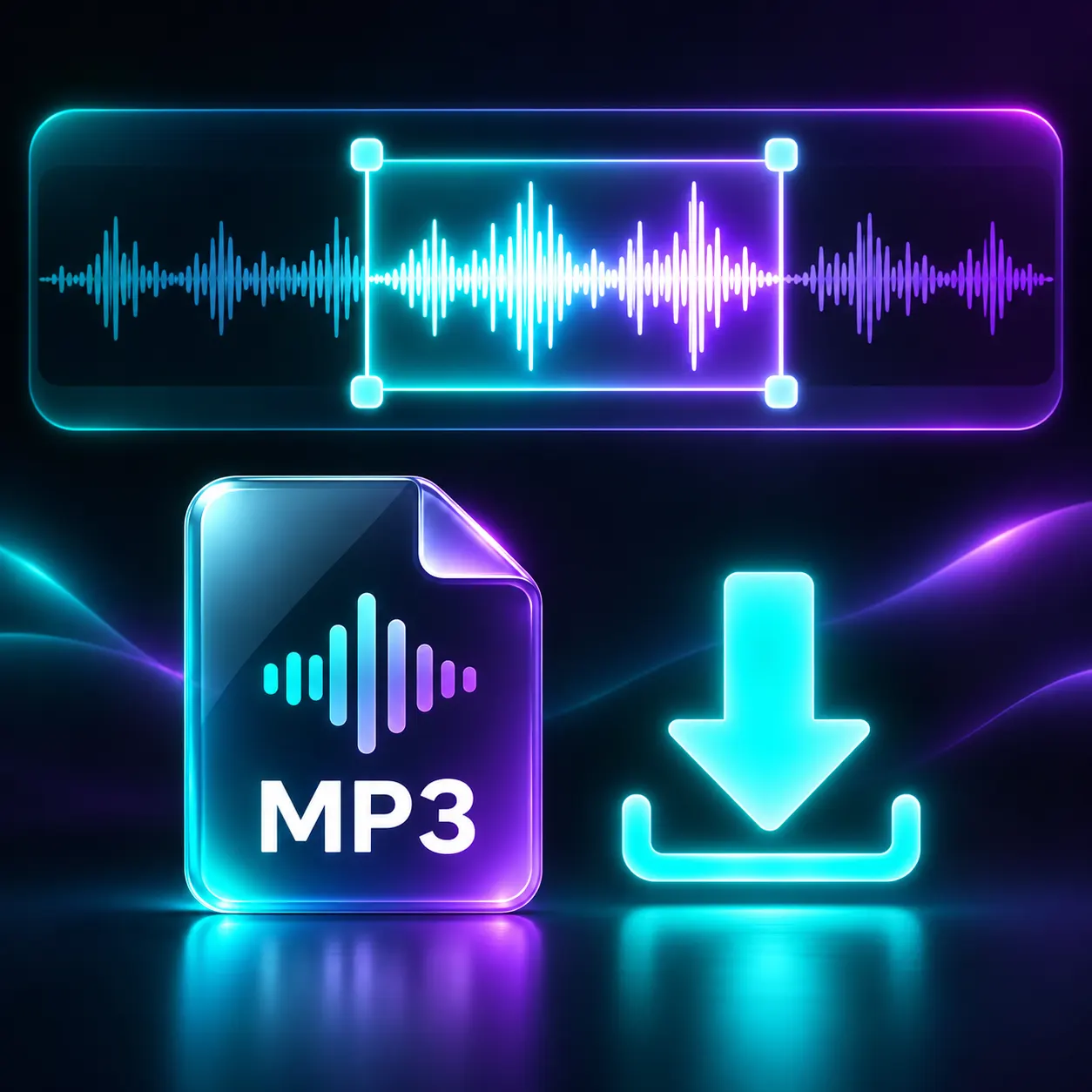
MP3 Download
Receive the selected audio as an MP3 after browser processing completes.
Simple Controls for Clear Output
The cut from mp3 workflow stays focused: choose a file, set two times, select bitrate, and download.
Keep the Right Clip
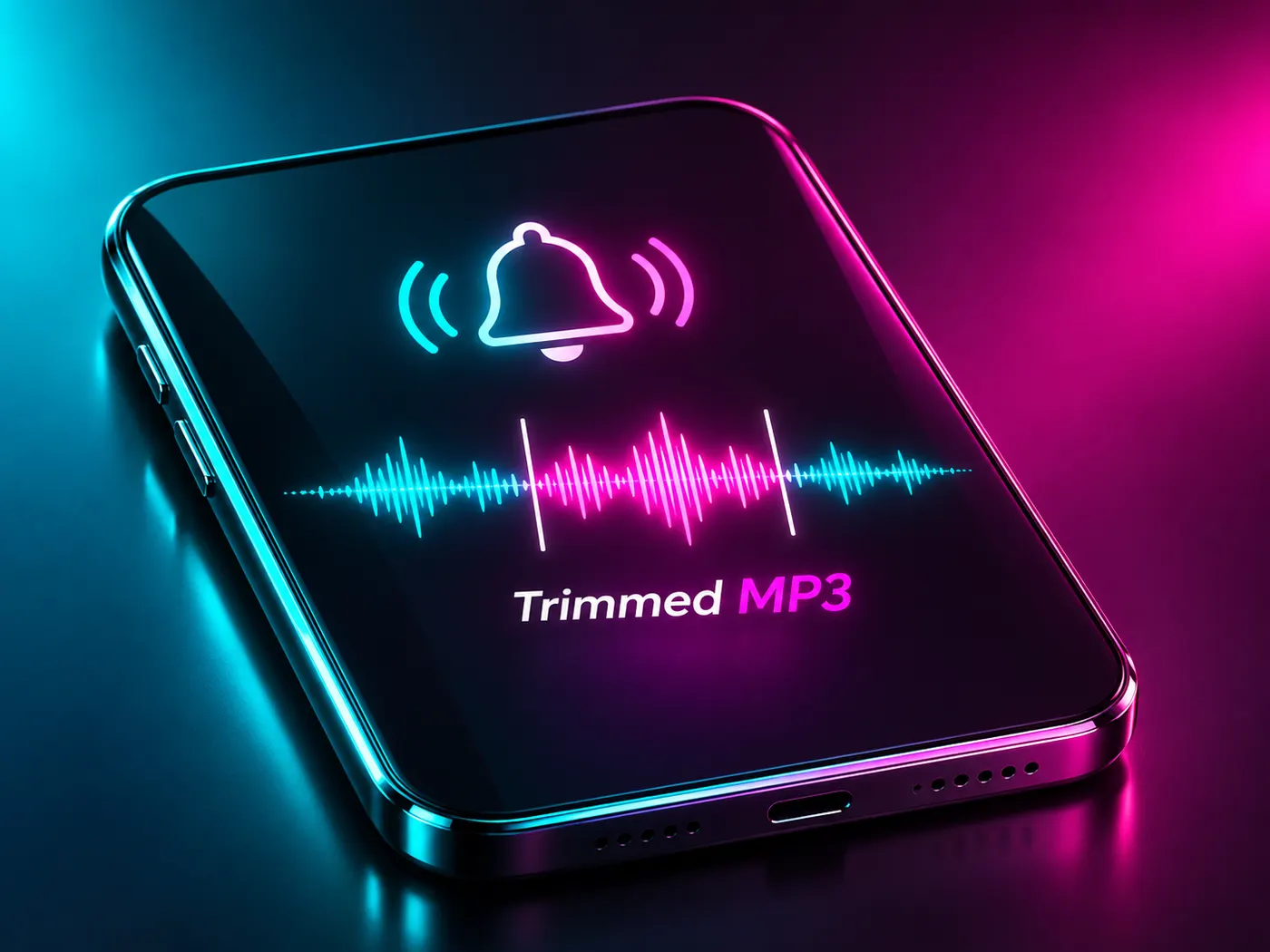
Ringtones
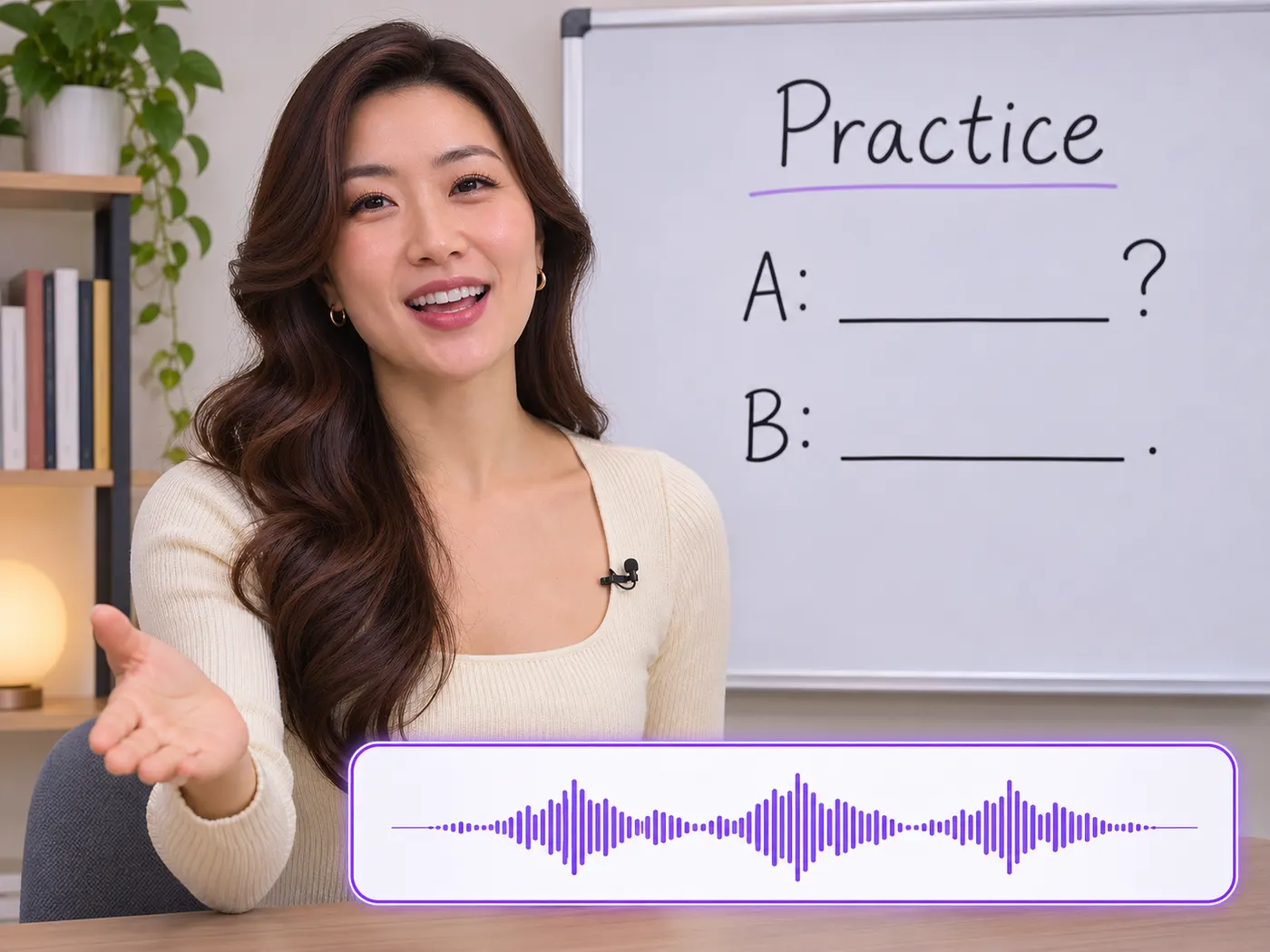
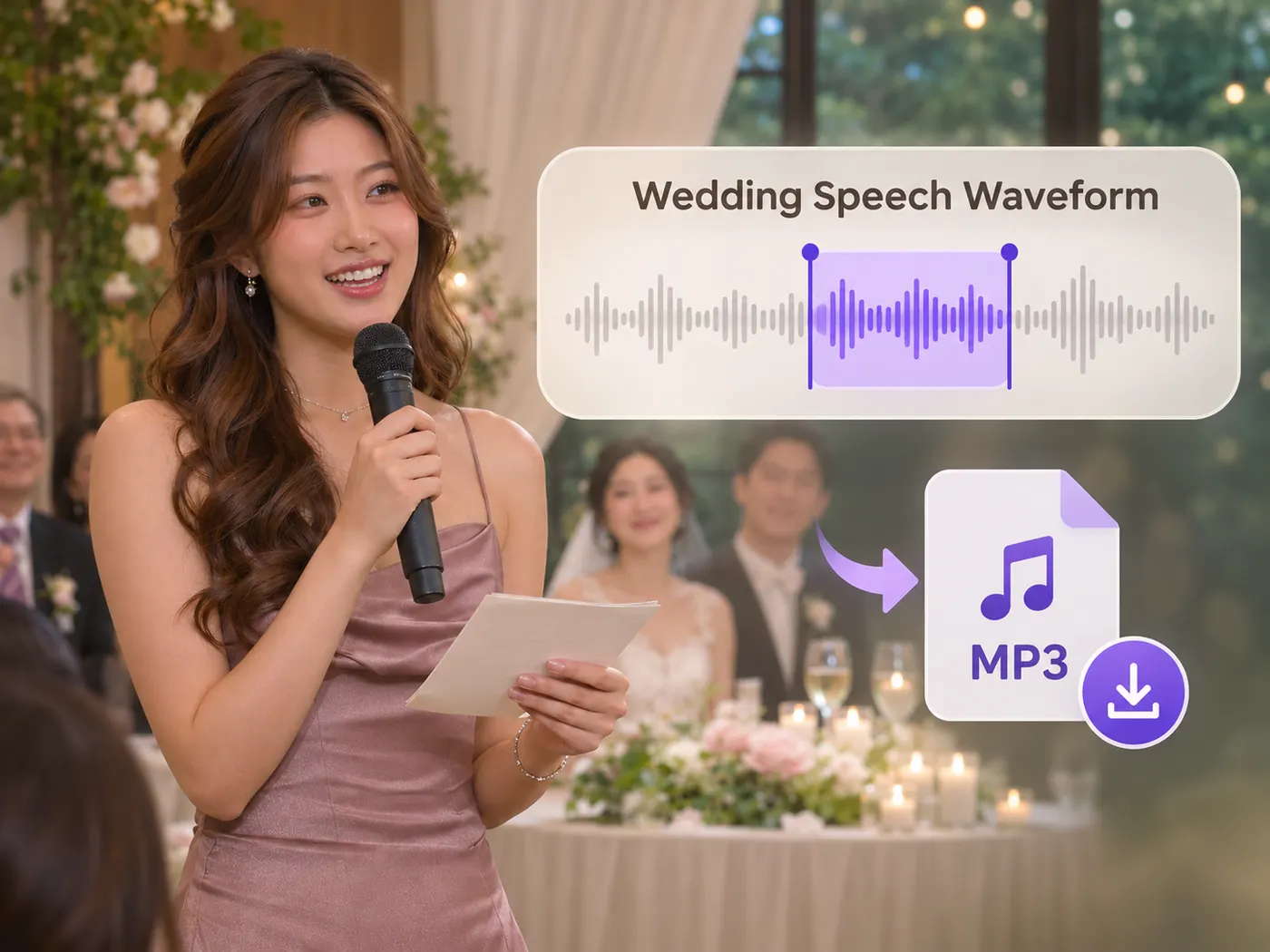
Keep a short ringtone: trim mp3 to the chorus or alert section, then download it as MP3.
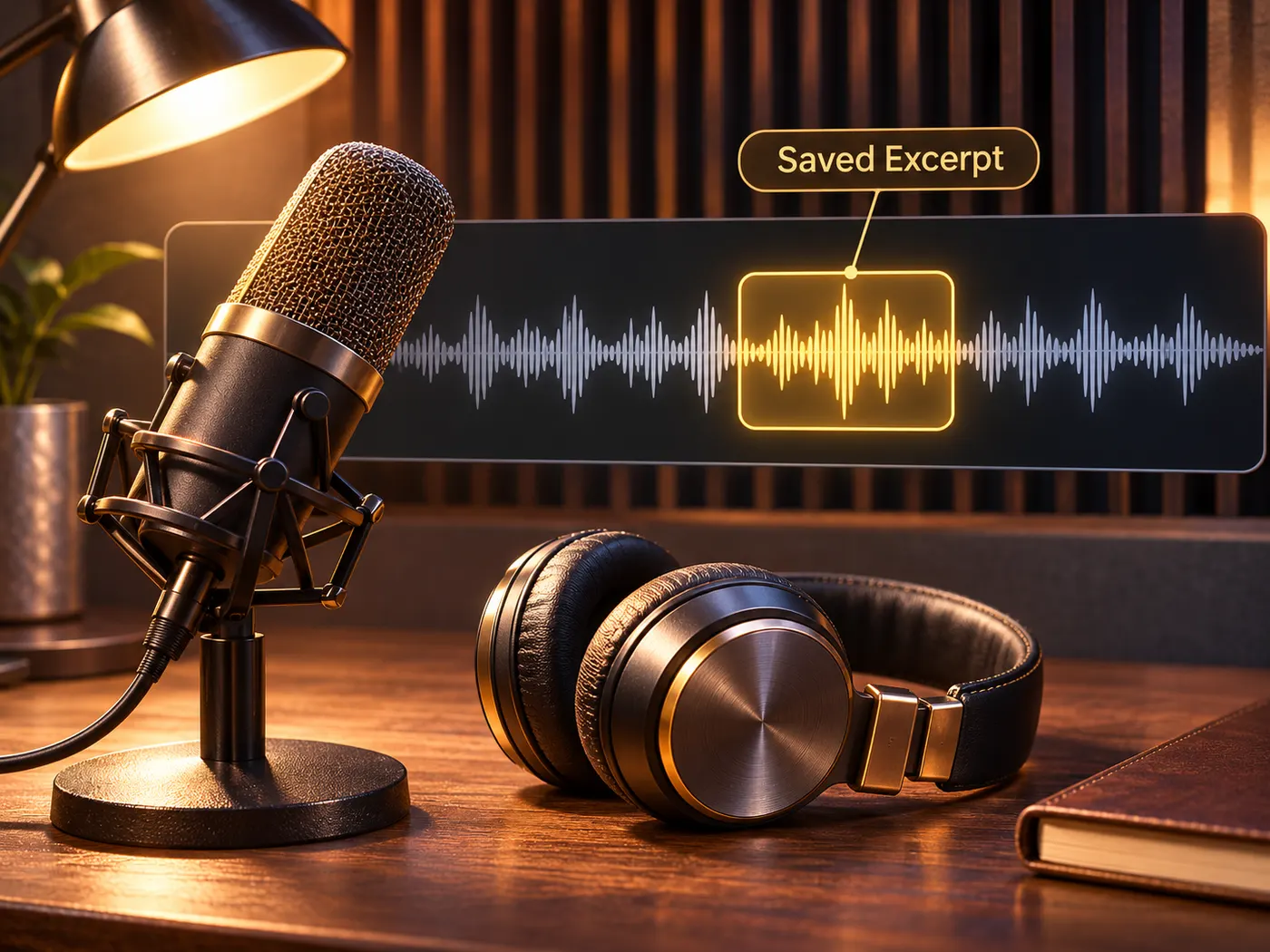
Podcast Excerpts
Cut from mp3 is useful for saving one focused answer or memorable passage from a longer episode.
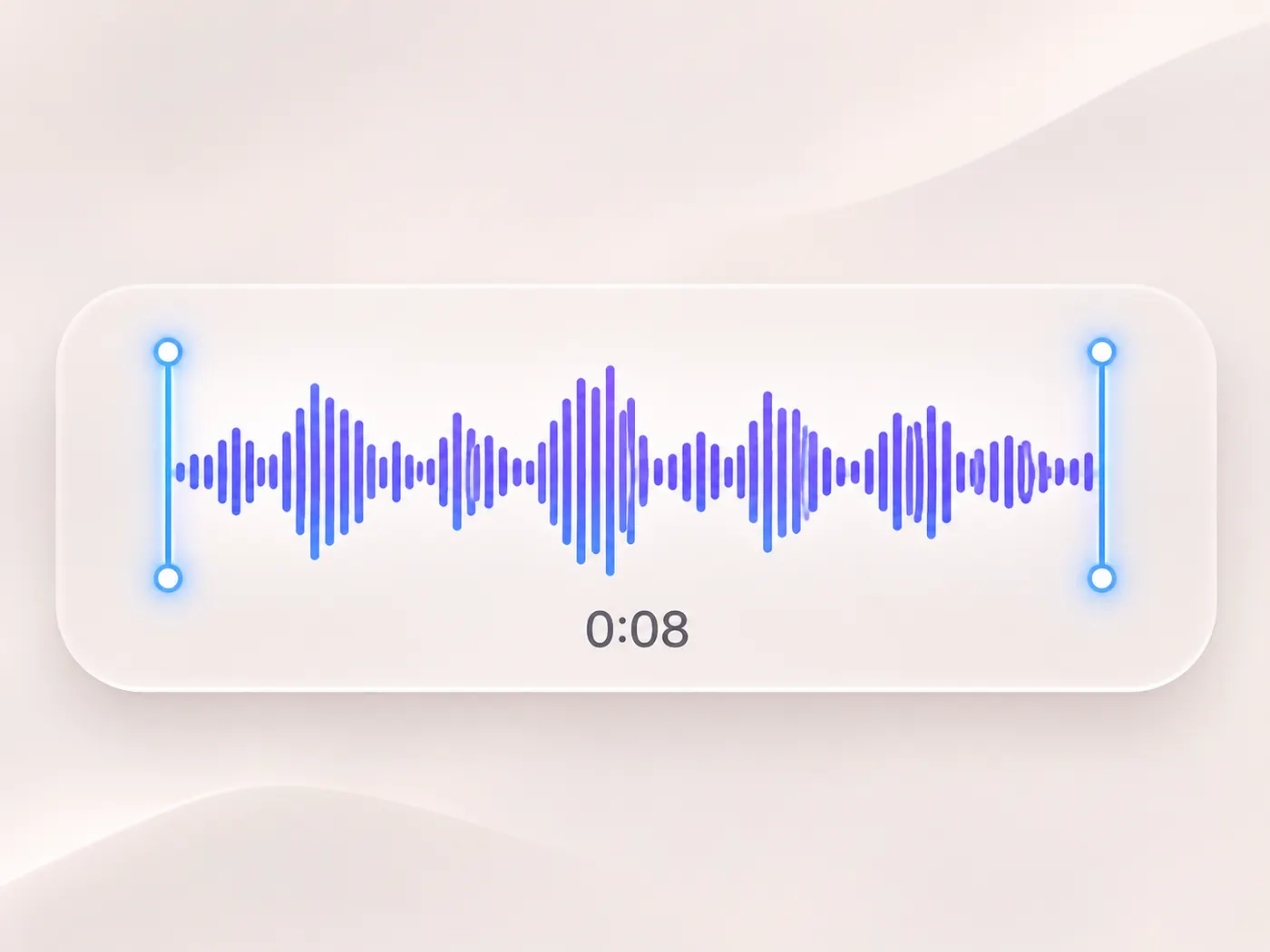
Voice Notes
Remove unwanted lead-in or silence from a voice note by choosing precise start and end times.

Song Intros
A cut from mp3 can keep a song intro or short clip without installing an editor.
Questions About Audio Cutting
What audio files can I use?
You can choose one MP3, WAV, or M4A file. The tool reads it in your browser, lets you set the start and end times, and exports the kept range as an MP3. A cut from mp3 needs no account or installed editor, and the source file is not uploaded during processing.
Is my audio uploaded to a server?
Yes. cut from mp3 is processed in your browser, and the tool states that nothing is uploaded. Your audio stays in the local workflow while you select its range. After processing, download the resulting MP3; the privacy line covers MP3, WAV, and M4A input.
Can I choose precise start and end times?
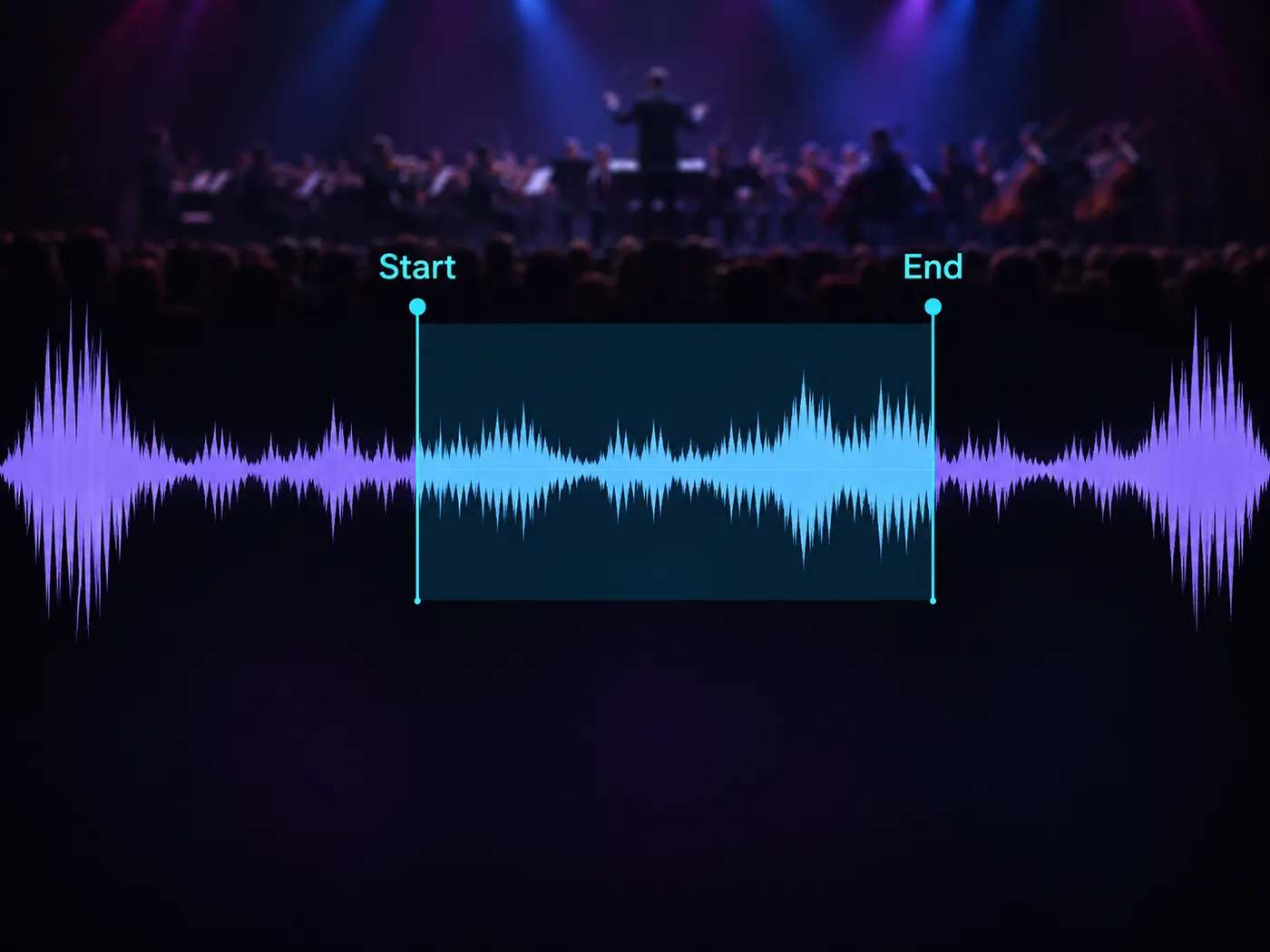
You control the section by setting both the start and end times. For a cut from mp3, place the start at the first sound you want and the end after the last sound you want to keep. The tool then encodes only that selected range as an MP3 download.
Does the result download as MP3?
Yes. A cut from mp3 downloads as MP3 after the selected range is processed. The input may be MP3, WAV, or M4A, but the configured output extension is MP3. You can choose 128, 160, 192, 256, or 320 kbps from the Bitrate menu before processing.
What bitrate is selected by default?
The default bitrate is 192 kbps, and the Bitrate dropdown lets you change it to 128, 160, 256, or 320 kbps. This gives a cut from mp3 a selectable output setting while keeping the workflow focused on one chosen section and one downloaded MP3.
Can I process several files at once?
One file is processed at a time because the input accepts a single MP3, WAV, or M4A file. To make a cut from mp3, finish the current download, choose Cut again, and select another file. The page does not describe batch processing, so use separate runs.
Do I need to install software or create an account?
No installation or sign-up is needed to make a cut from mp3. Open the page, select one supported audio file, set the two time boundaries, choose a bitrate if needed, and use the Cut audio control. Processing and encoding happen in the browser before the MP3 download.
What kind of audio section can this tool create?
It is designed for one continuous selected section: choose a start time, choose an end time, and download the MP3. A cut from mp3 can serve a ringtone, clip, intro, podcast excerpt, or voice note. The provided tool does not claim waveform editing, fades, multi-segment cuts, or batch work.
Free tools, and a plan when you need more
The everyday tools are free and run in your browser. The AI tools and the full editor run on credits — pick a plan when you need them.
- Free
- $0
- Every browser tool
- Starter
- $12/mo
- 120 credits
- Pro
- $29/mo
- 310 credits
Keep Only the Audio You Need
Choose one file, set the range, and download a private browser-made MP3.
Cut audio