Private browser conversion, with no account required
WAV Audio to MP3 Converter
Use this online wav to mp3 tool to turn one WAV recording into a smaller MP3 without installing software or creating an account. Choose 128 to 320 kbps, optionally trim the start and end, and download the result. This free browser conversion lets you use the converter for free while keeping WAV audio to MP3 processing on your device.
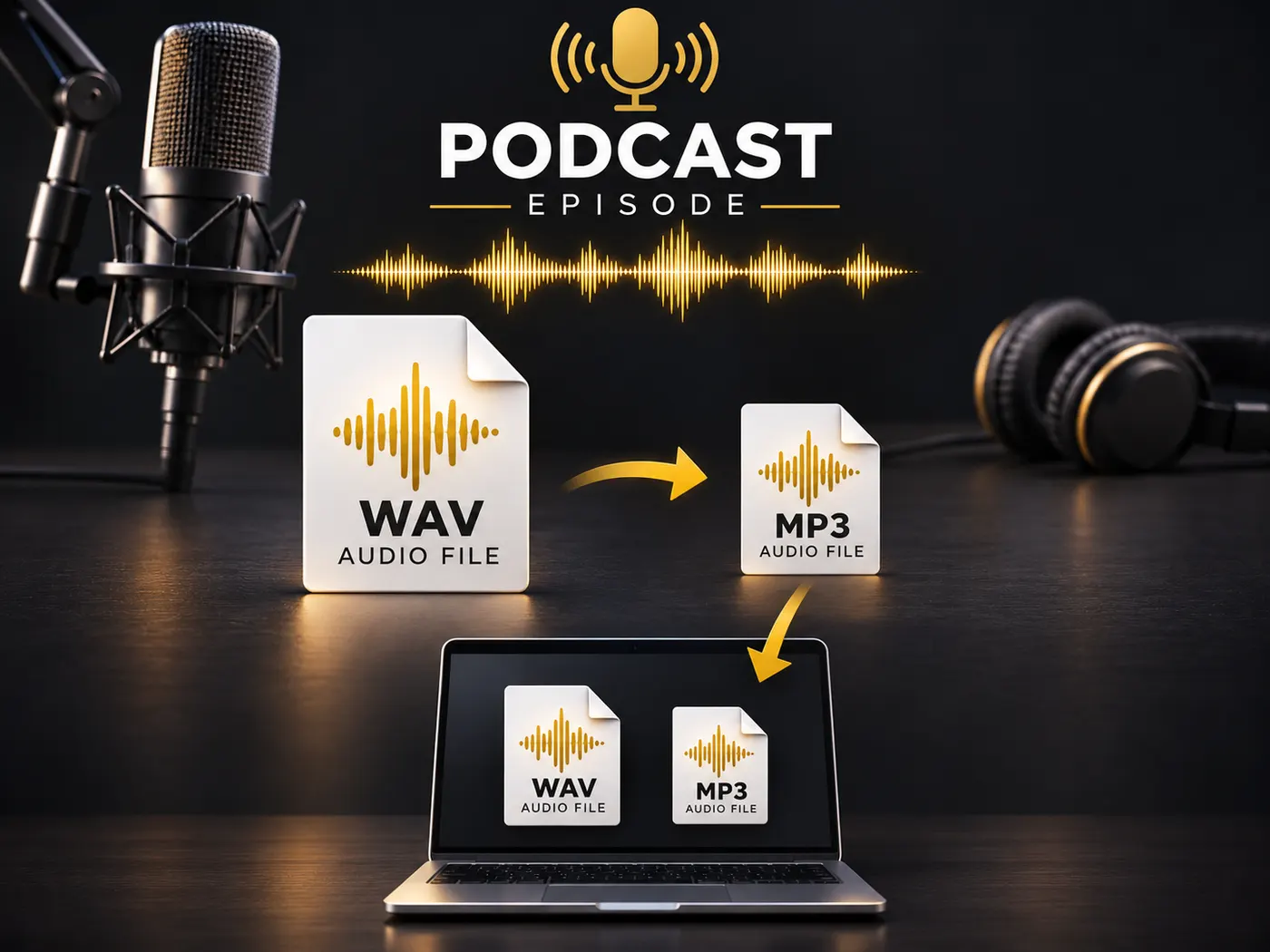
WAV, OGG, FLAC or MP3 · converted in your browser · nothing is uploaded
Keep recordings on your device
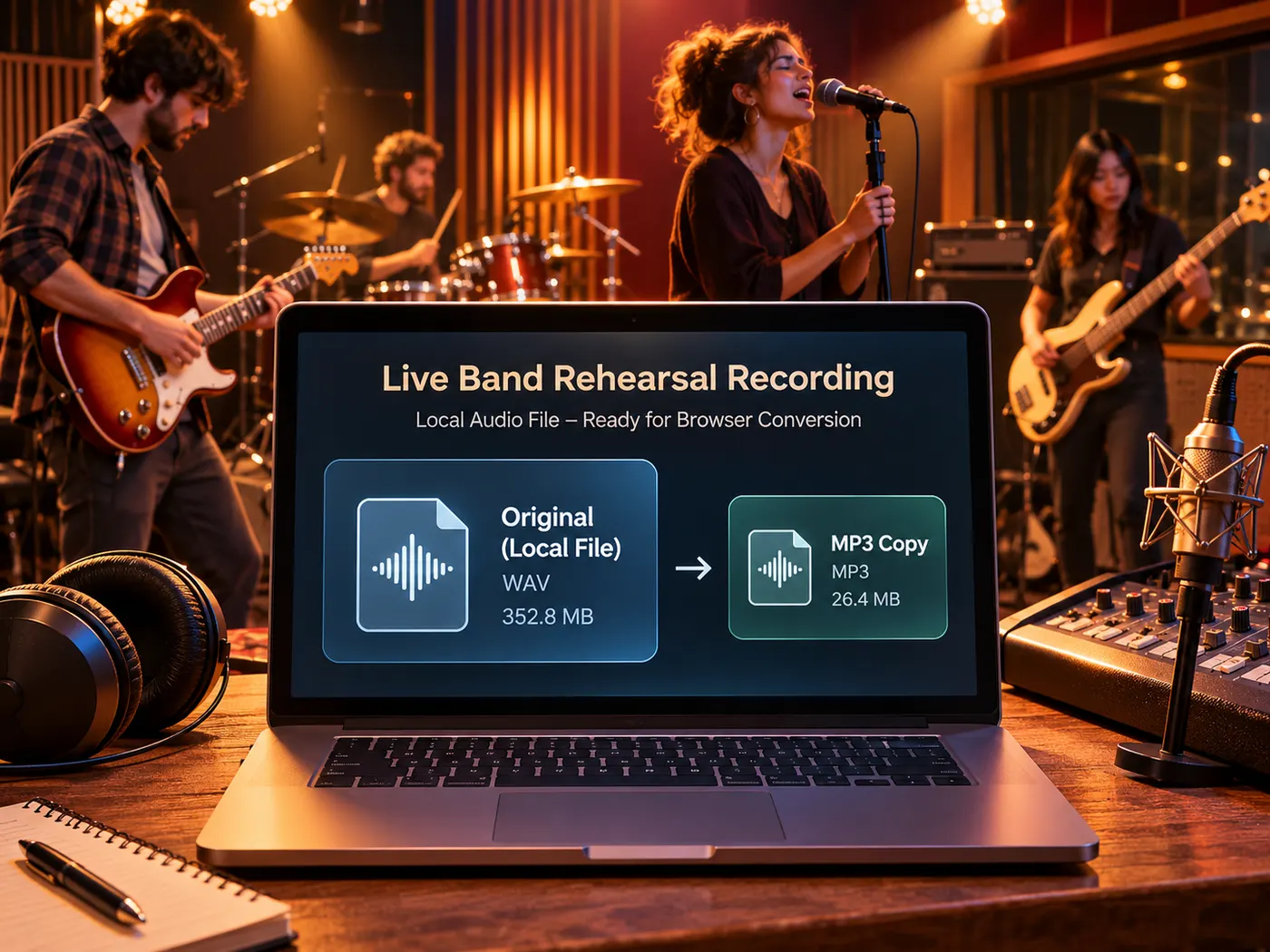
For this converter conversion, drop one supported file into the browser tool. After WAV audio to MP3 finishes, the page offers a local download instead of sending your recording to a server. This is a simple way to convert wav to mp3 while keeping the file private. The workflow suits a studio take, voice memo, or sample that needs a smaller copy for sharing.
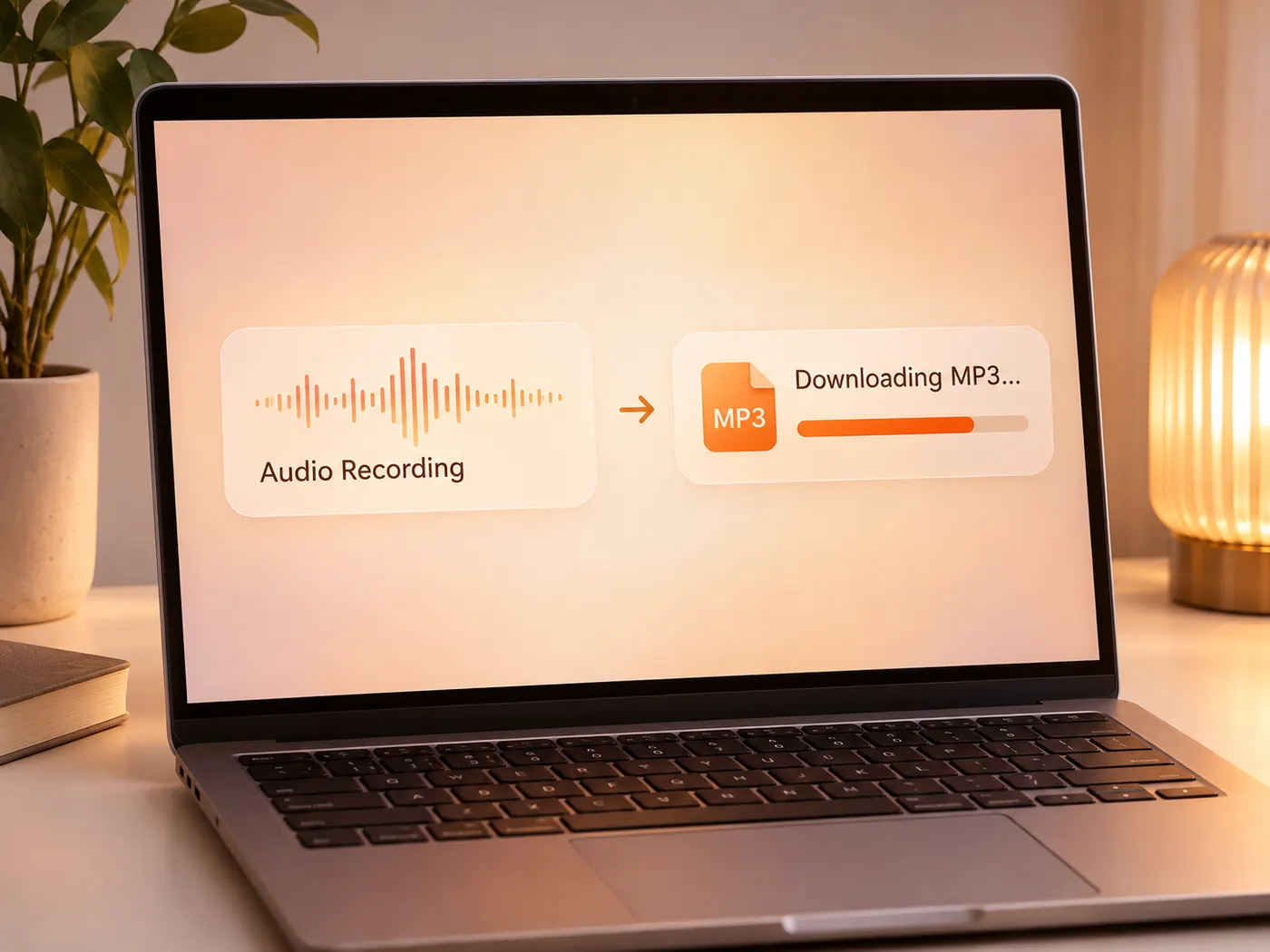
Shrink large uncompressed files
A WAV file is uncompressed, so it can be much larger than an MP3 made from the same recording. Use this WAV audio to MP3 workflow when you need a smaller copy for email, storage, or a service that accepts MP3. Conversion requires no account or desktop software.
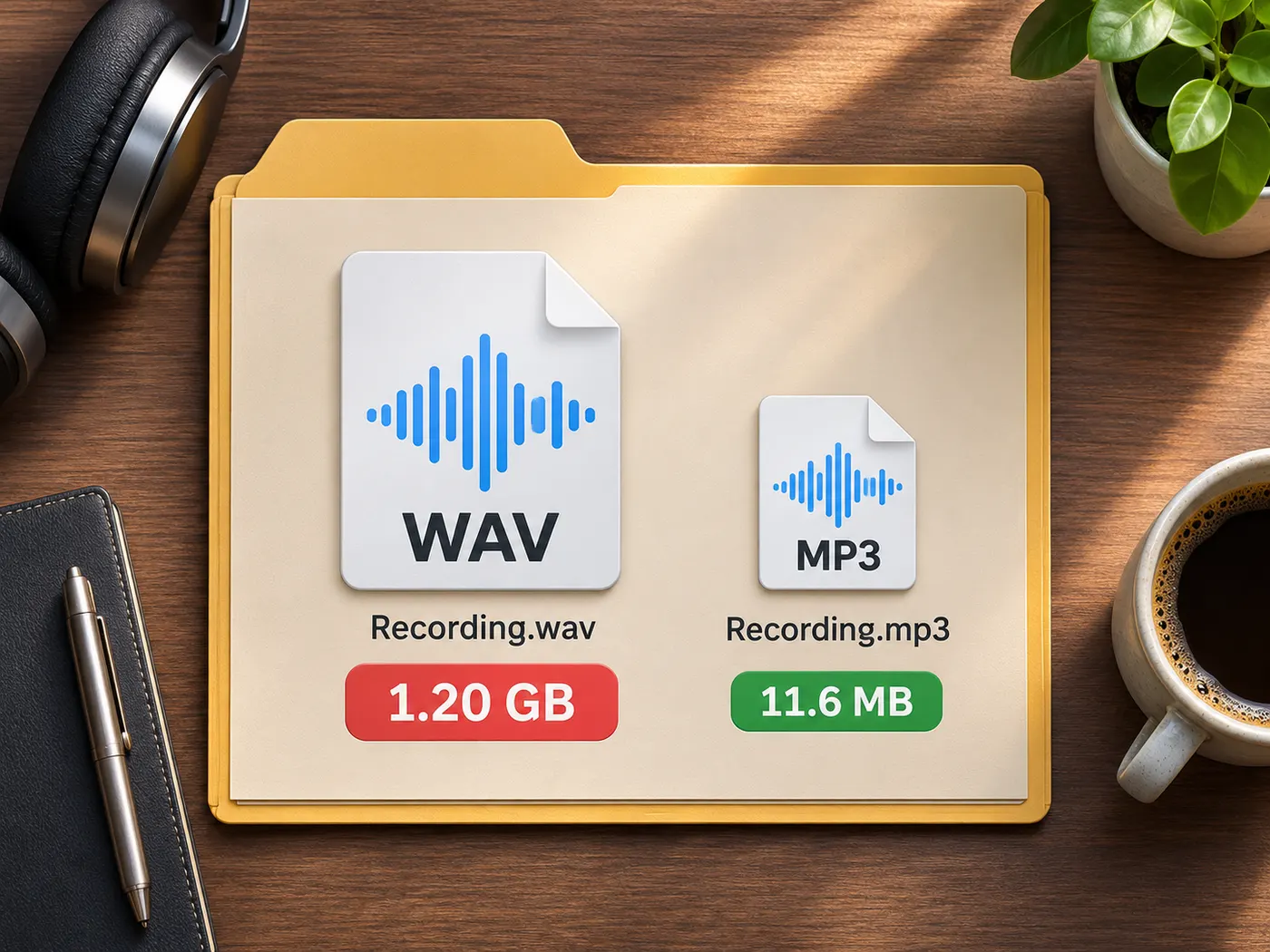
Choose quality before export
Select 128, 160, 192, 256, or 320 kbps in the Bitrate menu before converting. Lower settings create a smaller file; higher settings retain more encoded detail. An optional trim range removes silence or exports only part of a longer recording. That makes WAV audio to MP3 practical for focused clips as well as complete takes.
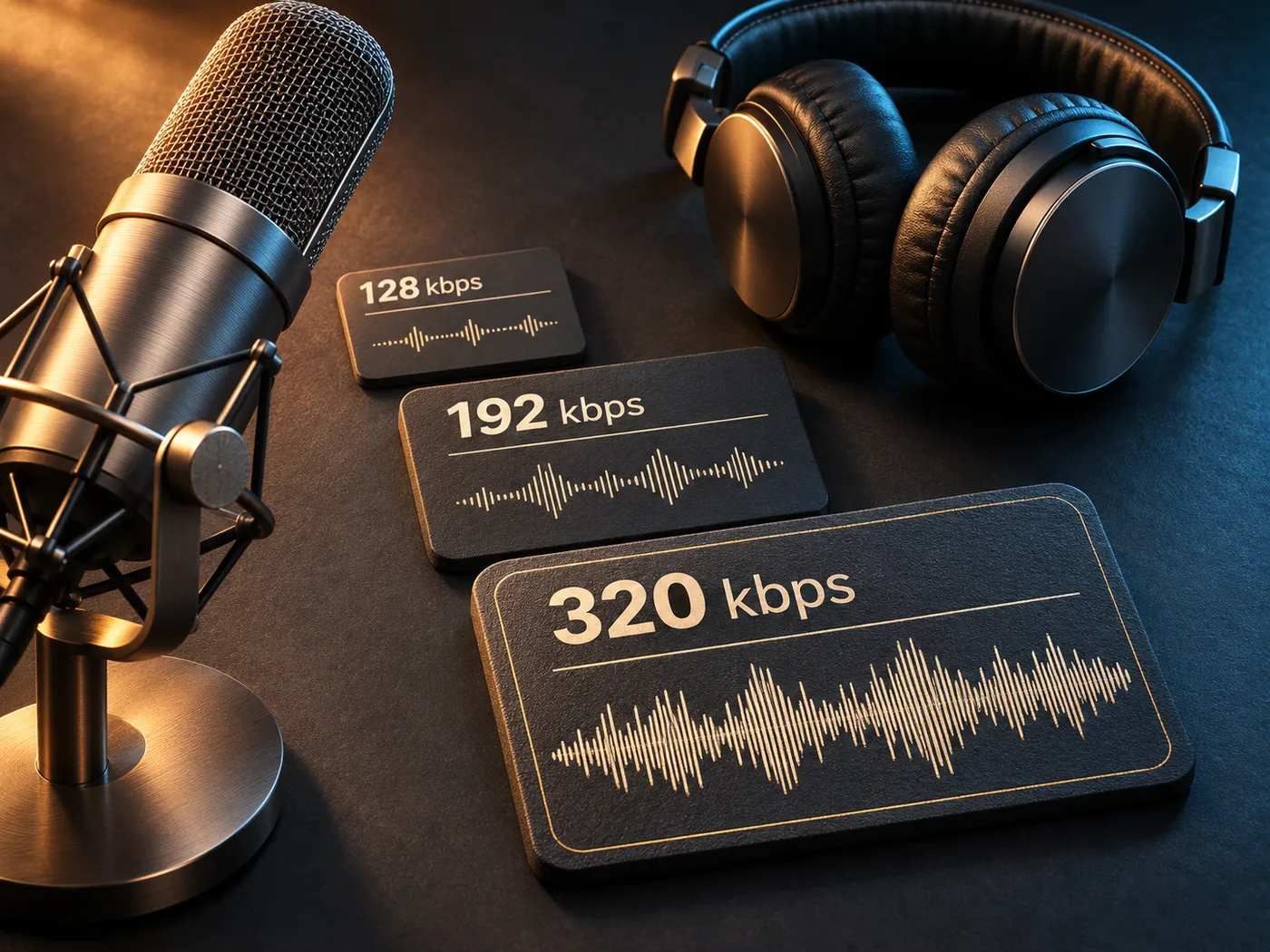
See what stays on your device during conversion
See the whole flow in one place: WAV audio to MP3 processing, bitrate selection, optional trimming, and a local download.
Convert an audio file in four steps
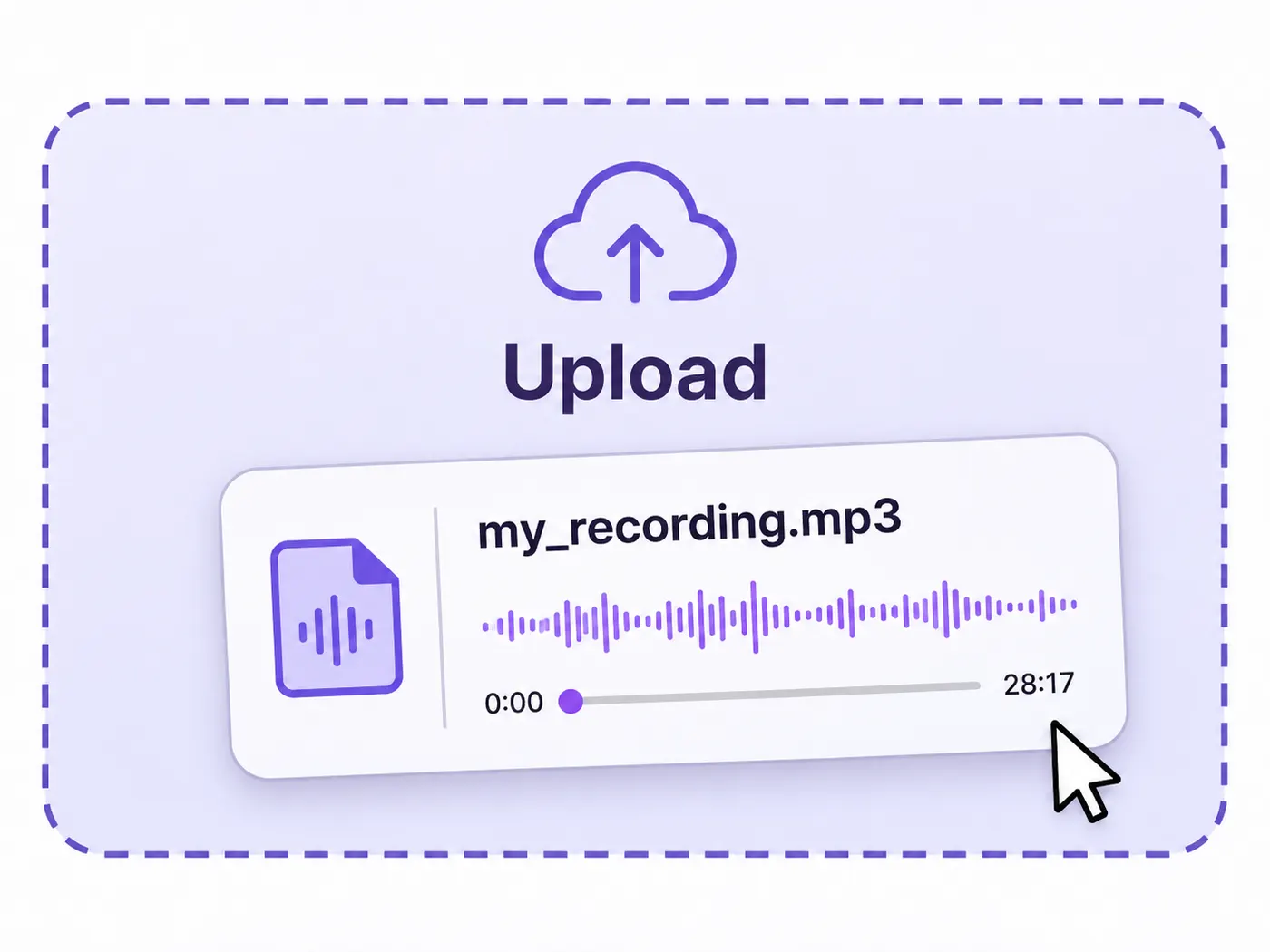
01
Add your audio file
Start your WAV audio to MP3 job by dropping one WAV, OGG, FLAC, or MP3 file into the audio file area.
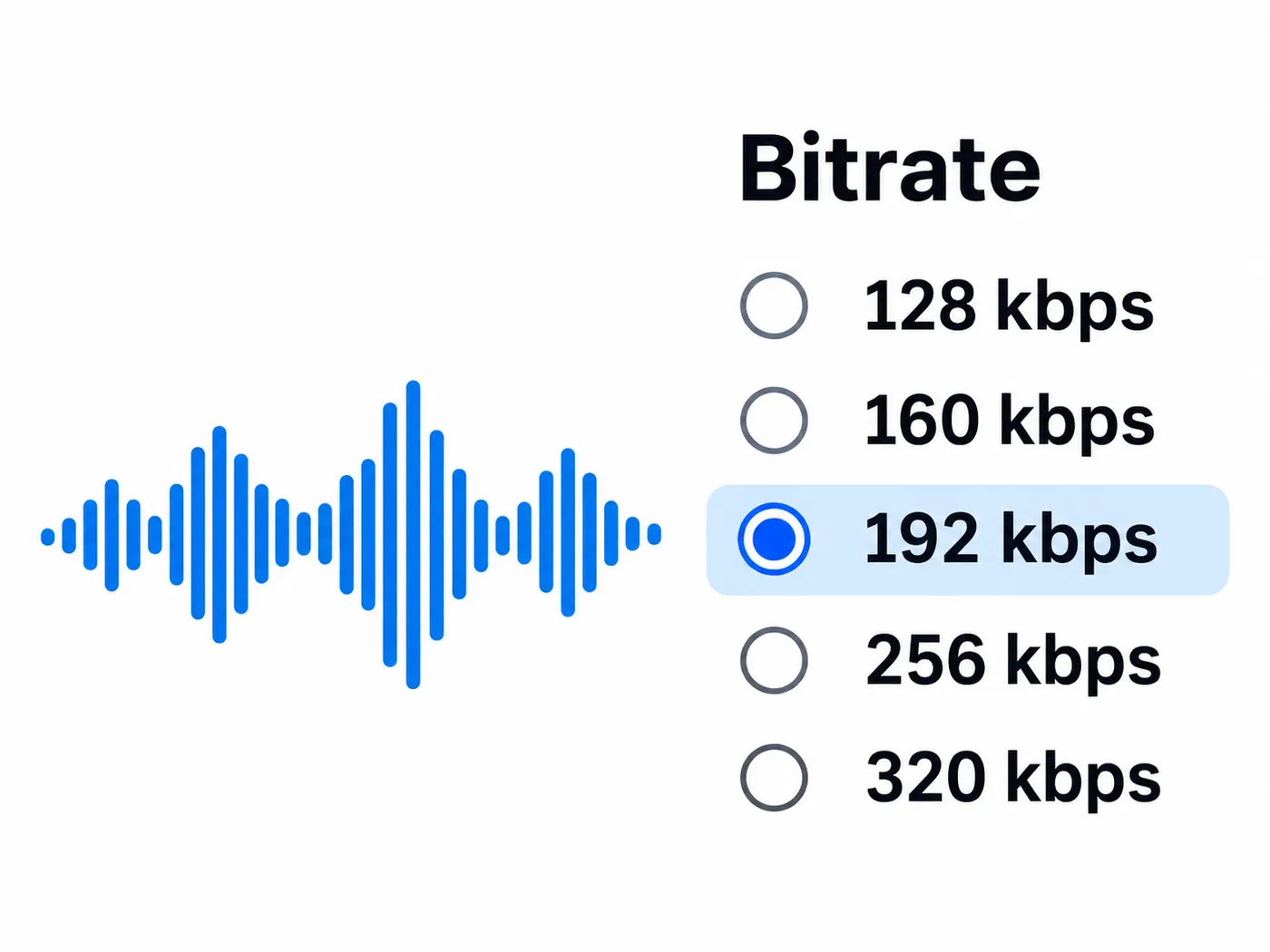
02
Set the bitrate
Open Bitrate and choose 128, 160, 192, 256, or 320 kbps according to your preferred balance of size and encoded detail.
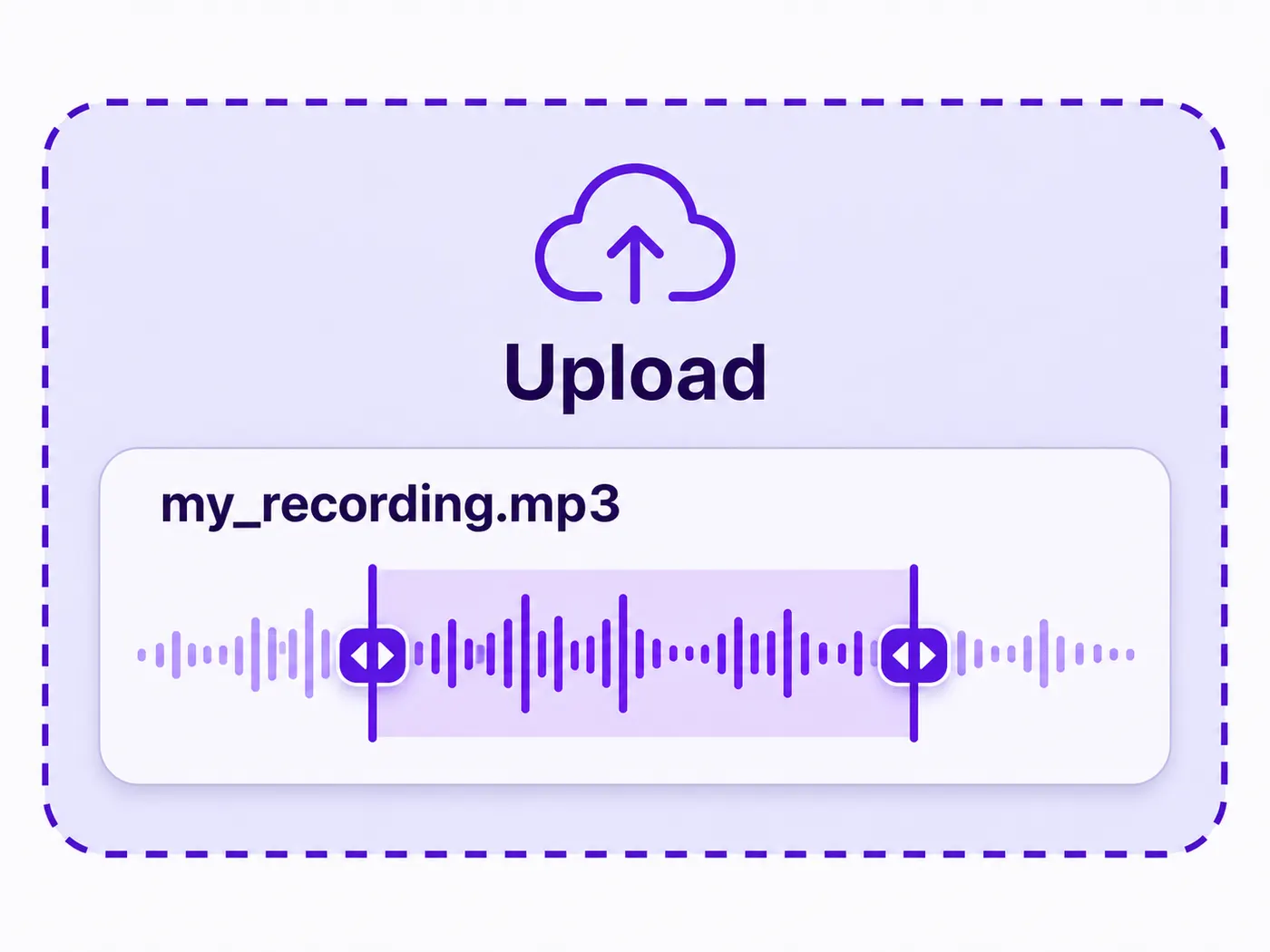
03
Trim if needed
Set optional start and end points when you want to remove silence or export only a selected section of the recording.
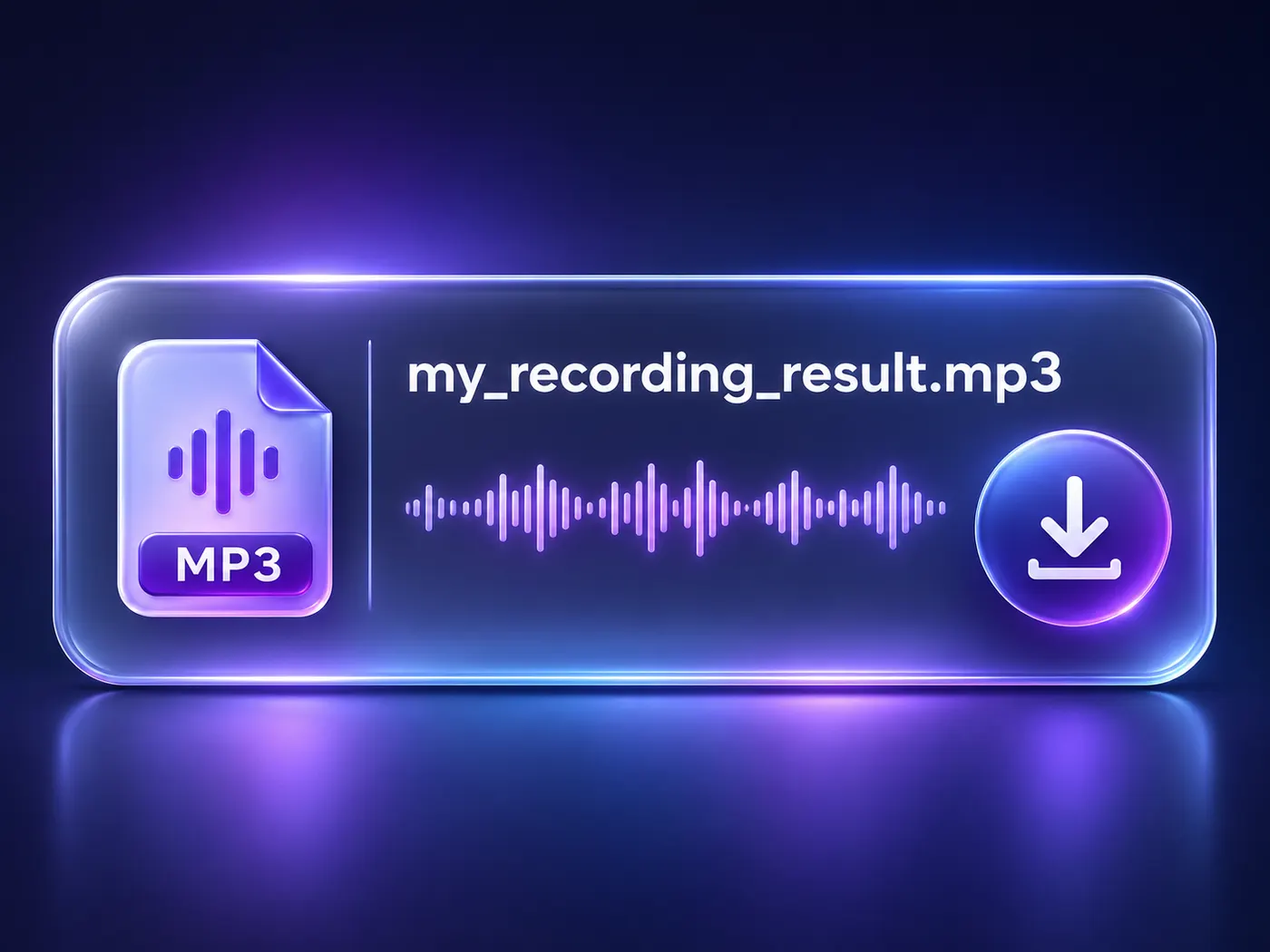
04
Create and download
When WAV audio to MP3 finishes, select Download MP3 to save the converted file locally, then use Convert again for another file.
Browser processing
The conversion runs in your browser instead of requiring desktop software.
No upload required
Your selected audio stays on the device while the page decodes and encodes it.
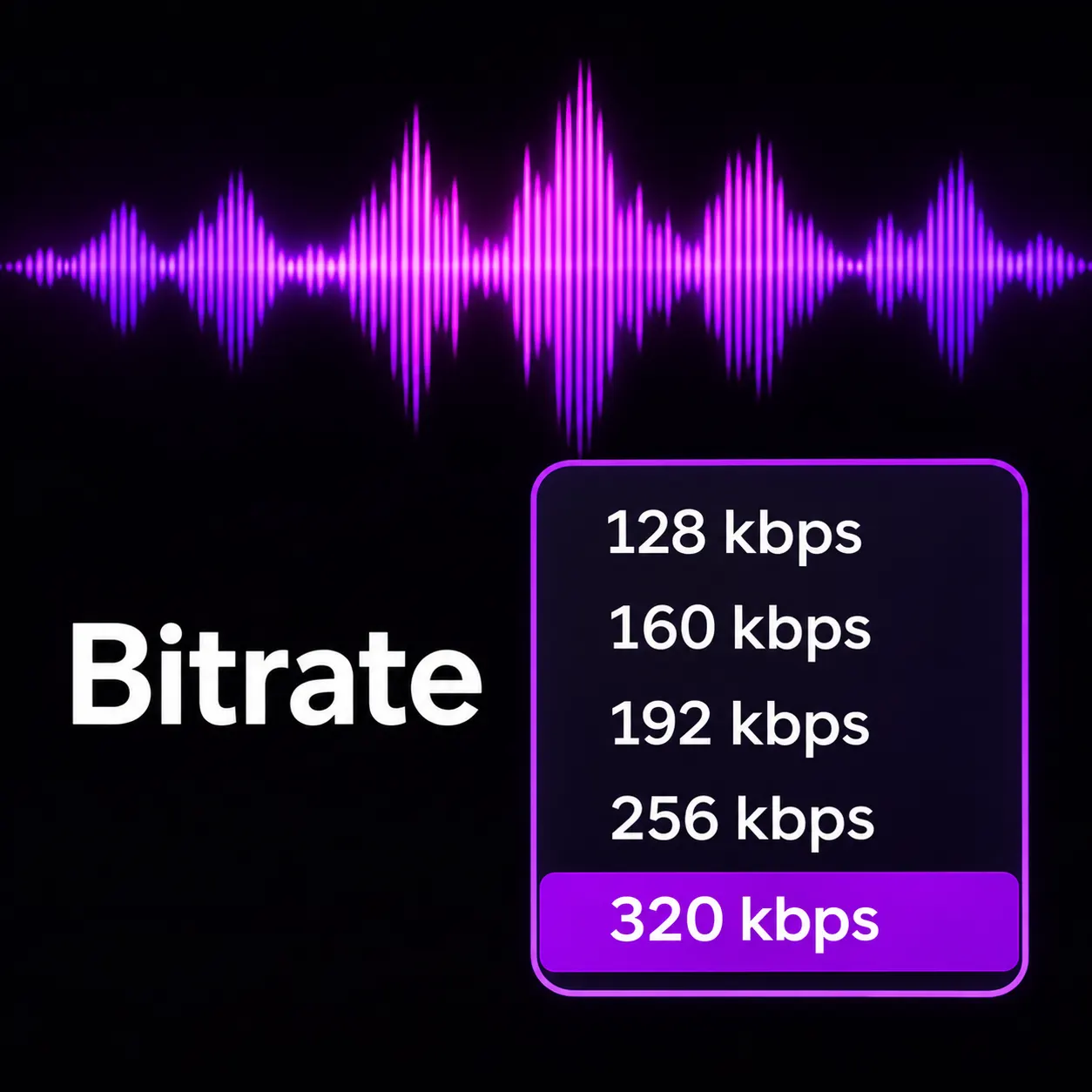
Five bitrate choices
Pick 128, 160, 192, 256, or 320 kbps from the Bitrate menu.
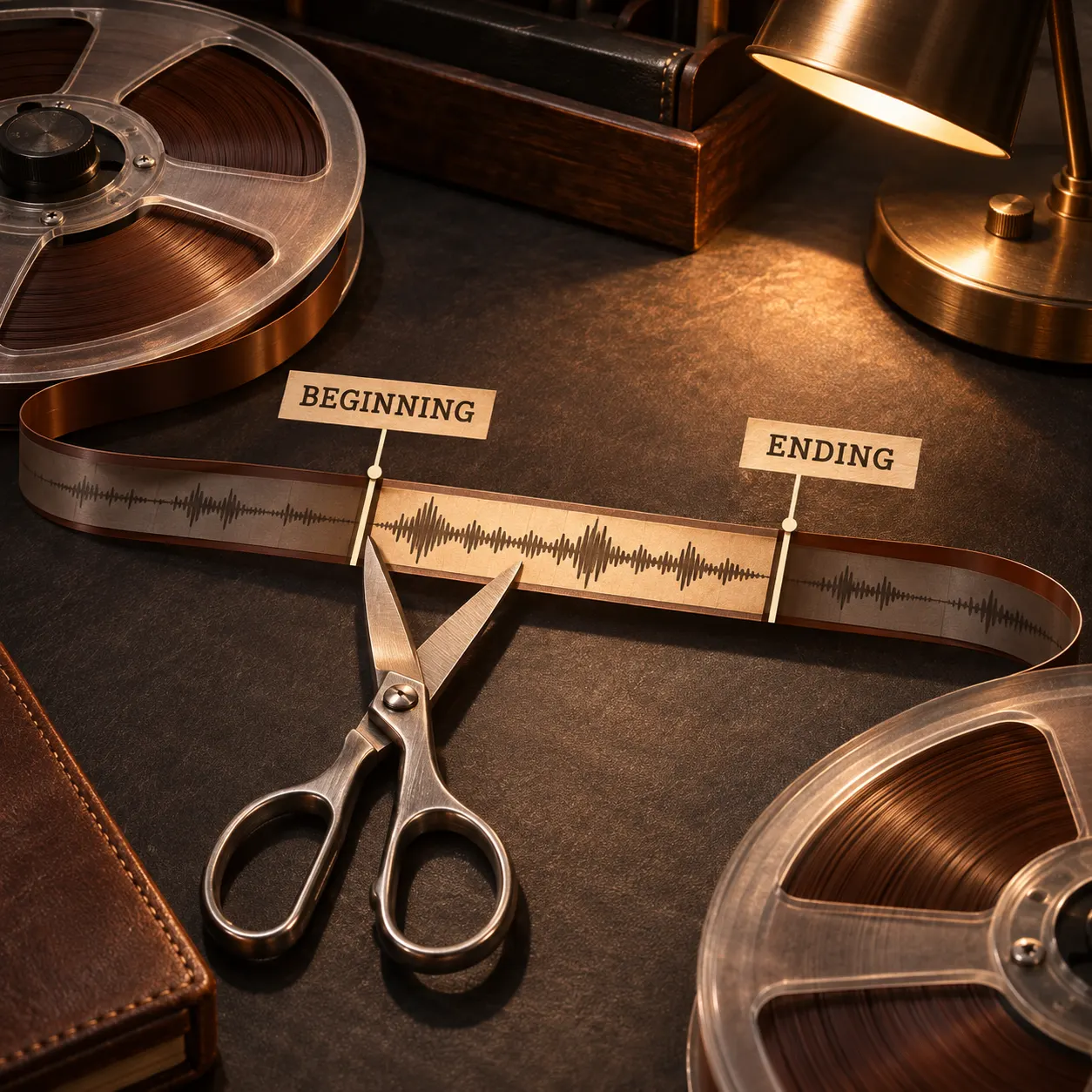
Optional trimming
Define a start and end range when you only need part of a longer recording.
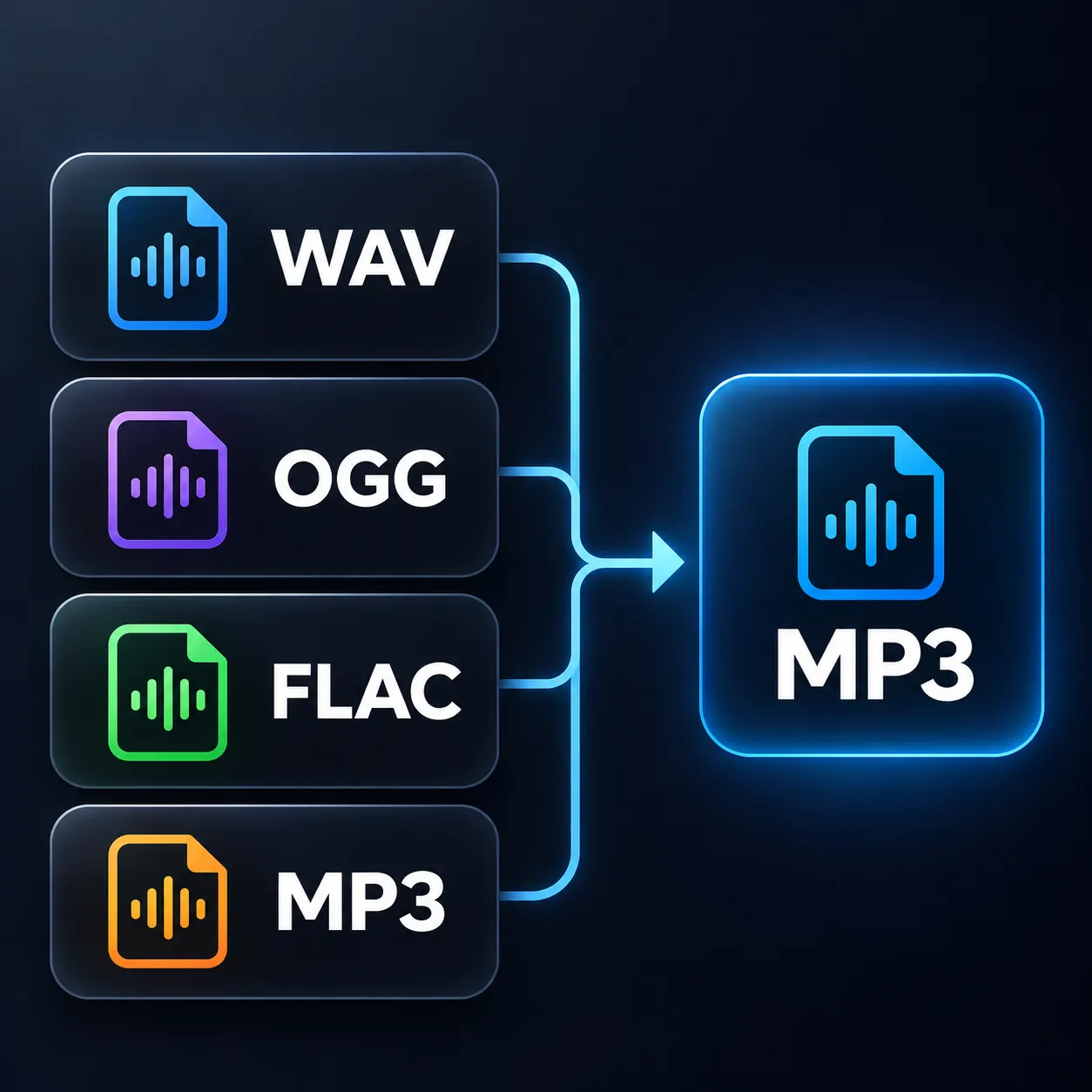
Four input formats
Use WAV, OGG, FLAC, or MP3 as the single input file for the export.
From file to finished MP3
Each stage is clear: choose one file, adjust the available settings, process it locally, and save the resulting MP3.
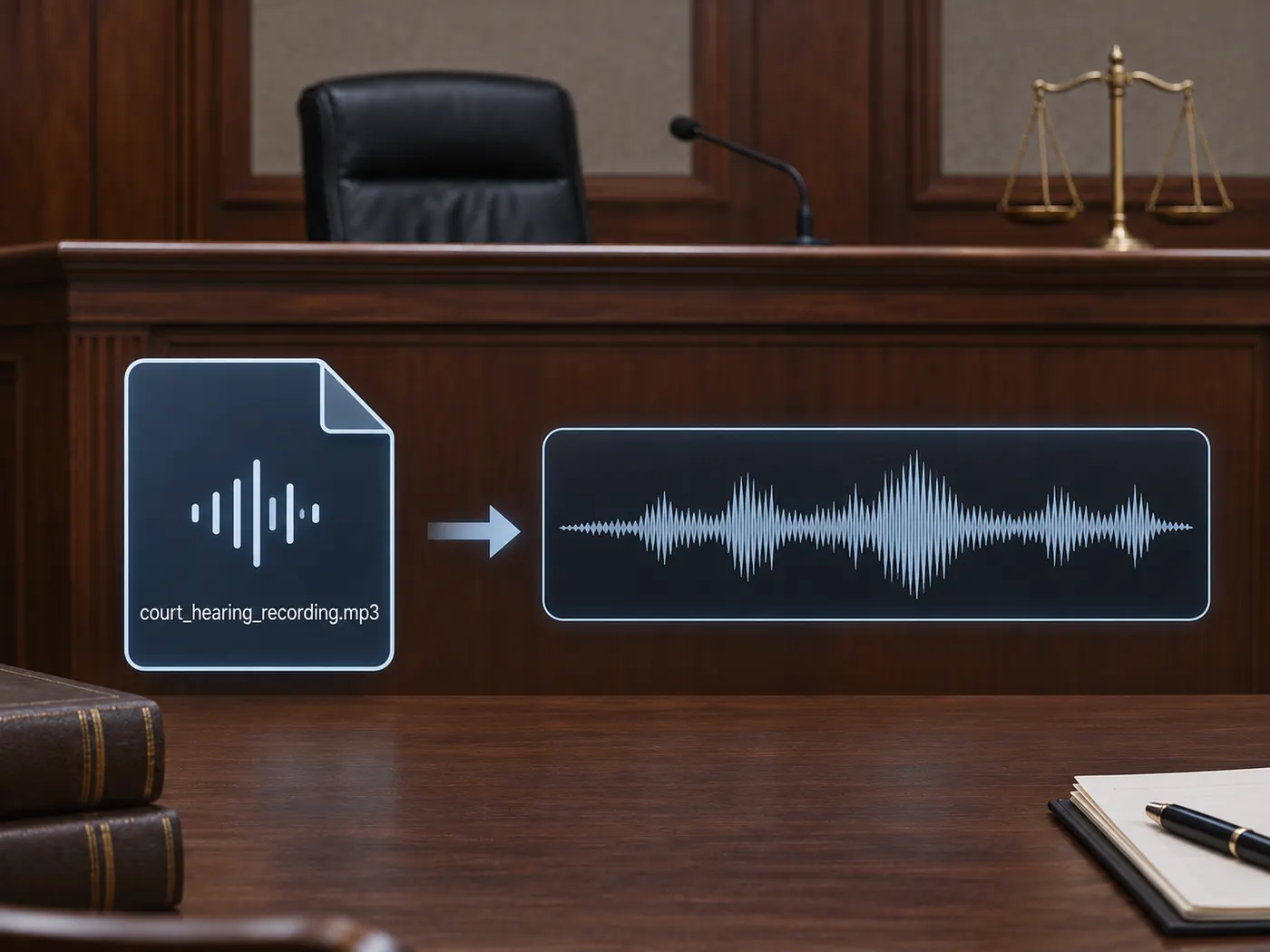
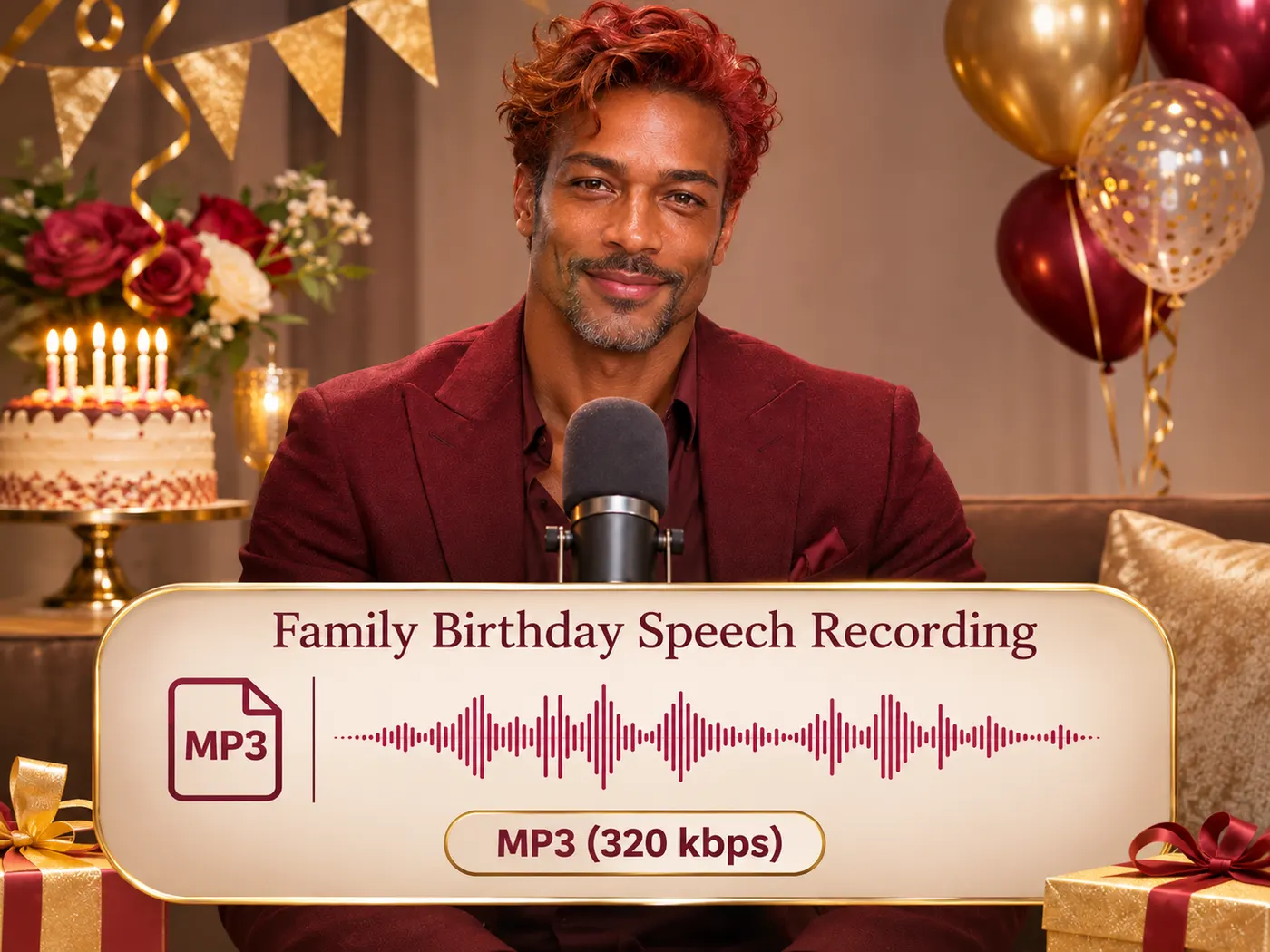
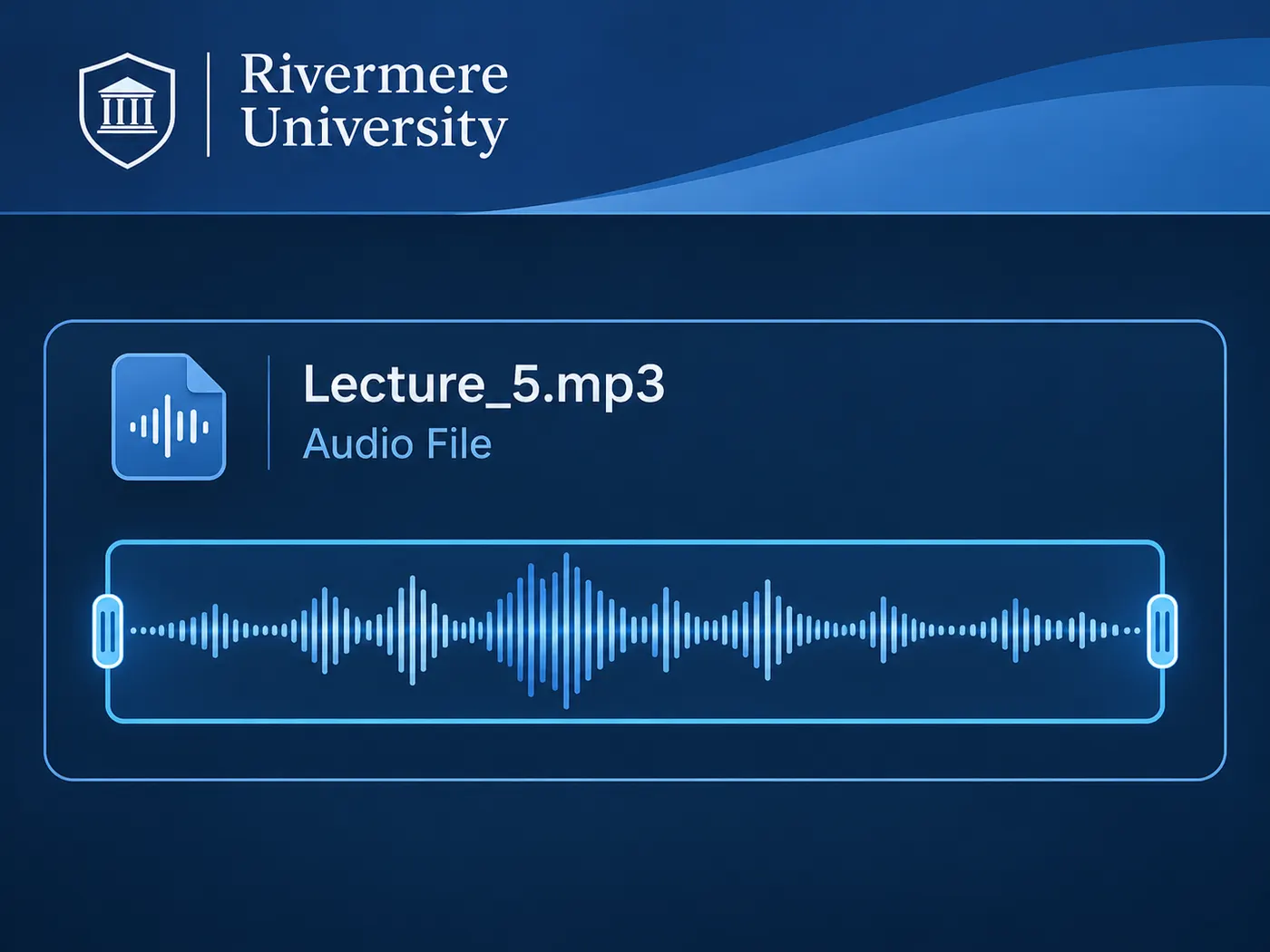
Useful for everyday audio
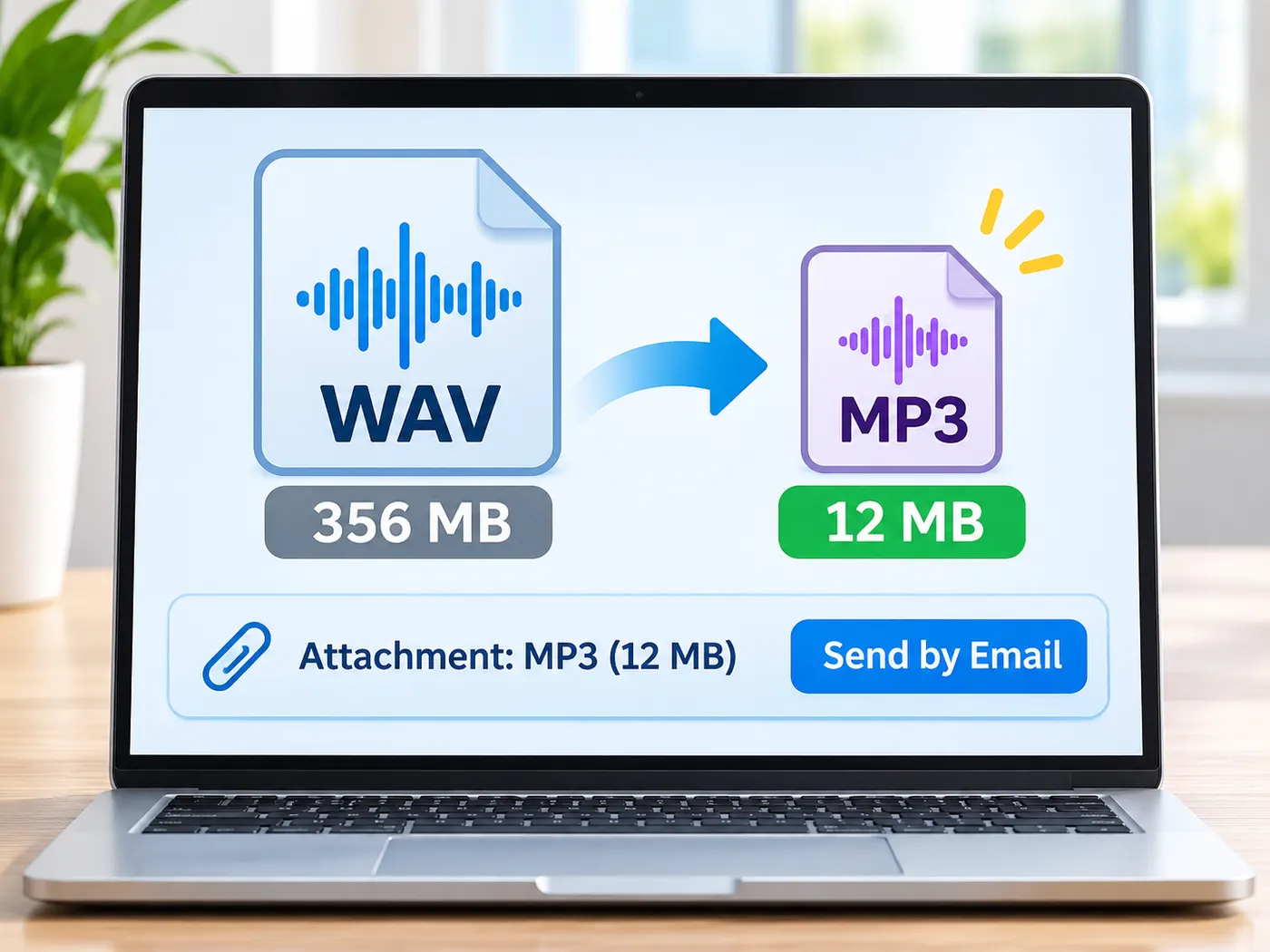
Email attachments
Use free wav to mp3 conversion when a large WAV file is too big to send.
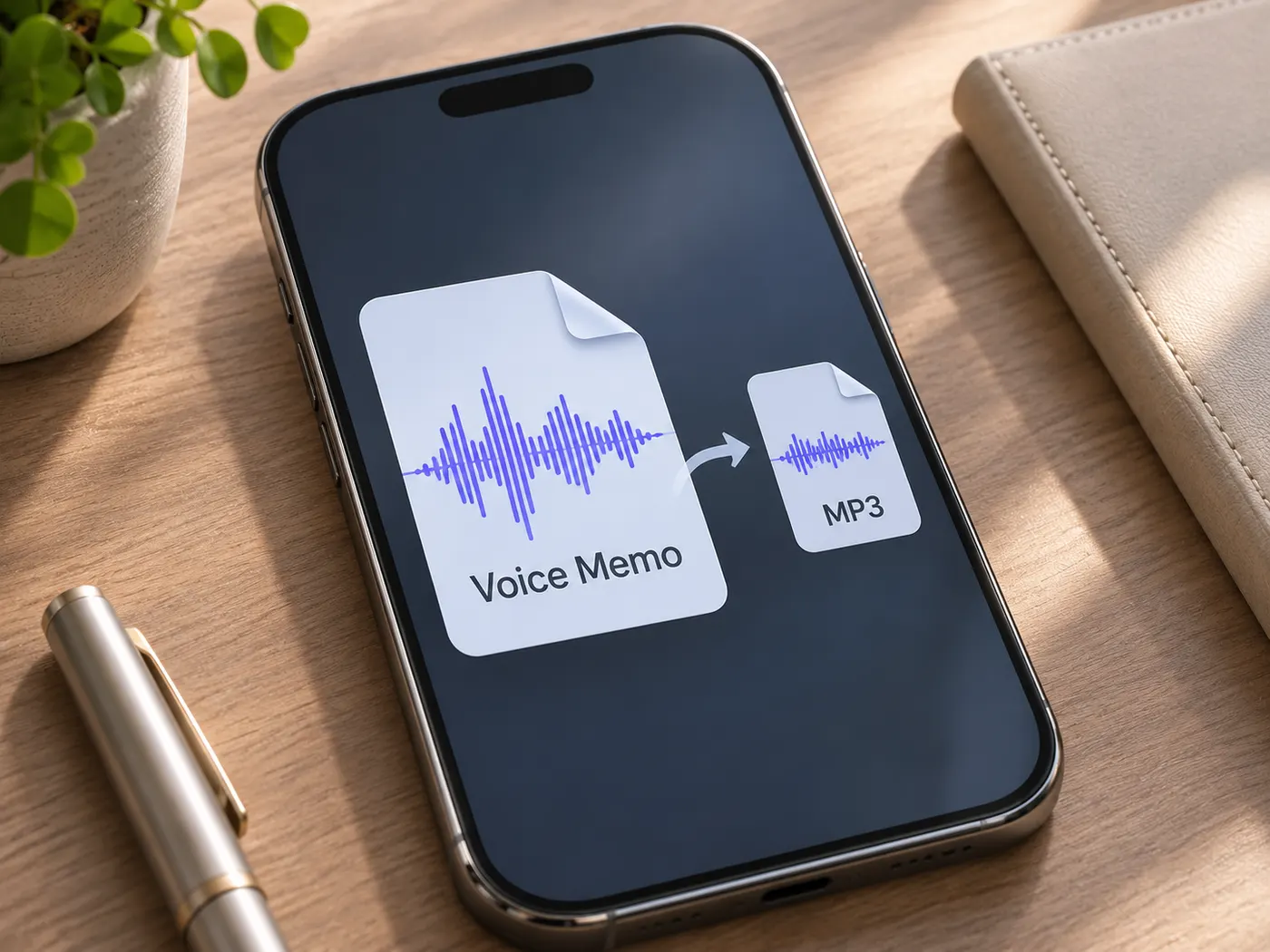
Voice recordings
Turn a voice memo into an MP3 that is easier to store or share.
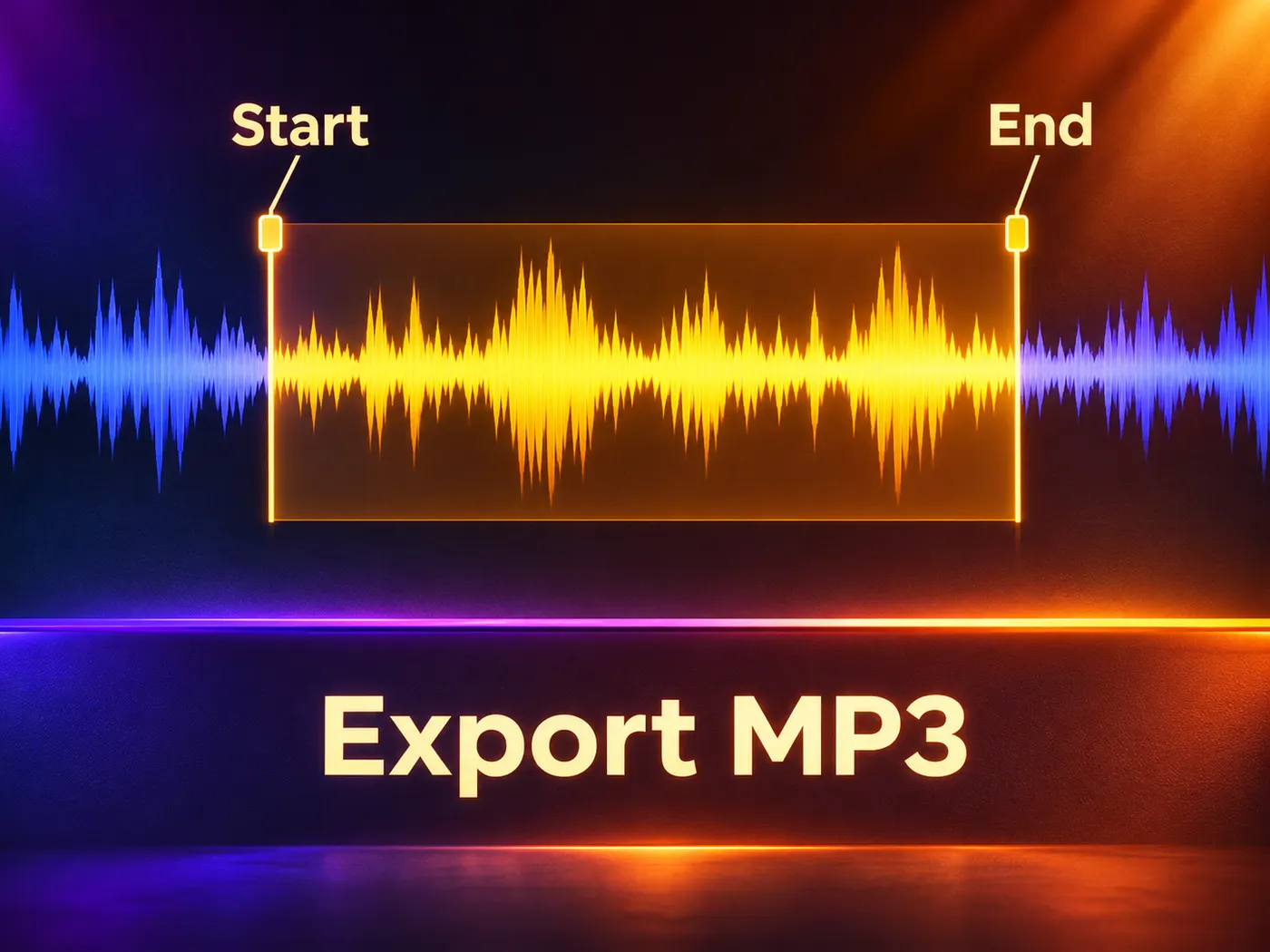
Music samples
Export a selected part of a longer sample with optional start and end trimming.
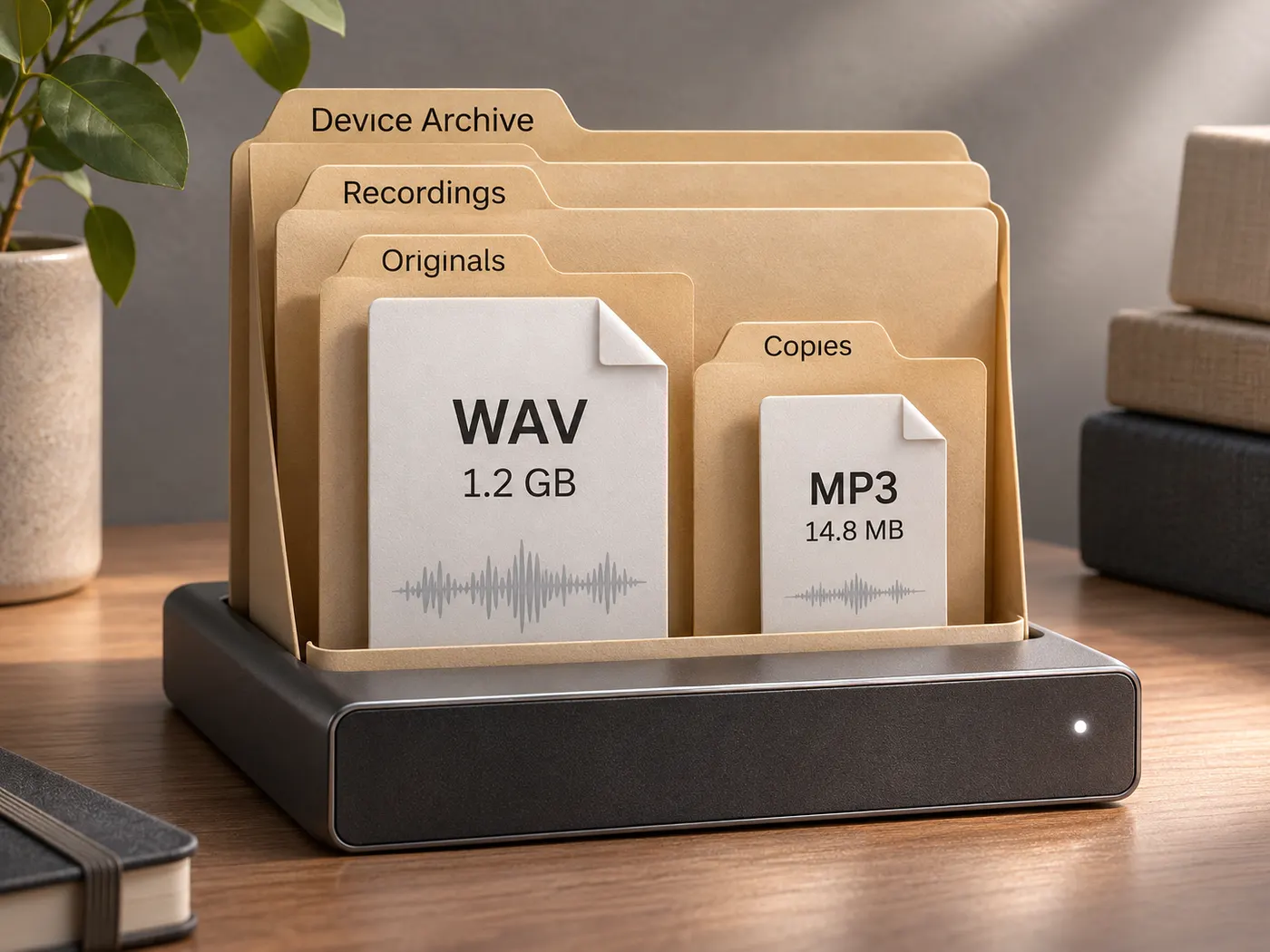
Local archives
Keep a smaller MP3 copy while leaving the original WAV file available on your device.
Questions about browser audio conversion
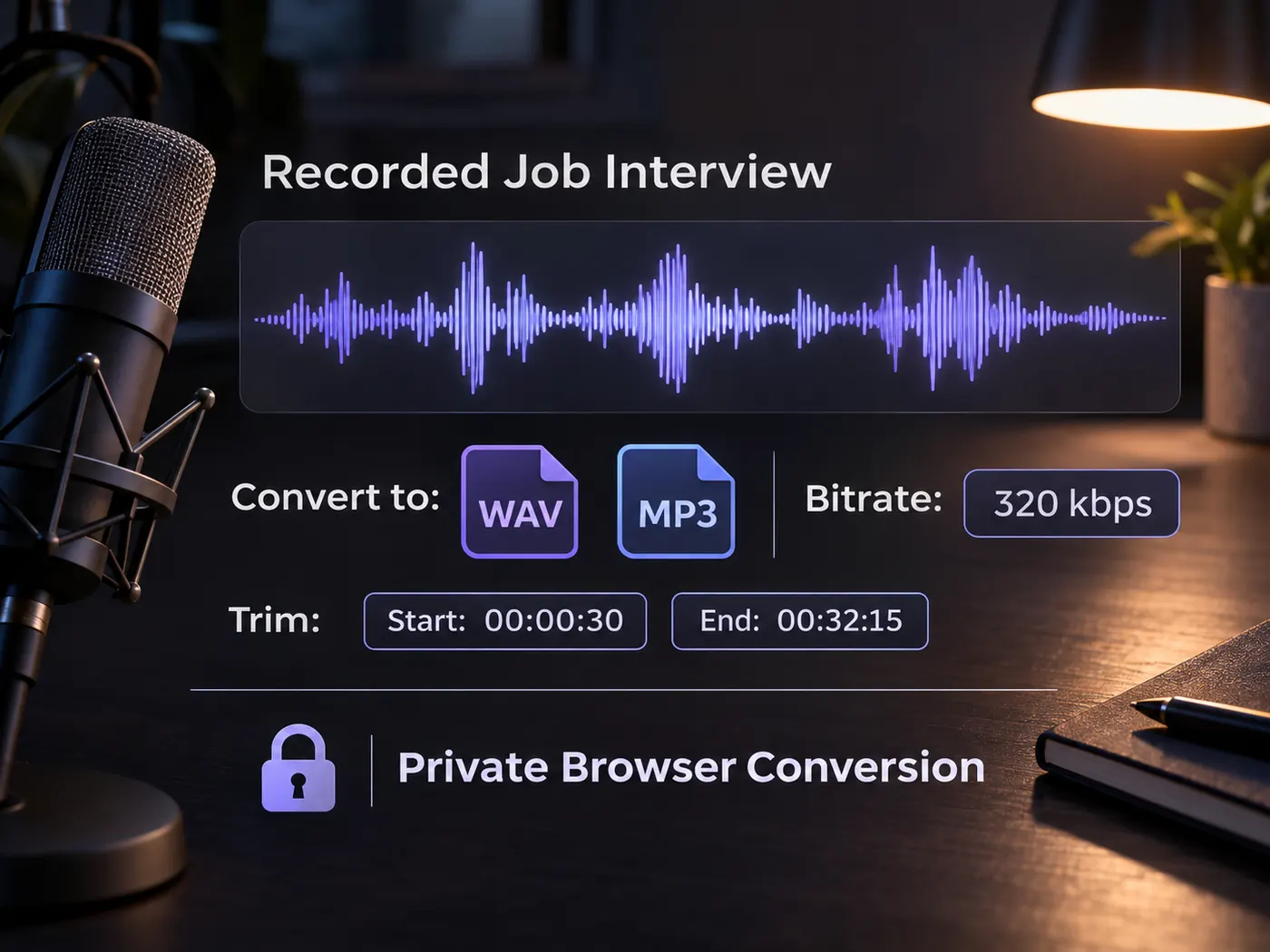
Is this browser conversion private?
Yes. The browser handles this WAV audio to MP3 conversion using the page’s audio conversion engine. The selected file is decoded locally, then encoded as an MP3 at your chosen bitrate. Nothing is uploaded, so a voice recording, studio take, or sample stays on the device while the conversion completes.
What files can I use with the tool?
For this converter, the tool accepts WAV, OGG, FLAC, or MP3 as the input and creates an MP3 download. A wav to mp3 conversion is useful when the original WAV is too large for email, storage, or a service with an MP3 requirement. This workflow handles one audio file at a time.
Which bitrate should I choose?
Choose 128, 160, 192, 256, or 320 kbps from Bitrate when using WAV audio to MP3. Lower bitrate usually makes a smaller MP3, while higher bitrate preserves more encoded detail and uses more space. For speech, 128 or 160 kbps may be sufficient; music often benefits from 192 kbps or higher.
Can I trim a recording before conversion?
Yes. You can include a selected start and end range before a WAV audio to MP3 conversion. Set the optional trim points before you convert to export only a clip or remove silence. If you leave the range unchanged, the tool processes the complete input file instead.
Do I need to install software?
No. The job is designed to finish in the browser, and the page does not require an account or desktop installation. This WAV audio to MP3 workflow lets you drop in one supported file, choose Bitrate, and start conversion. The resulting MP3 can be downloaded after the local encode completes.
What does a converter change?
A wav to mp3 converter changes the audio encoding from WAV to MP3; for this converter, it does not promise identical source data after compression. Select 320 kbps when retaining more encoded detail matters, or use a lower setting when file size is the priority. Trimming can also reduce duration and size.
Free tools, and a plan when you need more
The everyday tools are free and run in your browser. The AI tools and the full editor run on credits — pick a plan when you need them.
- Free
- $0
- Every browser tool
- Starter
- $12/mo
- 120 credits
- Pro
- $29/mo
- 310 credits
Make your smaller MP3 now
Choose a file, set the bitrate, and download an MP3 without uploading it.
Convert to MP3