Private browser conversion with nothing uploaded.
M4A to MP3 Converter
Use this free m4a to mp3 workflow to turn one M4A, AAC, or MP4 audio file into an MP3 in your browser. This free browser audio converter keeps the file on your device, lets you choose 128–320 kbps, and gives you an optional start and end trim before download.
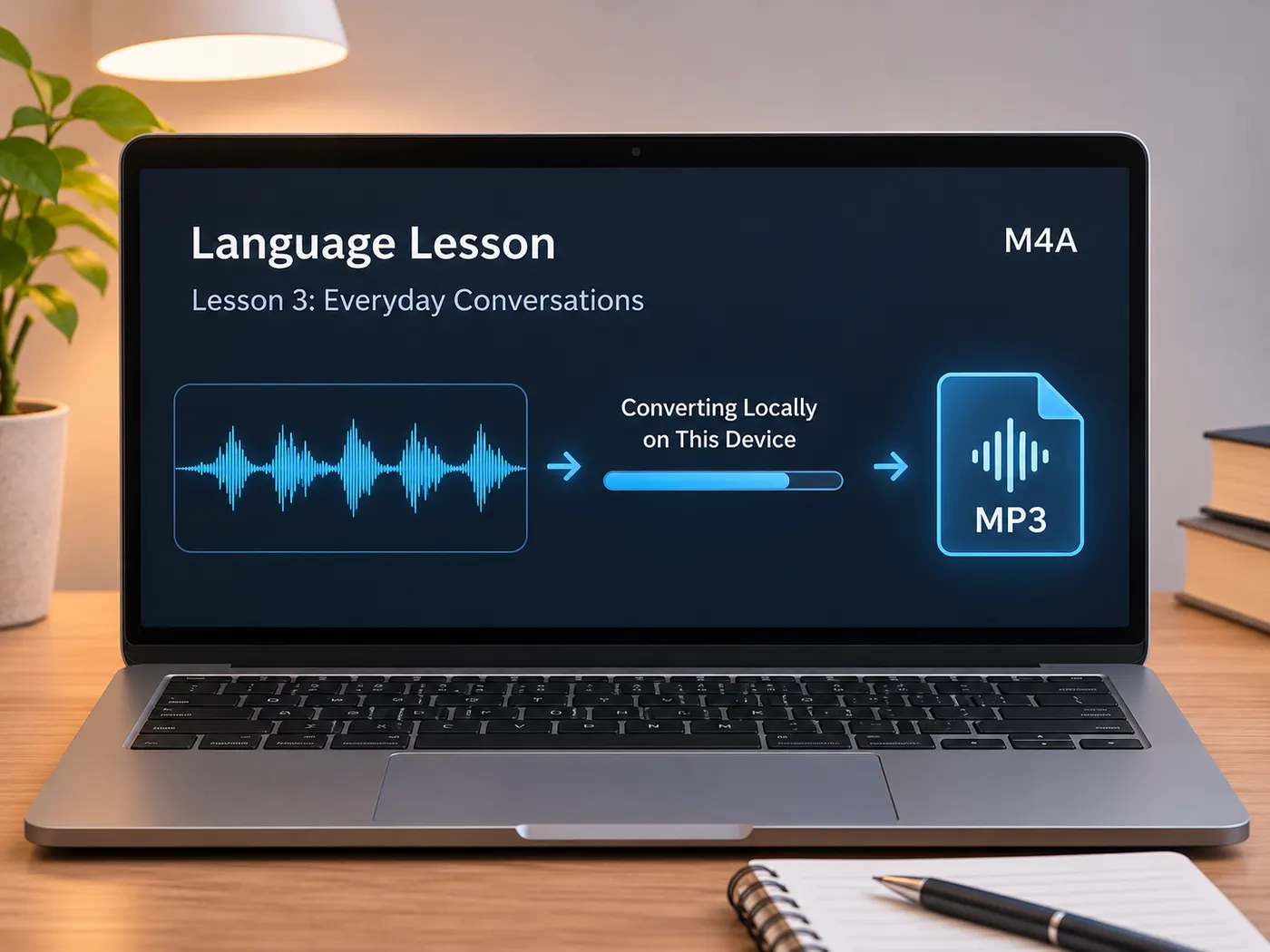
Supports one audio file, optional trimming, and five selectable bitrate values.
Private by design
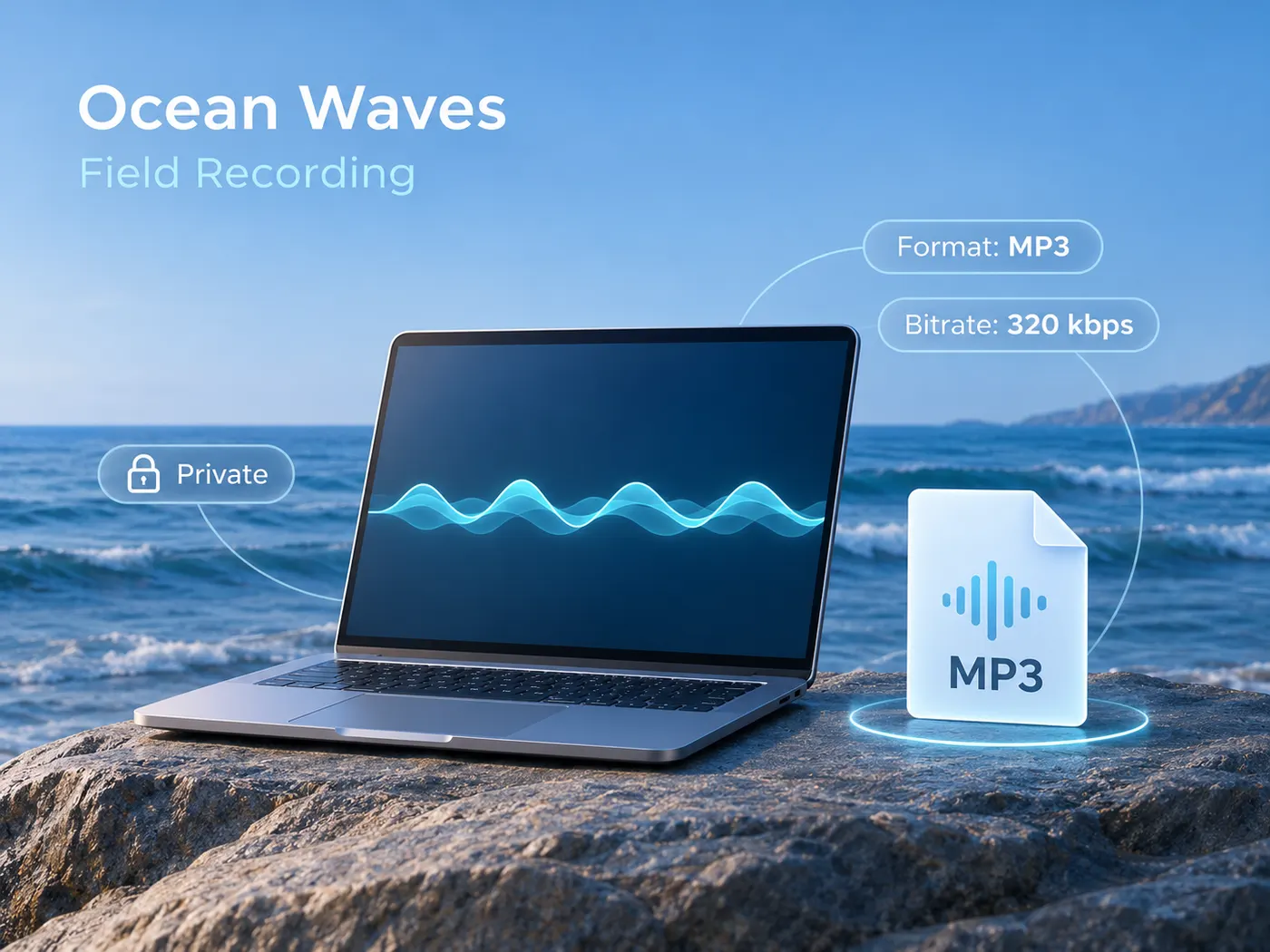
Convert m4a to mp3 without sending a recording to a remote service. The MP3 converter uses mediabunny decoding and LAME encoding in your browser, so voice memos, calls, and lectures stay on your device. No account or software installation is needed.
Choose the sound balance
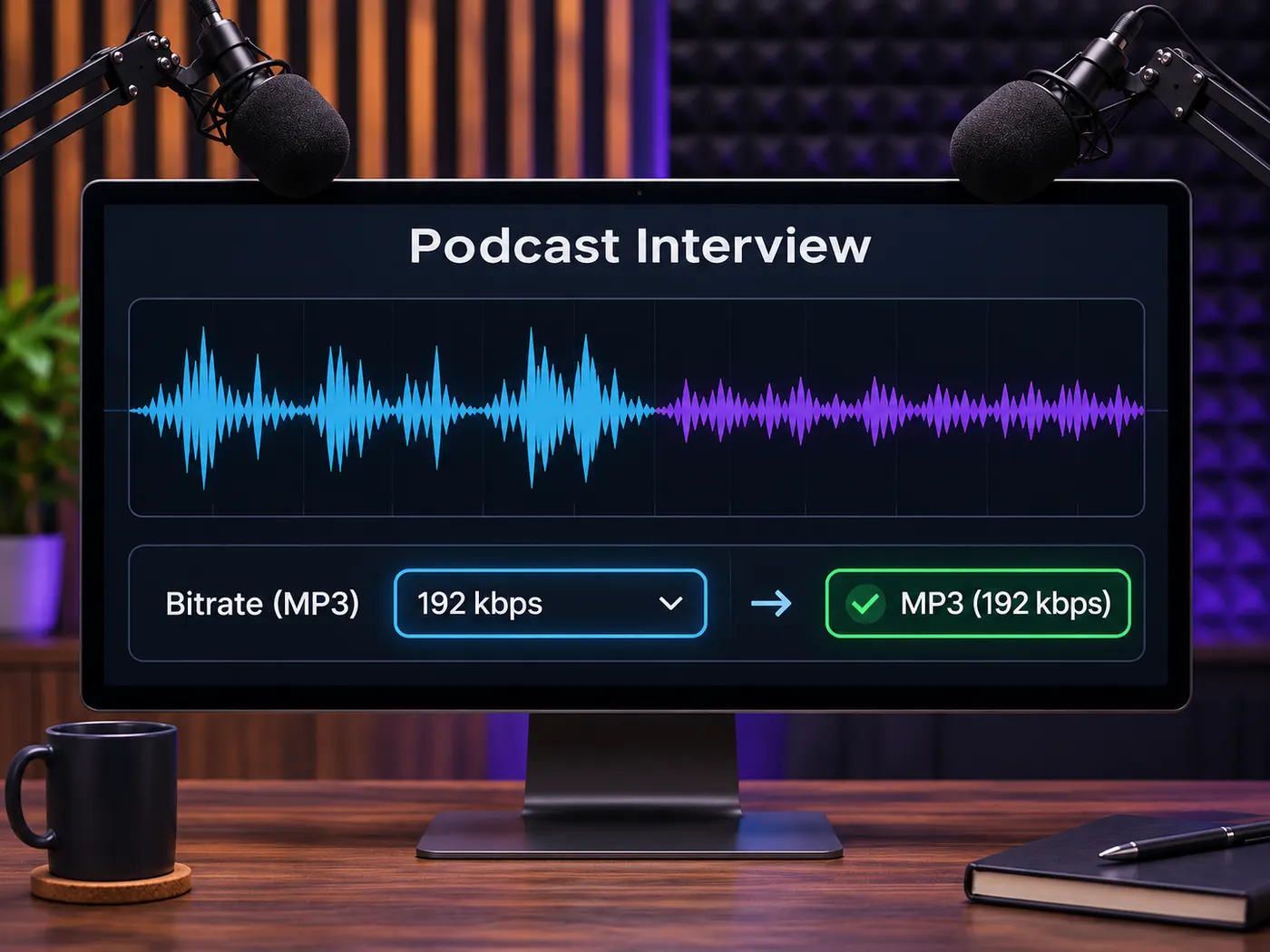
When you need m4a to mp3, select 128, 160, 192, 256, or 320 kbps from Bitrate. The 192 kbps option is selected by default, and you can change it before converting. This page is not an mp3 to m4a converter: its output is MP3.
Trim before download
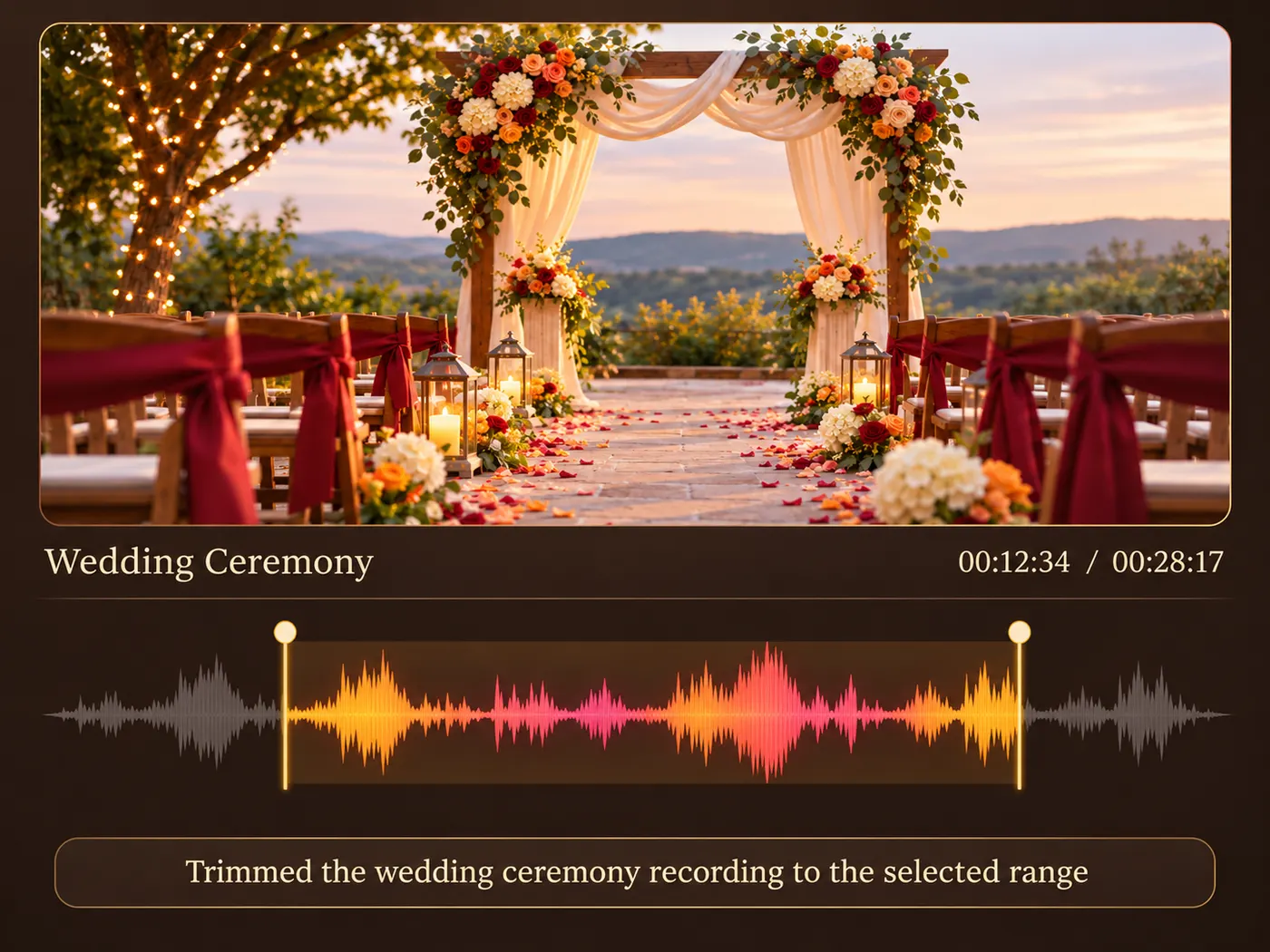
Set an optional start and end point before you convert m4a to mp3, then download the finished MP3. A second m4a to mp3 conversion is not required for trimming: the selected range is applied during the same browser job. The tool accepts one file at a time.
See the simple path from audio file to MP3
See how to convert m4a into mp3 online without leaving your browser or uploading the recording.
Convert an audio file in four clear steps
01
Select your audio file
Choose one M4A, AAC, or MP4 audio file from your device. The accepted formats are shown before you begin.
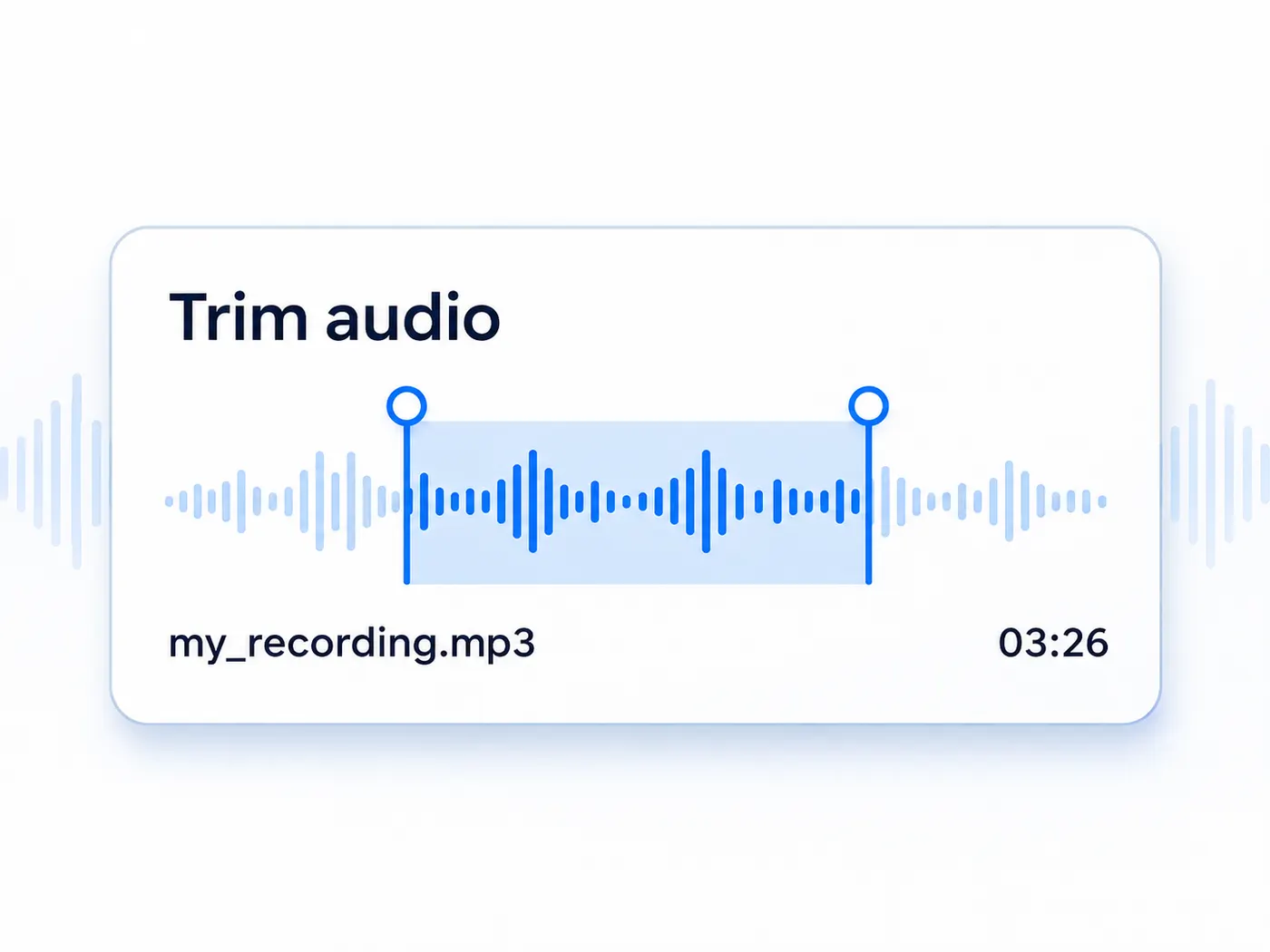
02
Set an optional trim
Before m4a to mp3 conversion, use the trim controls to set a start and end point, or leave the full recording selected.
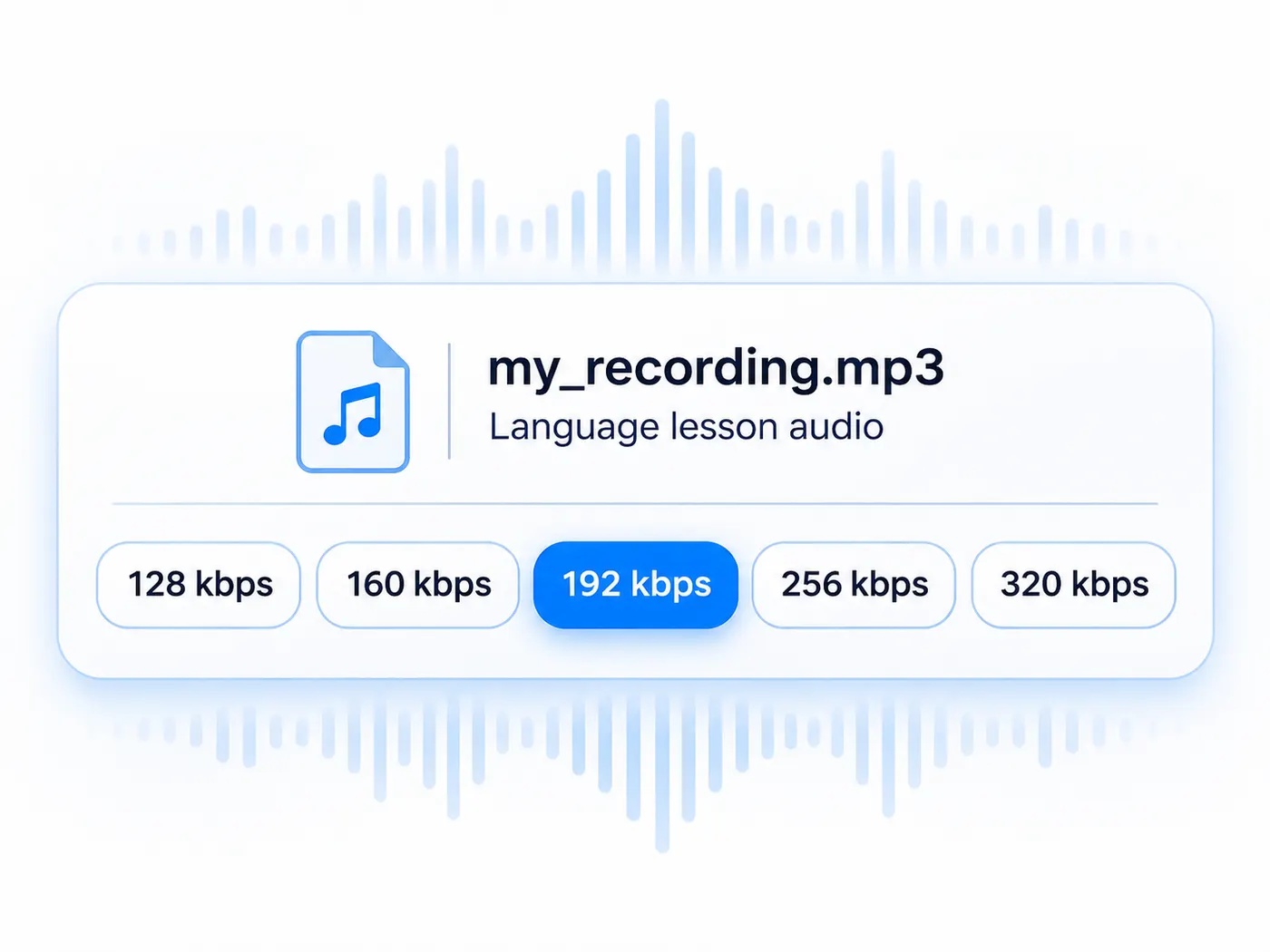
03
Choose the bitrate
For m4a a mp3 searches, choose a Bitrate value from 128 to 320 kbps; 192 kbps is selected by default.
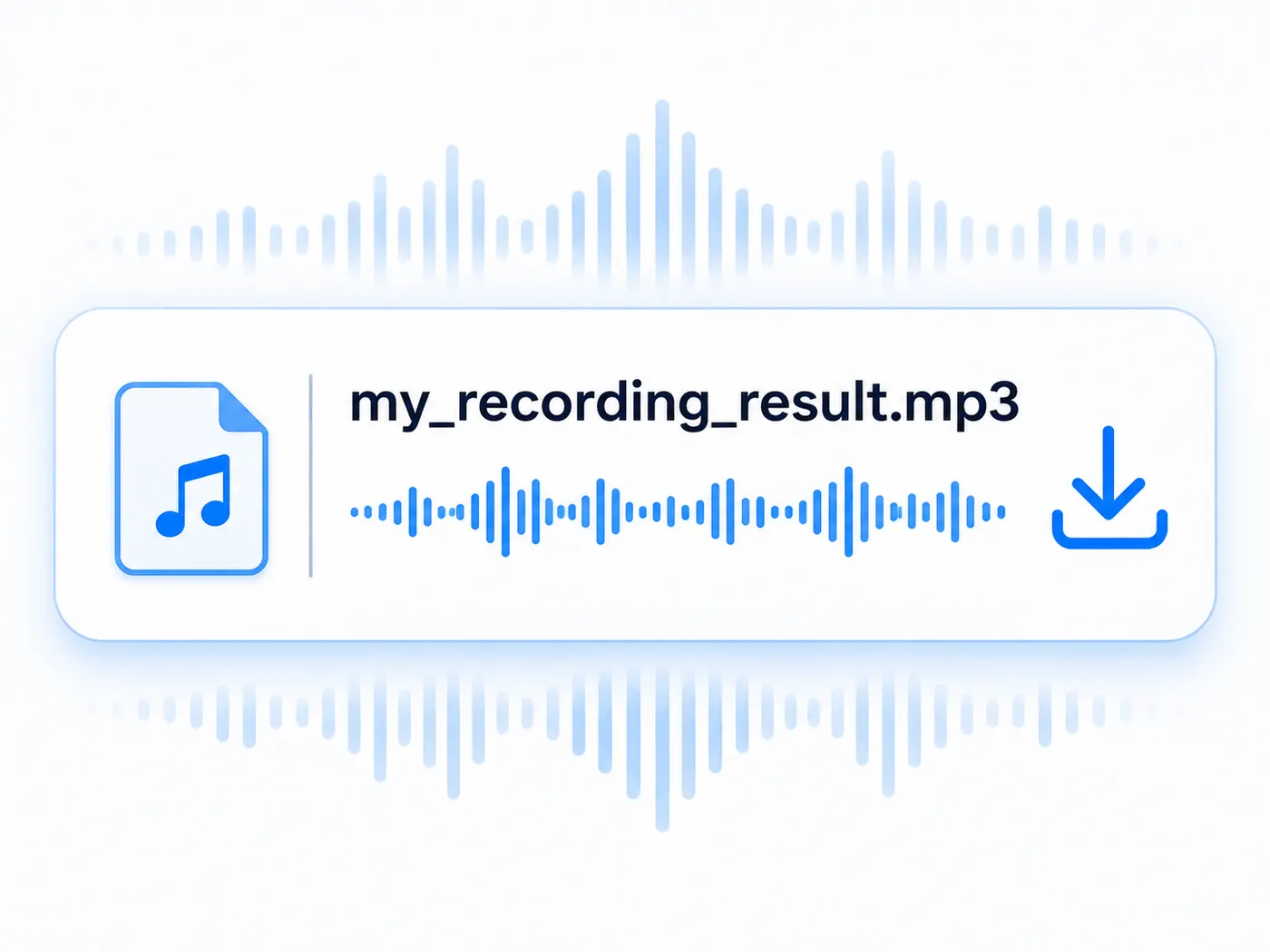
04
Download the result
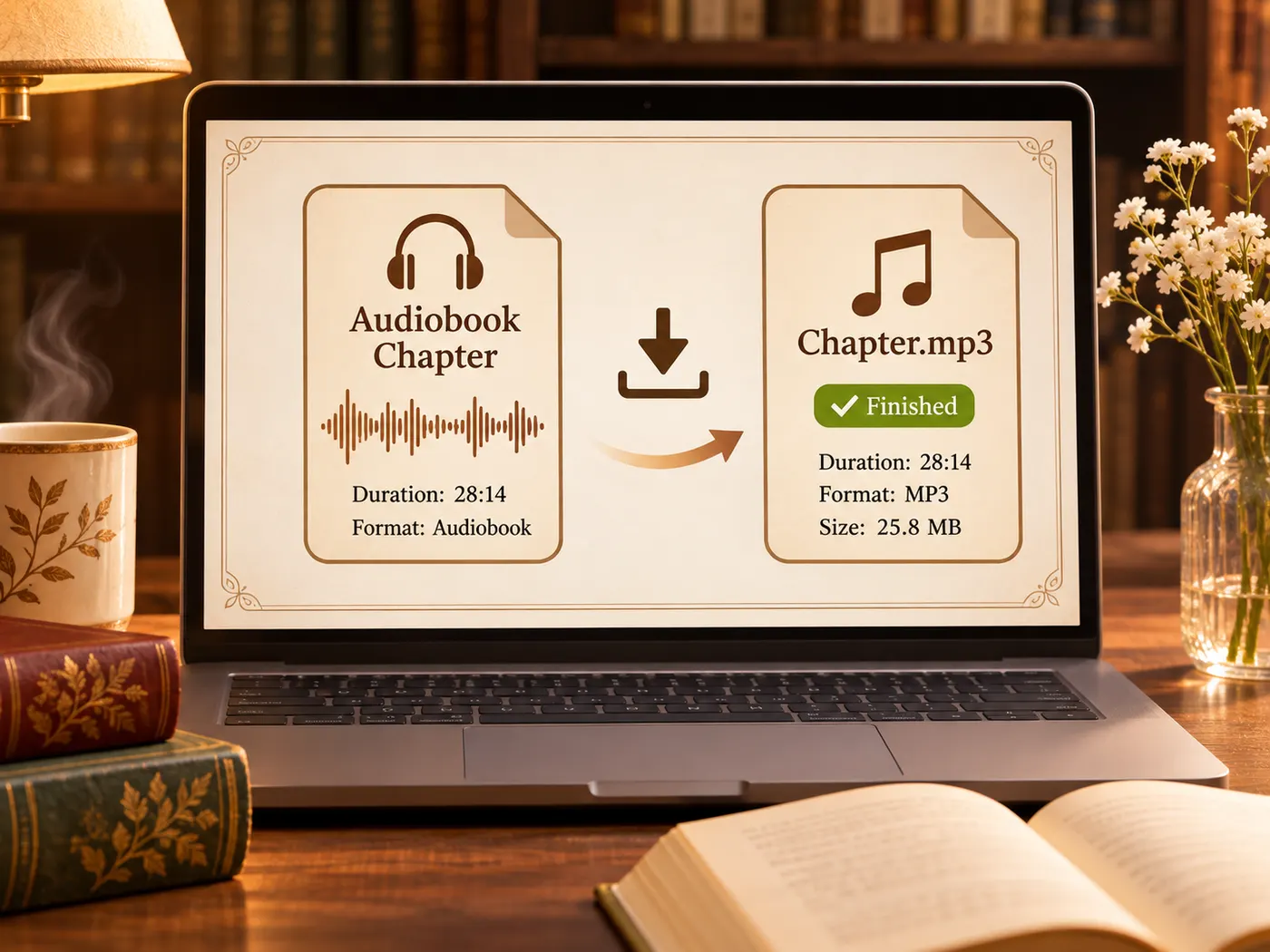
Start m4a to mp3 conversion, wait for the browser job to finish, then select Download MP3.
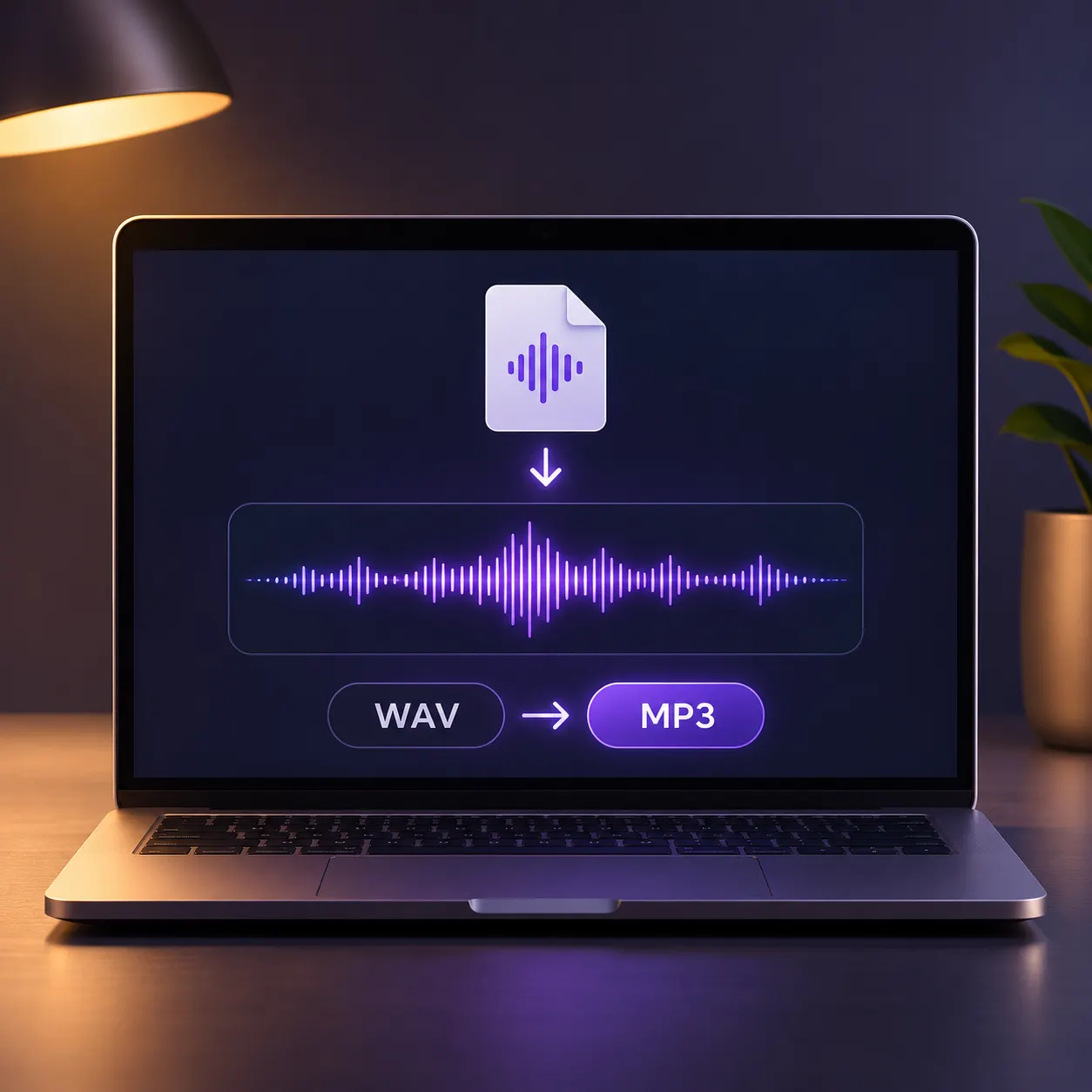
One-file workflow
Select one audio file for each conversion job; batch conversion is not part of this tool.
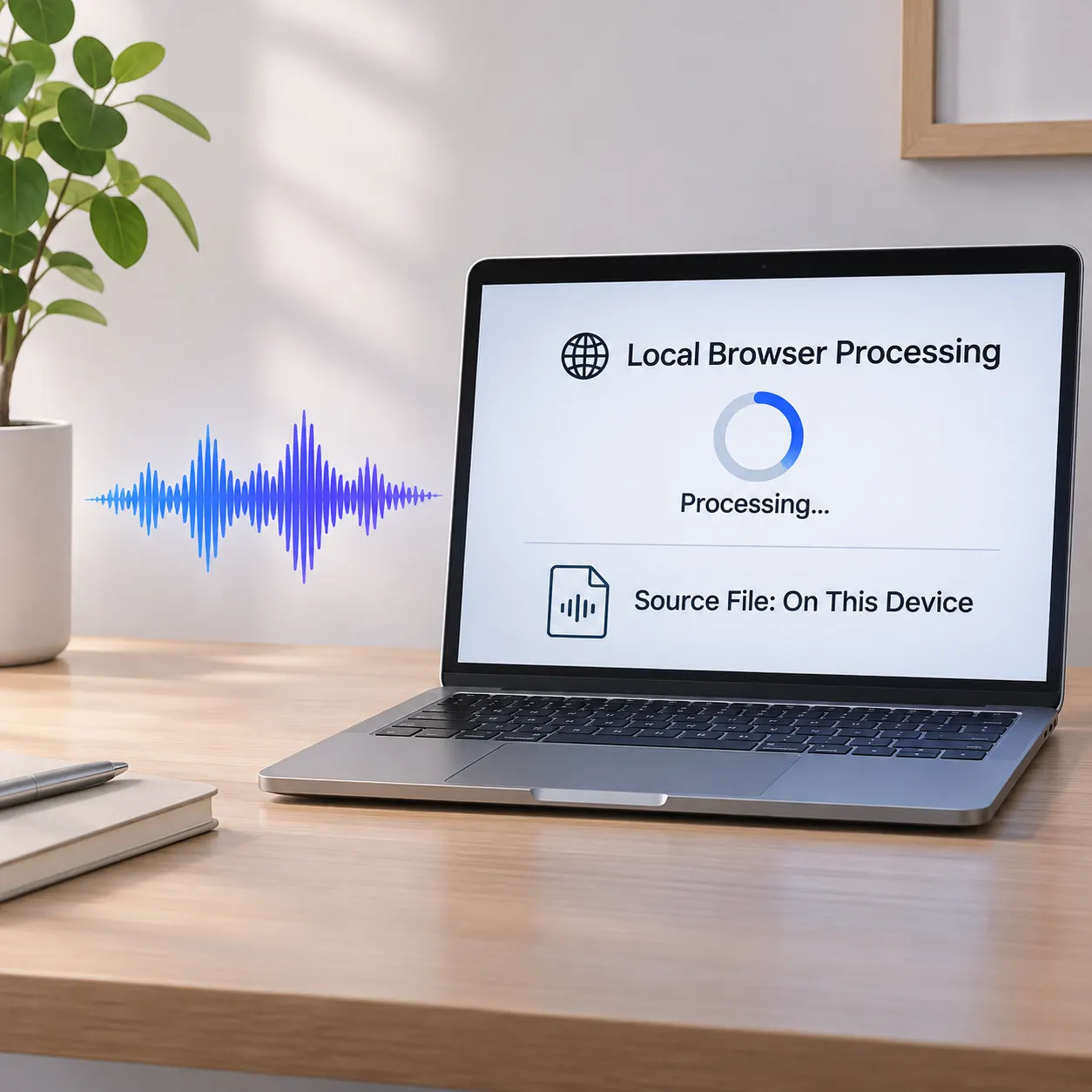
Browser processing
Mediabunny decoding and LAME encoding run in your browser without uploading the source.
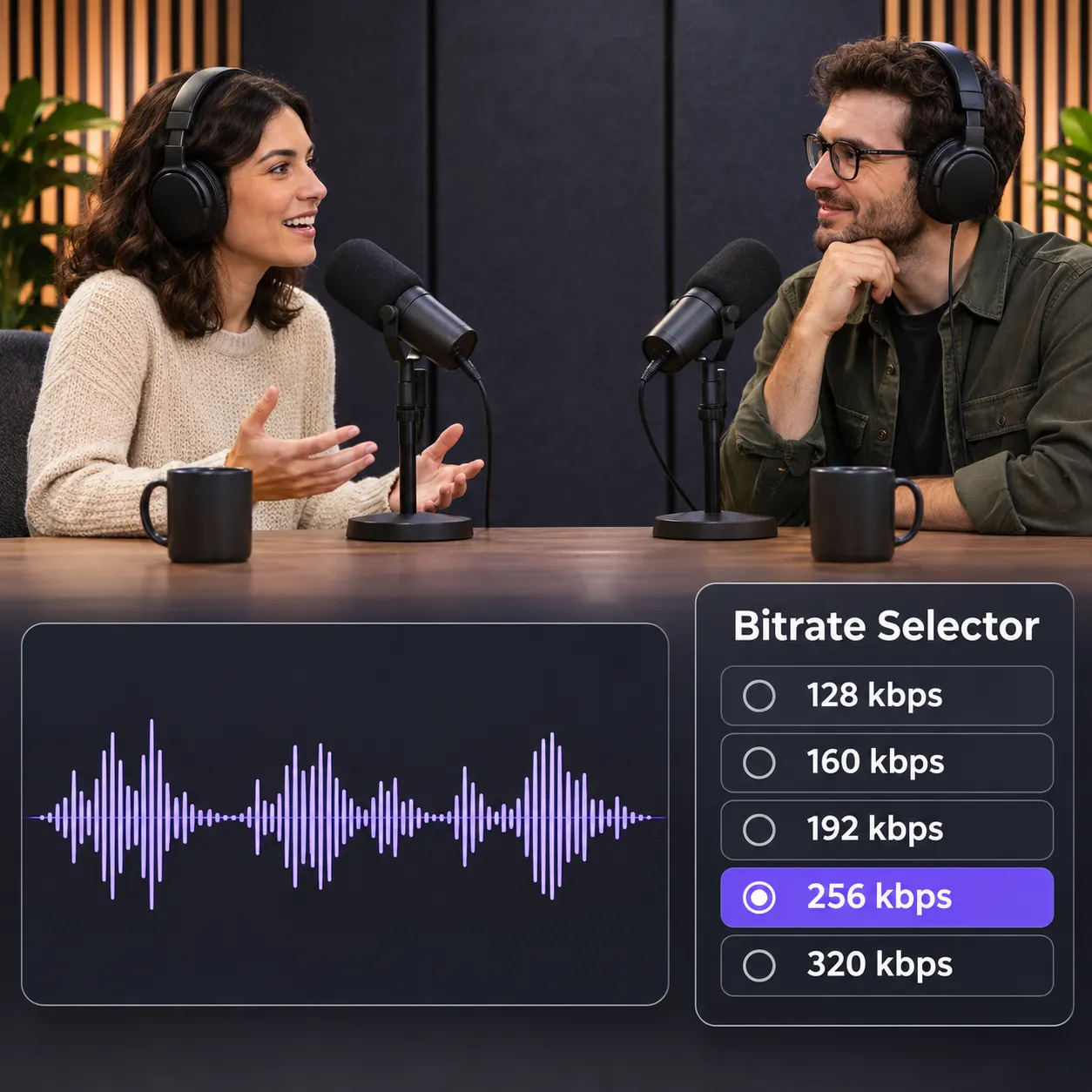
Flexible bitrate
Choose 128, 160, 192, 256, or 320 kbps from the Bitrate dropdown.
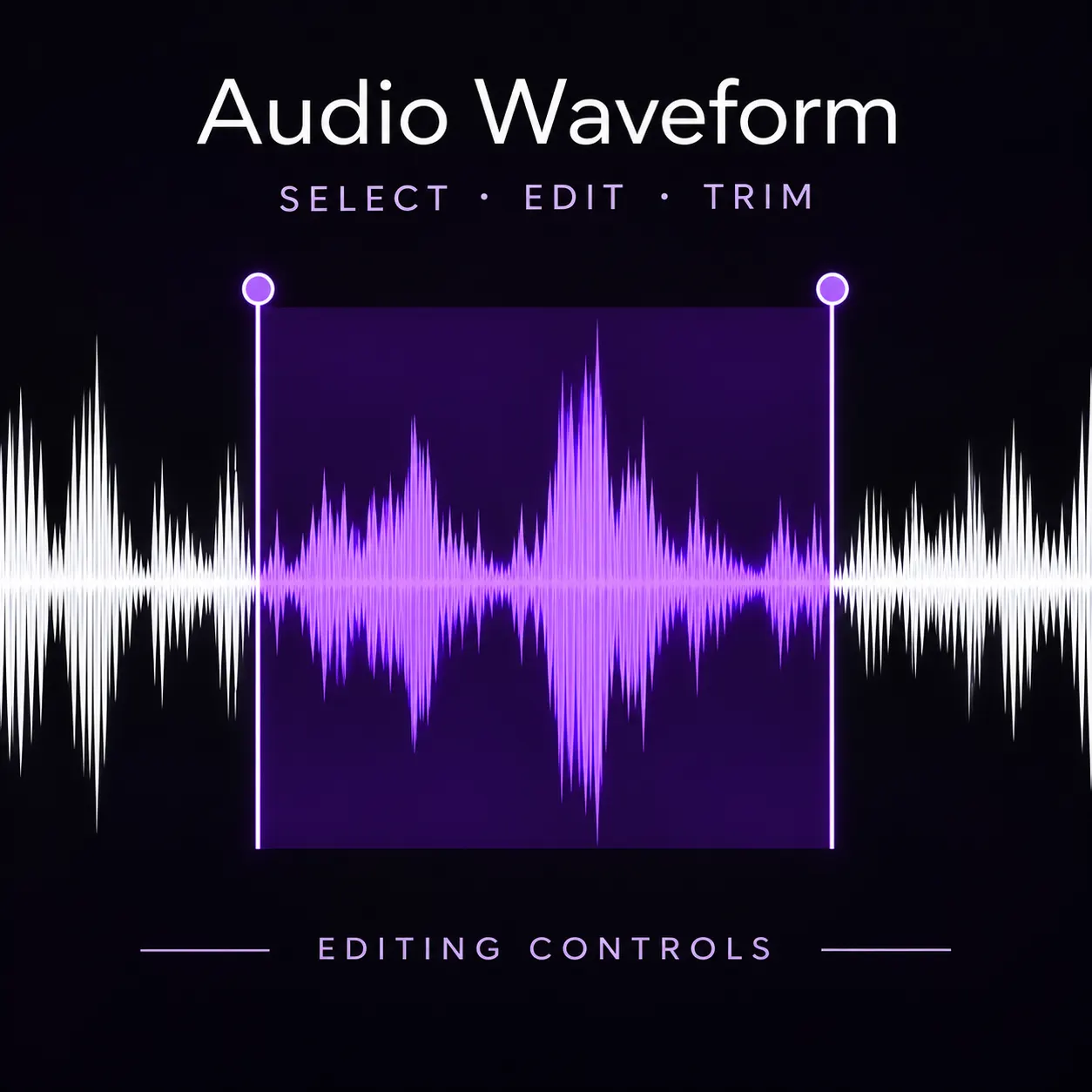
Optional trimming
Set start and end points when you need only part of the selected recording.
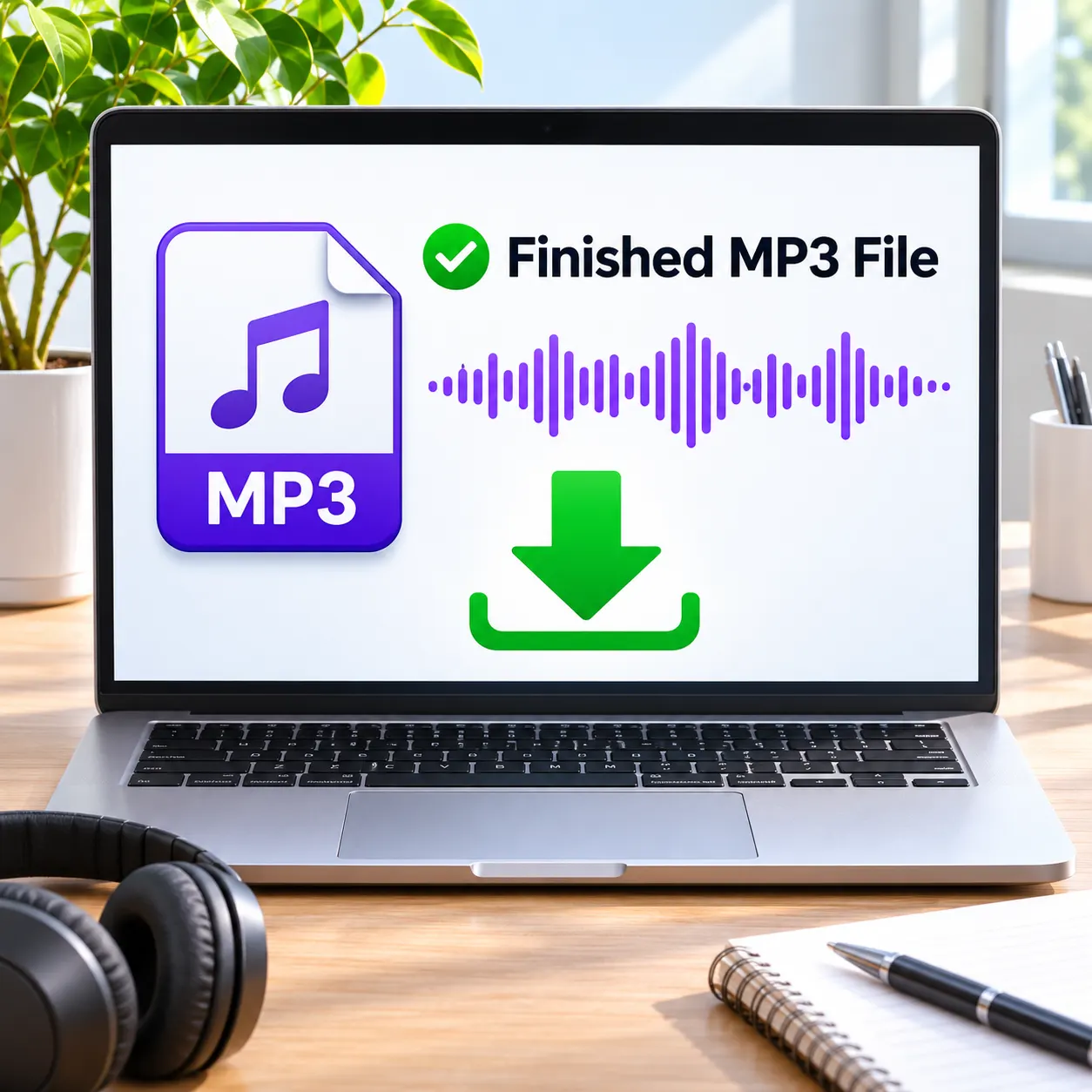
Direct MP3 download
Use this tool to convert m4a file to mp3 and download the finished audio when ready.
Audio conversion, shown step by step
This guide shows how to convert m4a to mp3 while keeping the controls simple.
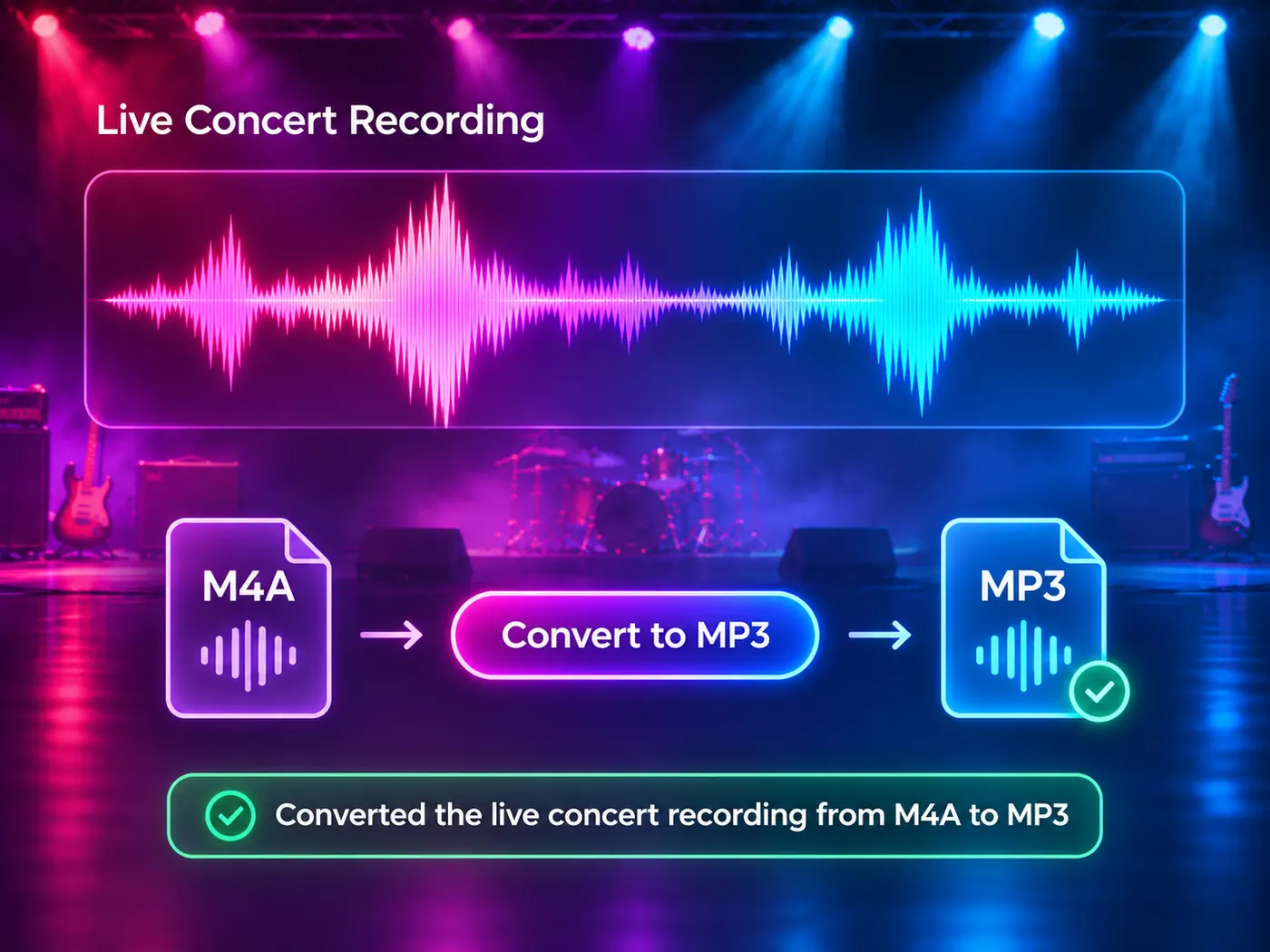
Made for everyday audio
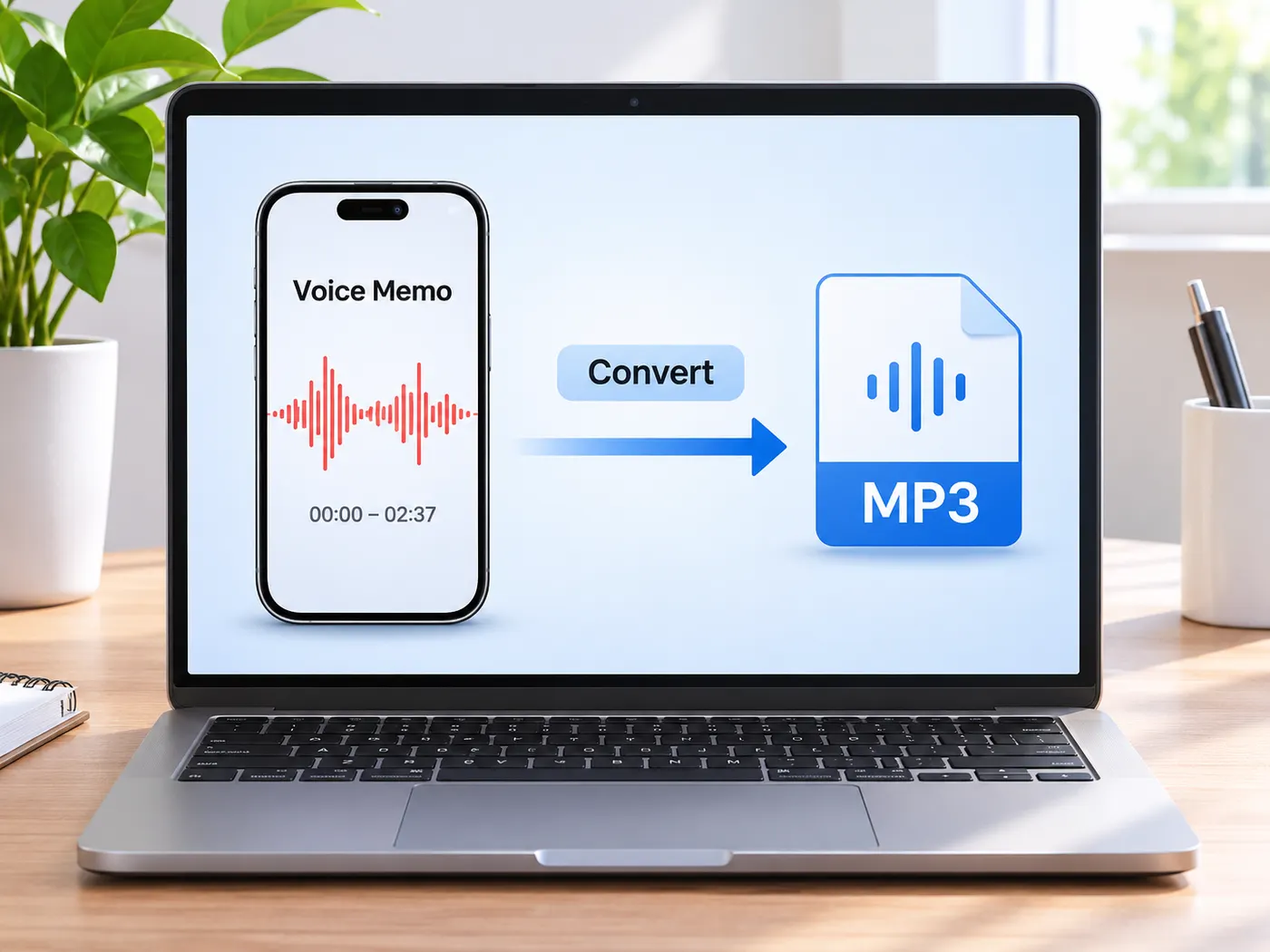
Voice memos
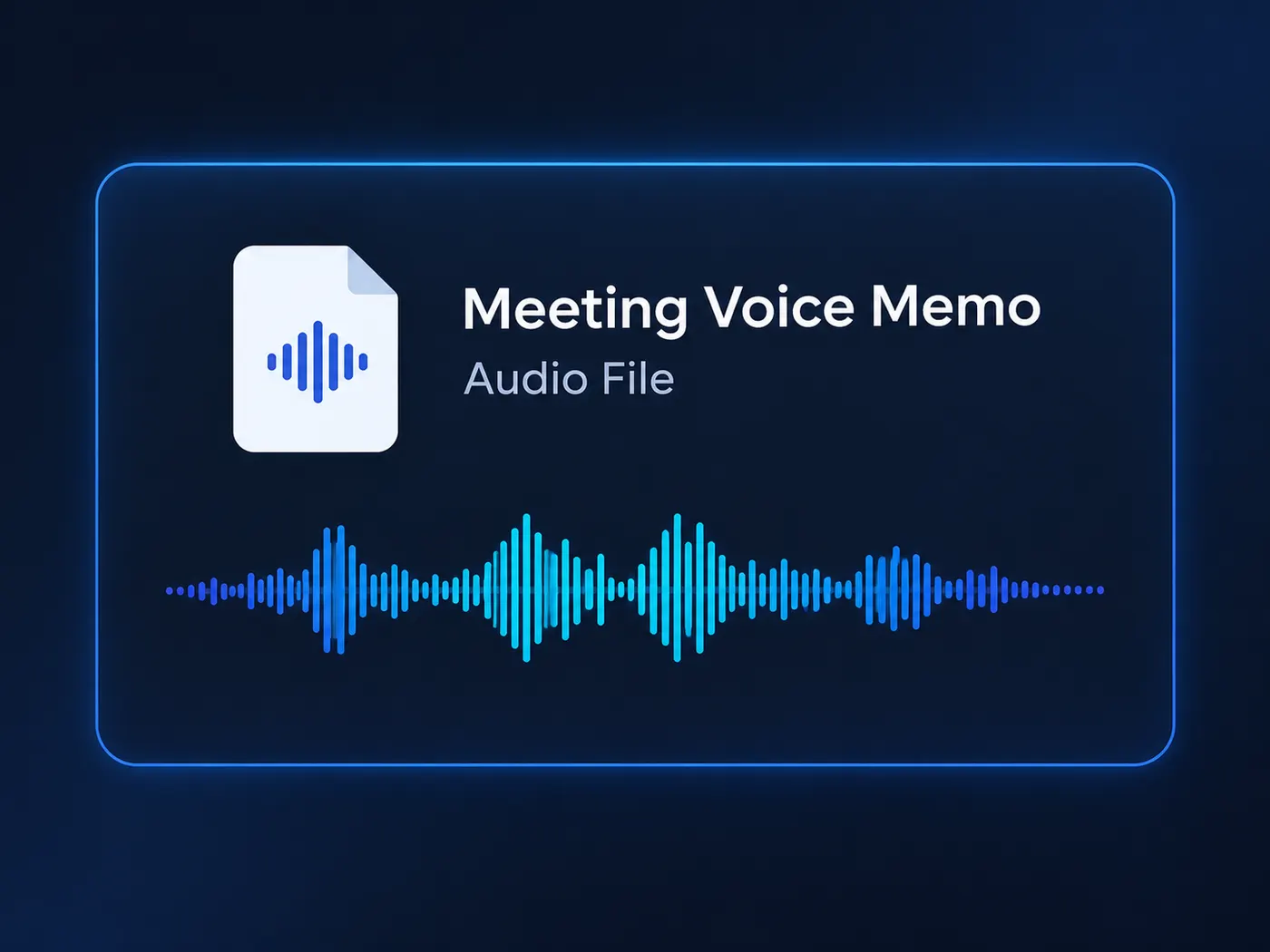
Turn an iPhone or Apple voice memo into an MP3 without installing software.
Lecture recordings
Keep a lecture recording private while the browser handles conversion locally.
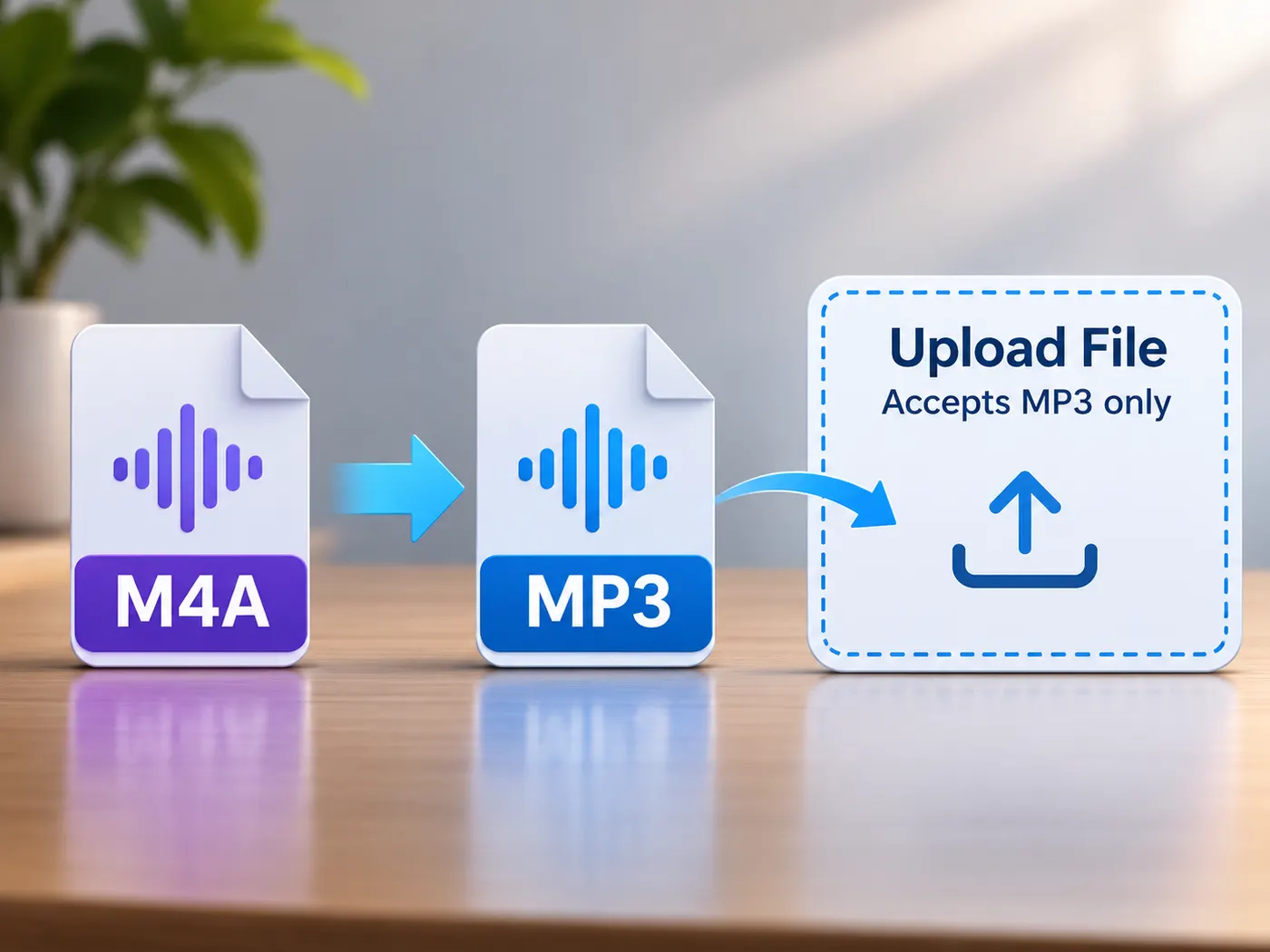
Upload compatibility
Create an MP3 copy for a site or app that does not accept M4A.
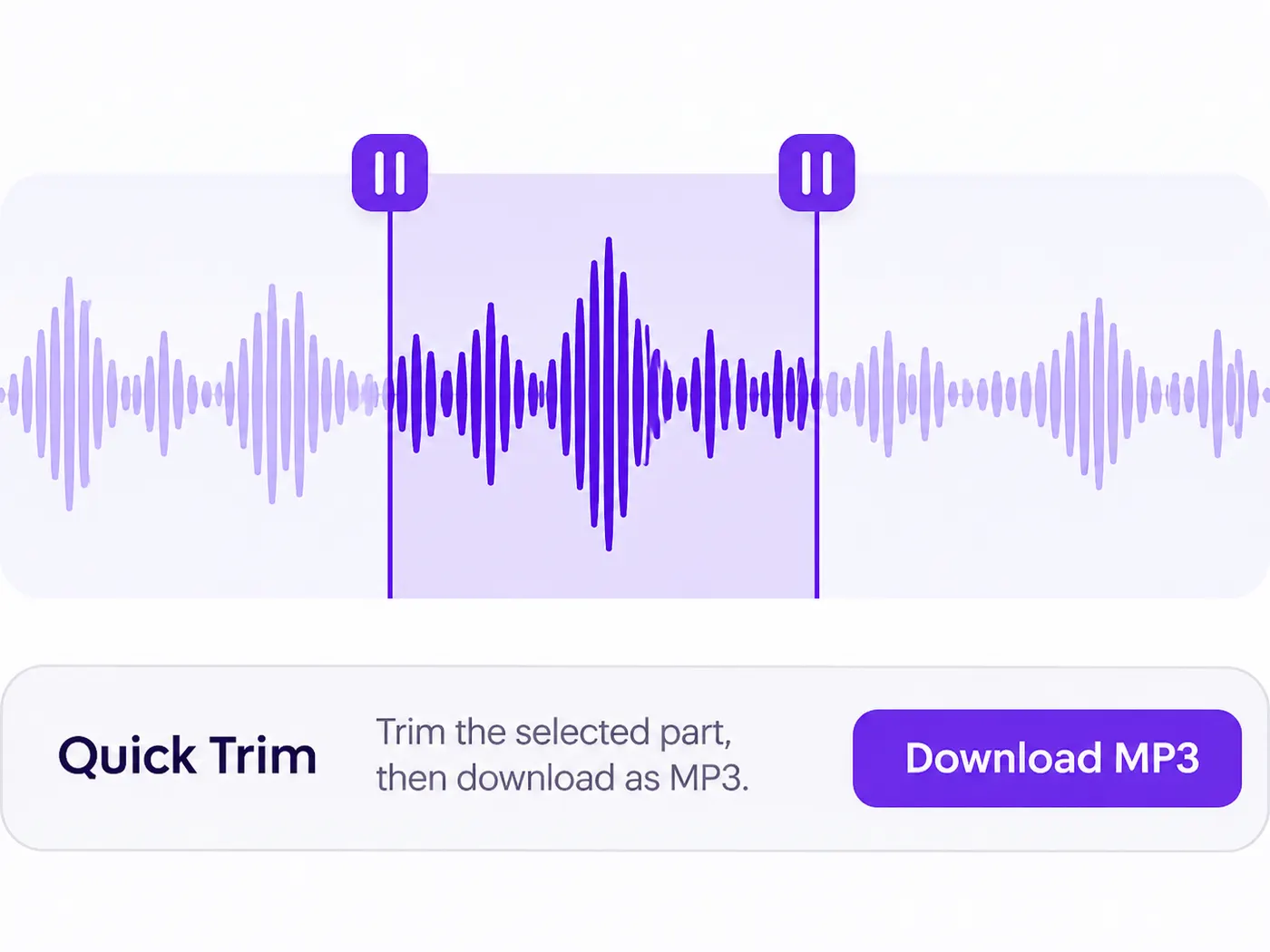
Quick audio edits
For an online m4a to mp3 workflow, set a trim range before downloading.
M4A to MP3 questions answered
How does audio conversion work?
Choose one M4A, AAC, or MP4 audio file and let the browser decode it with mediabunny and encode MP3 with LAME. Nothing is uploaded. After the job finishes, use Download MP3 to save the result locally. The page does not require software installation or an account.
Can I convert a recording without uploading it?
Yes. Processing happens in your browser, and the privacy line states that nothing is uploaded. This is useful for private voice memos, calls, or lectures. Select one file, choose any offered bitrate, and download the MP3 when conversion completes; the recording stays on your device during the workflow.
Which audio formats does the converter accept?
For .m4a to mp3 searches, select one M4A audio file and use the page in your browser. The tool also accepts AAC and MP4 audio. It creates an MP3 with the bitrate you select, using choices from 128 through 320 kbps, while leaving the source file on your device and uploading nothing.
What bitrate should I choose for MP3?
Choose from 128, 160, 192, 256, and 320 kbps. The 192 kbps option is selected by default, but you can change it in the Bitrate dropdown before starting. Lower values create smaller files, while higher values use more data; the tool does not promise a particular quality beyond your chosen setting.
Can I trim the audio before downloading?
Yes. Optional start and end trim controls are available. If you are learning how to convert m4a files to mp3, set the range before conversion, then download the result. Leaving the trim controls unchanged processes the full selected recording. Only one audio file can be selected for each job.
Is batch conversion available here?
No. Only one audio file can be selected at a time, so each conversion starts with a single M4A, AAC, or MP4 audio file. After that browser job finishes, download the MP3 and select Convert again if you want to process another file. Batch conversion and multi-file queues are not offered.
Free tools, and a plan when you need more
The everyday tools are free and run in your browser. The AI tools and the full editor run on credits — pick a plan when you need them.
- Free
- $0
- Every browser tool
- Starter
- $12/mo
- 120 credits
- Pro
- $29/mo
- 310 credits
Make your next audio file playable
Learn how to change m4a to mp3 in one private browser job, then download the finished MP3.
Convert to MP3