AI transcription for MP3, video, and audio files
MP3 to Text with AI Transcription
Use mp3 to text conversion when spoken audio needs to become usable notes, captions, or repurposed content. Upload one supported file, let the AI transcribe its speech, review the resulting text, and download a .txt transcript without installing dedicated transcription software. The process is simple for continuous or fast speech.
See the difference

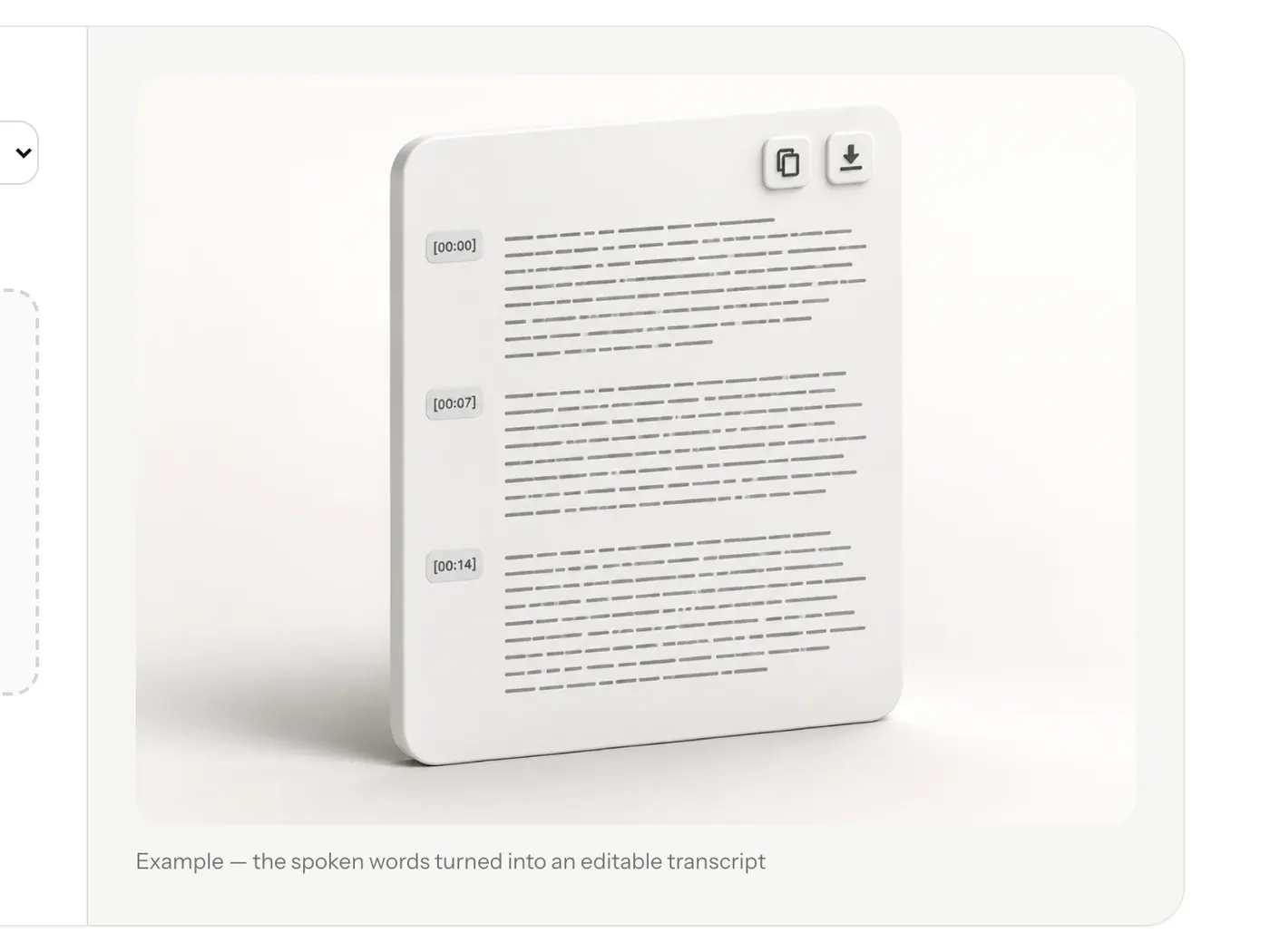
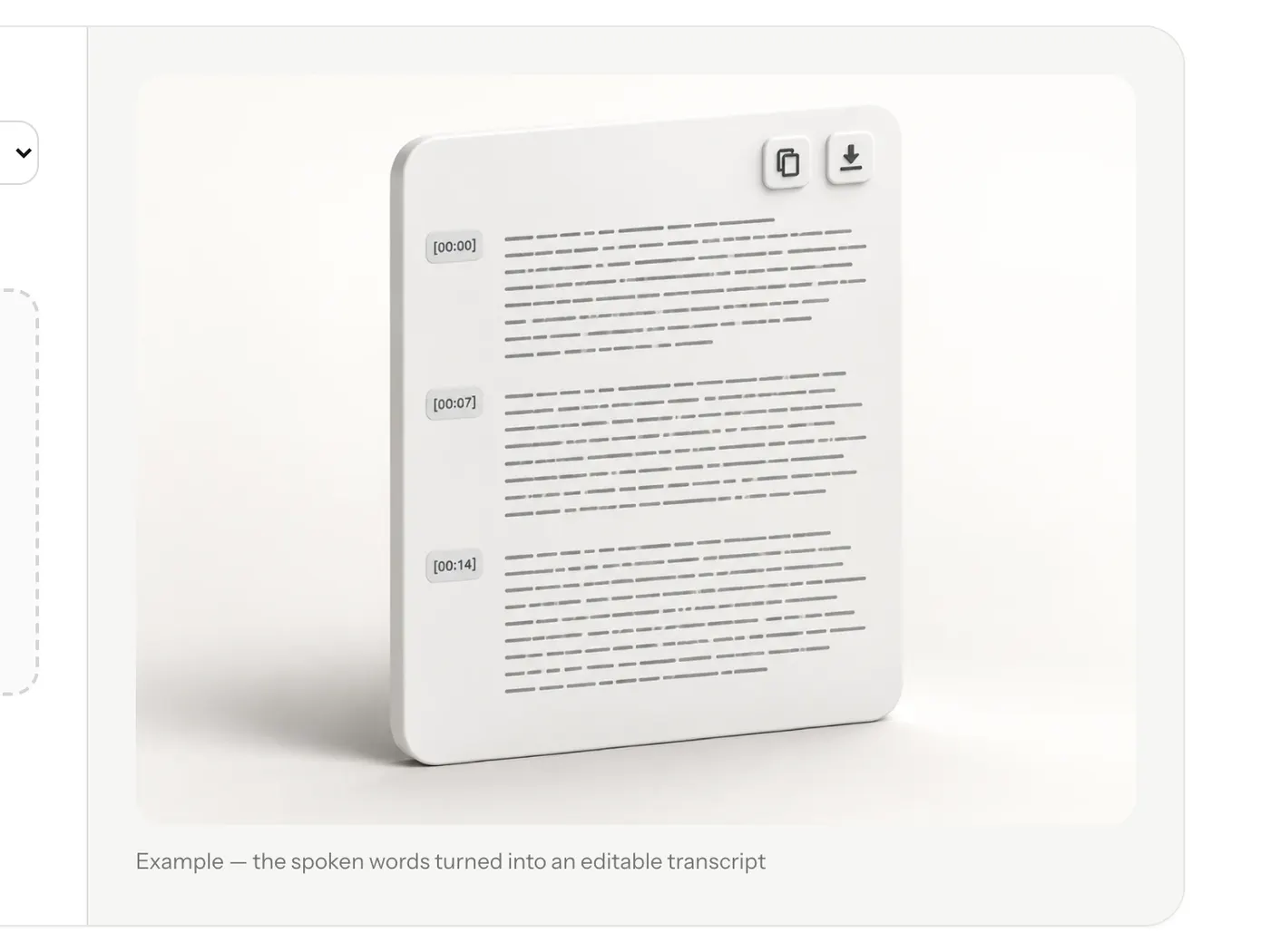
Example transcript
[00:00] Welcome to VidSnappy. [00:03] This is an example of what your transcript will look like — each sentence on its own line, with timestamps. [00:10] Upload your MP3 below to get started.
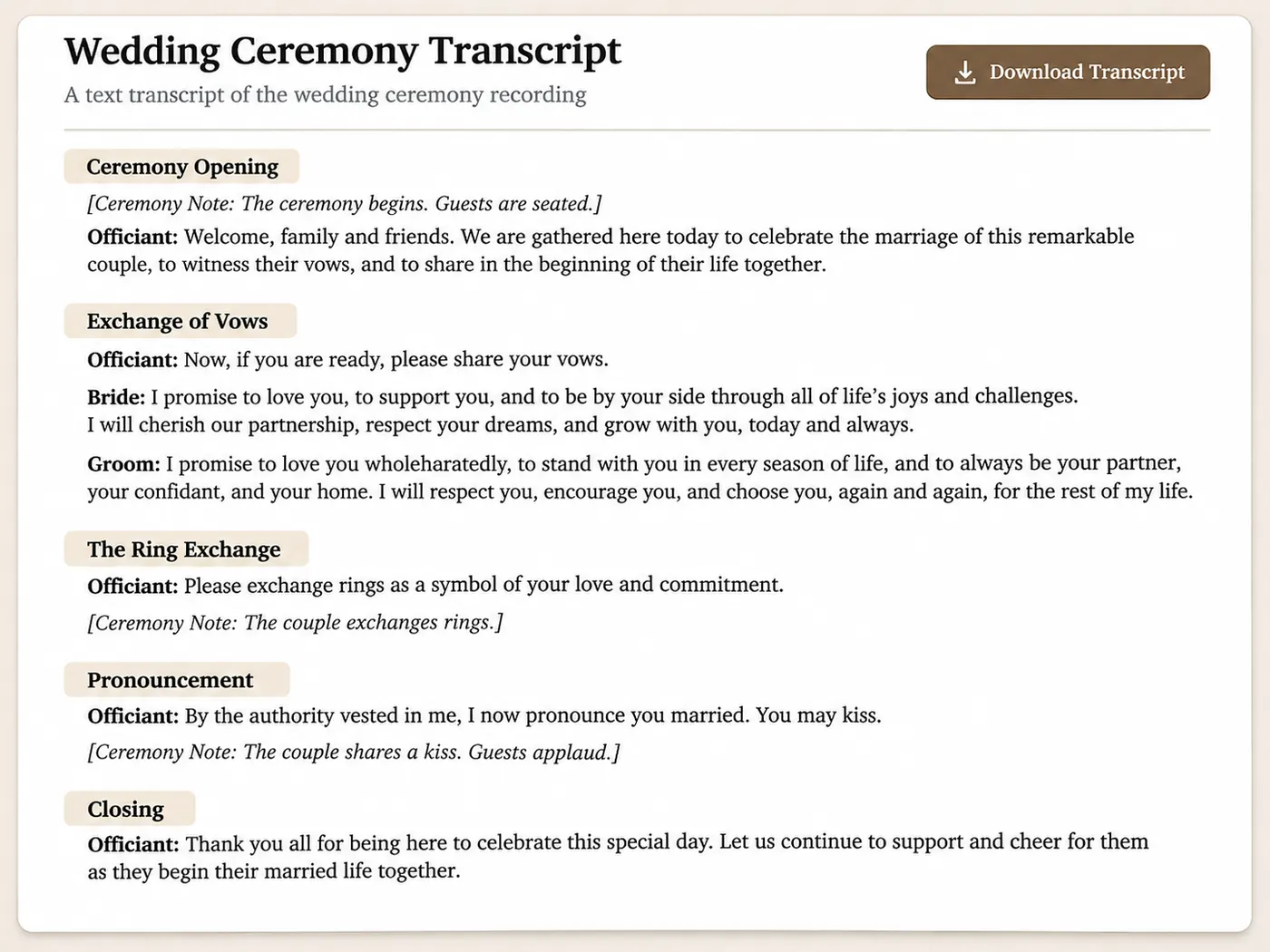
Upload audio directly
The tool accepts an MP3 file directly, so mp3 to text conversion can move from a recording to readable copy in one browser session. This mp3 to text path avoids dedicated software and keeps routine interviews, lectures, and voice notes easy to prepare for notes, captions, or later content editing.
Handle common formats
With mp3 to text conversion, fast AI transcription online turns a supported recording into a text result you can save as a .txt file. The workflow removes manual typing from first-pass work while leaving the transcript ready for notes, captions, summaries, or content repurposing.

Keep text ready to use
For recurring work, mp3 to text gives spoken material a practical text destination instead of leaving it inside an audio player. Once mp3 to text is part of your workflow, you can download the transcript and move its wording into notes, captions, or another editing task.

See the transcription workflow from upload to download
The mp3 to text workflow keeps one file, one transcription, and one downloadable result together.
Convert an audio file in four steps
01
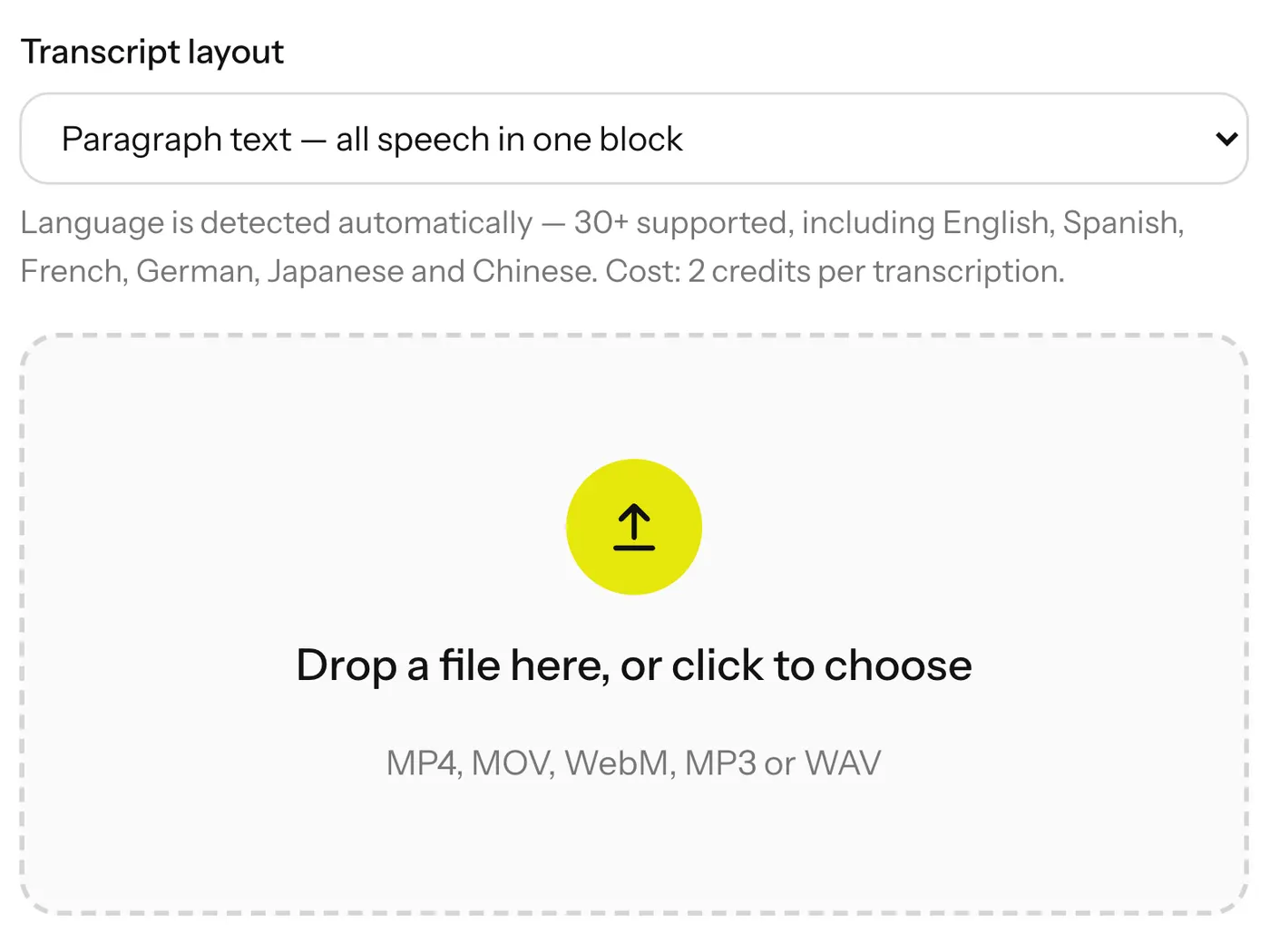
Choose a file
Choose one MP3 or another accepted file, then start mp3 to text from the upload area. The tool uses the selected audio or video as its transcription input.
02
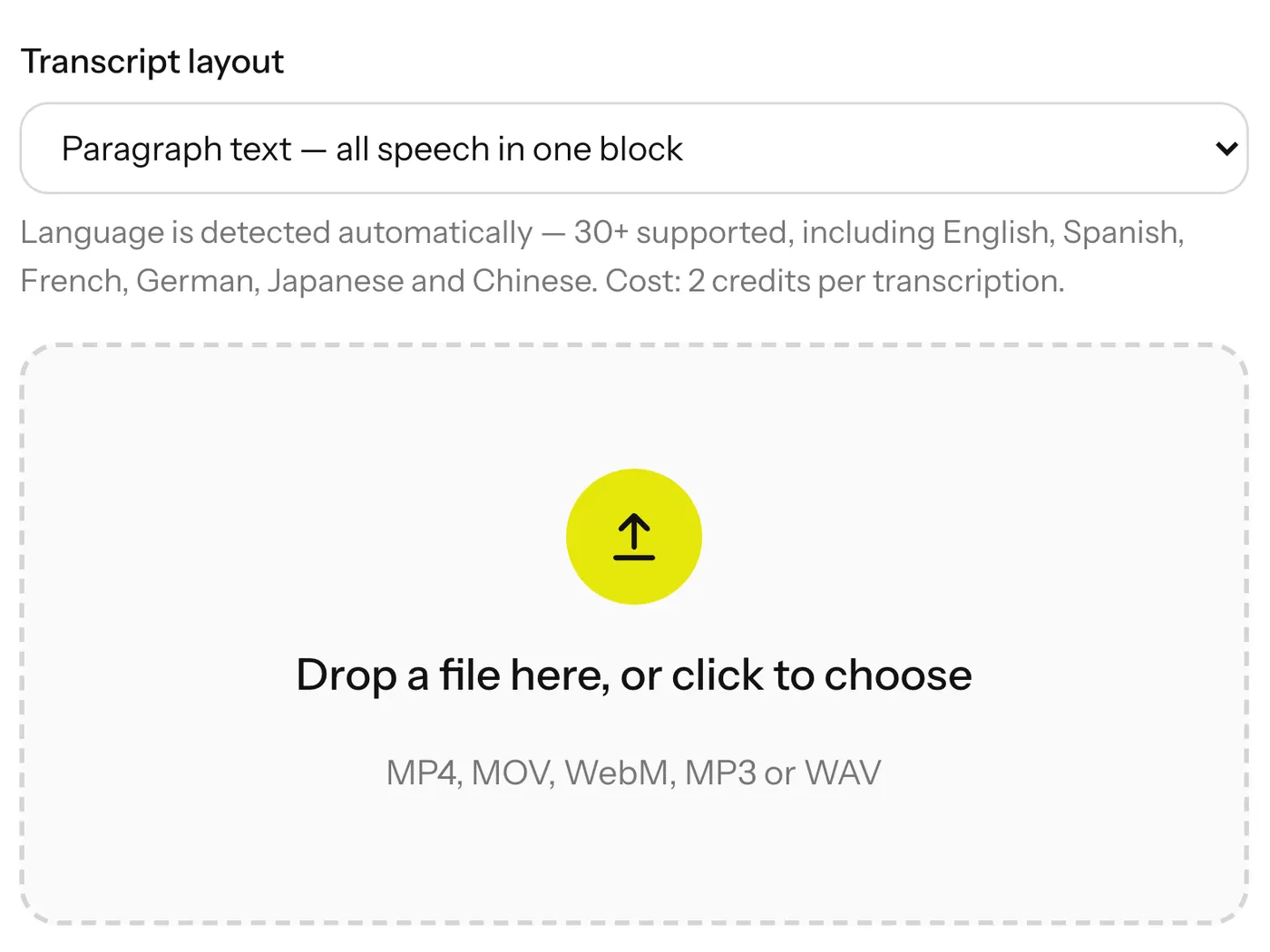
Confirm the format
Select a single file from the supported formats list. MP4, MOV, WebM, M4V, WAV, and M4A files can use the same transcription flow.
03
Review the result
Wait while the AI listens and transcribes the spoken content. Review your mp3 to text result for the notes, captions, or repurposing task you have in mind.
04
Download the transcript
Download the completed .txt transcript when the result is ready. Keep the file for editing, sharing, or moving its text into your next content workflow.

Direct upload
Upload one supported file and begin transcription from a straightforward browser workflow.
Broad format support
Use MP3, MP4, MOV, WebM, M4V, WAV, or M4A files as the transcription source.

Downloadable output
Receive the completed spoken-text result as a .txt file for continued editing.
Browser-first workflow
Avoid installing dedicated transcription software before turning a recording into text.

Useful starting transcript
An mp3 to text result gives notes, captions, and repurposed content a practical starting point.
See practical outcomes from audio transcription
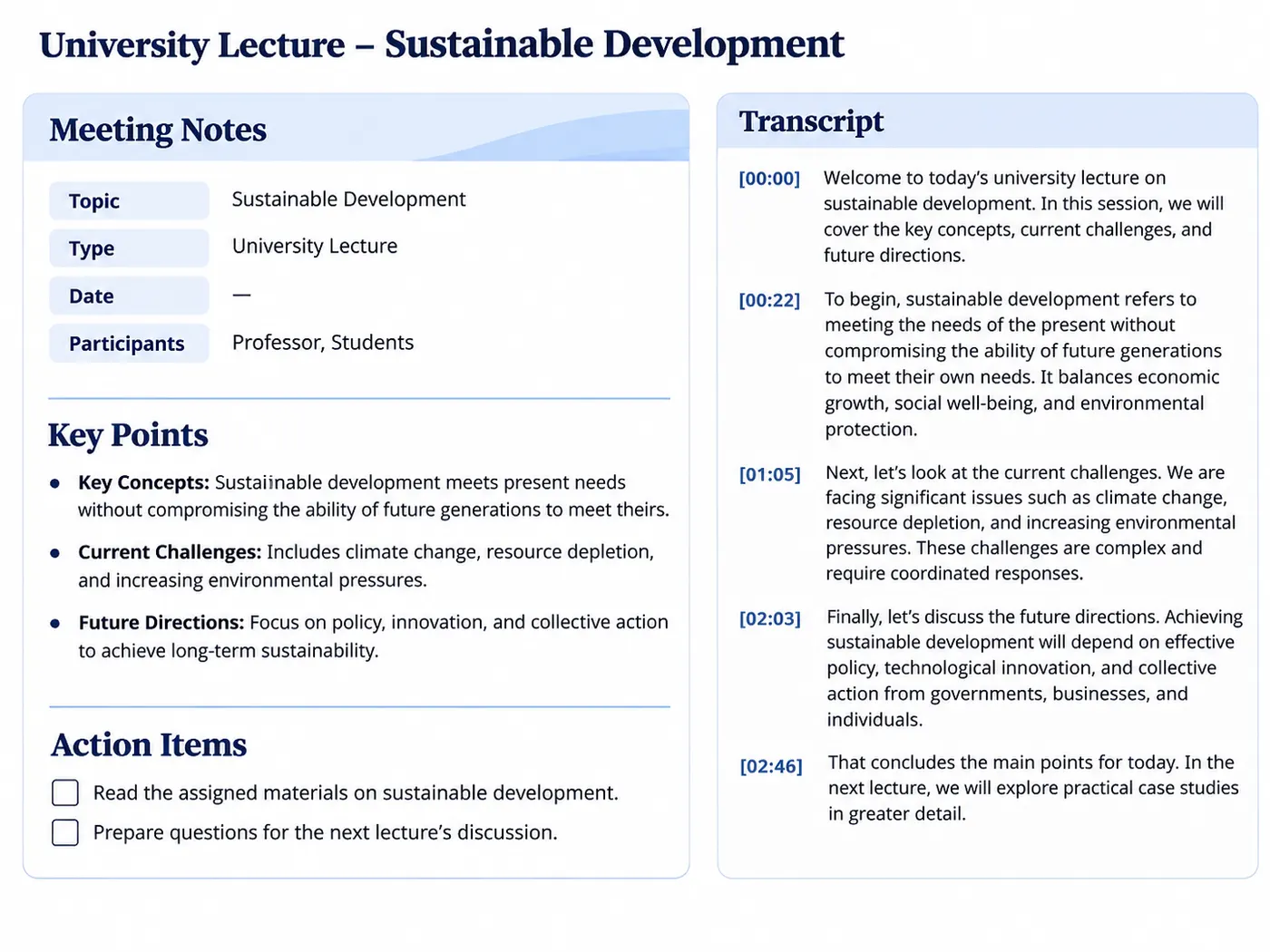
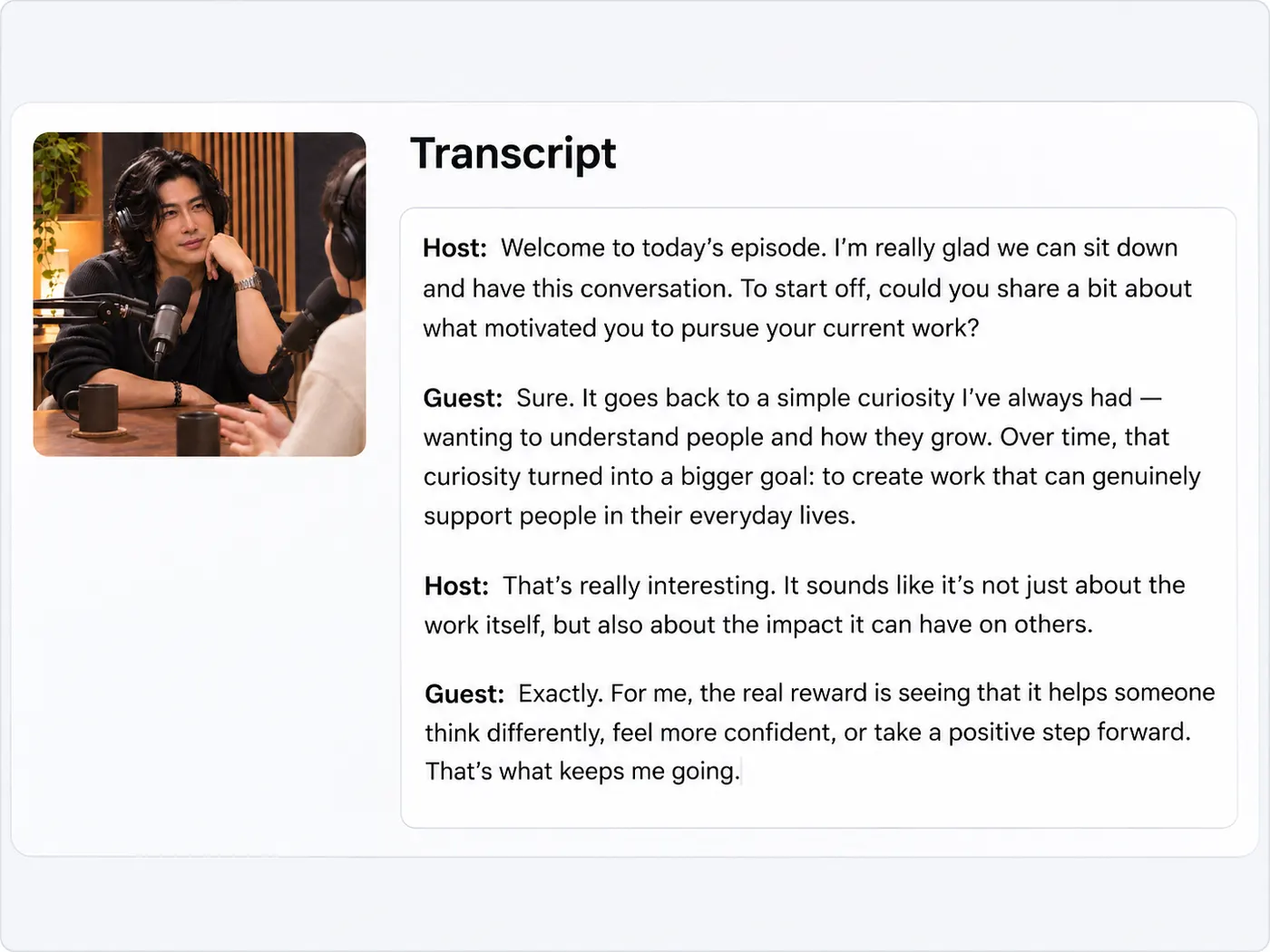
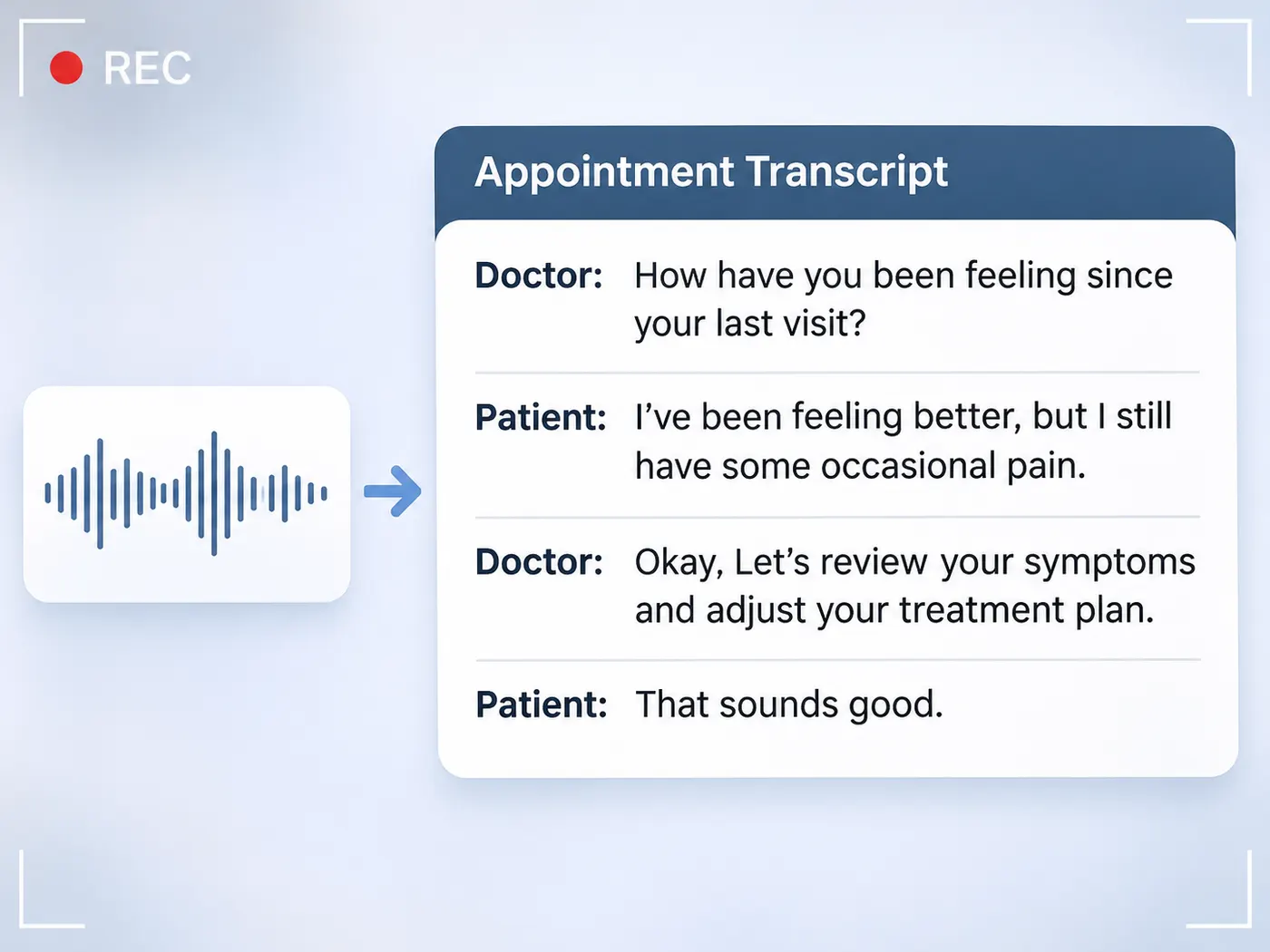
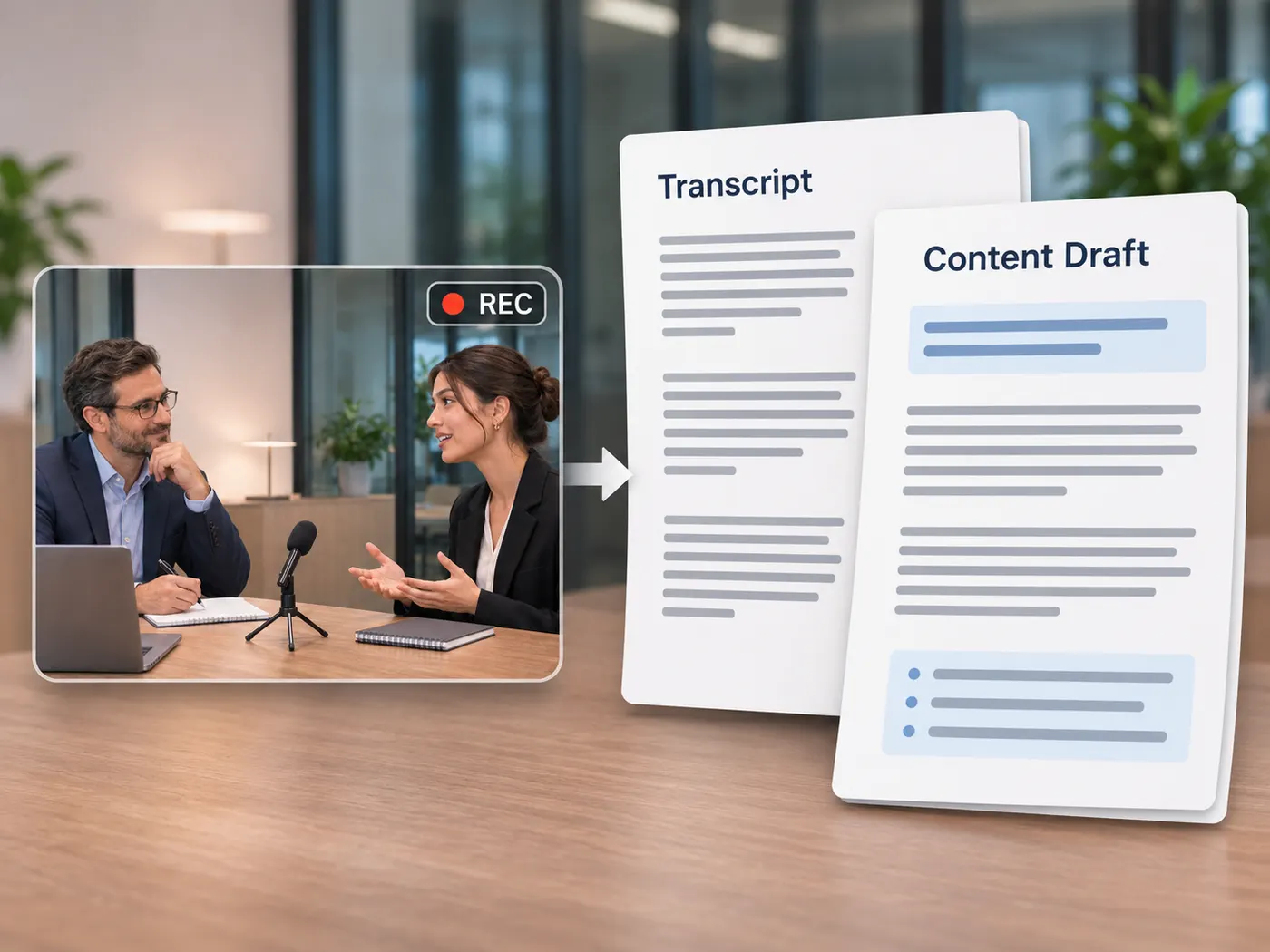
These examples show how a spoken recording can become text for notes, captions, review, or content reuse.
Built for everyday transcription tasks

Interview notes
Use mp3 to text to turn recorded interviews into text that is easier to scan, quote, and organize.

Lecture review
Convert a lecture recording into a text reference for reviewing spoken material alongside your own notes.

Caption preparation
Use mp3 to text when spoken content needs a readable first draft before caption or video editing work.

Content repurposing
Turn audio or video speech into text that can support summaries, notes, and new content formats.
Questions about MP3 transcription

Can I convert an MP3 file into a text transcript?
Choose one MP3 file, let the AI transcribe its spoken content, and download the resulting .txt transcript. The mp3 to text conversion runs through a direct browser workflow, while this mp3 to text process turns the recording into usable text without requiring dedicated transcription software.
Which file formats can I use for transcription?
The tool accepts MP3 files, along with MP4, MOV, WebM, M4V, WAV, and M4A files. After you select one supported audio or video file, the mp3 to text process generates a downloadable .txt transcript. This mp3 to text result is based on the spoken content in the selected recording.
Do I need separate transcription software?
No separate desktop application is required. Upload one supported file in the browser and start the AI transcription; the mp3 to text workflow then provides a downloadable .txt result. This mp3 to text option lets you create a transcript without installing dedicated transcription software first.
How many files can I upload at once?
The tool accepts one file at a time for mp3 to text. Choose a single supported MP3, MP4, MOV, WebM, M4V, WAV, or M4A file, then let the transcription process work on that selected recording before downloading its text result.
Can I download the finished transcript?
Yes. The completed transcript is available as a downloadable .txt file. After mp3 to text finishes processing the spoken content, save the text file and use it for notes, caption preparation, editing, or content repurposing.
Is this useful for fast or continuous speech?
Yes. mp3 to text is useful when manually keeping up with continuous or fast spoken audio would take too much time. Upload the supported recording, let the AI create the first-pass transcript, and download the text for review and further editing.
Free tools, and a plan when you need more

The everyday tools are free and run in your browser. The AI tools and the full editor run on credits — pick a plan when you need them.
- Free
- $0
- Every browser tool
- Starter
- $12/mo
- 120 credits
- Pro
- $29/mo
- 310 credits
Turn your recording into usable text
Upload a supported file and create a downloadable transcript for your next notes, caption, or editing task.
Start transcribing