AI transcription for video and audio subtitle preparation
Video to SRT for Fast, Practical Subtitle Source Text
Upload one video or audio file and get its spoken content as a transcript you can read, edit, and use while preparing subtitles. This workflow turns video speech into downloadable text without requiring transcription software on your device. Video to SRT supports MP4, MOV, WebM, M4V, MP3, WAV, and M4A files.
See the difference

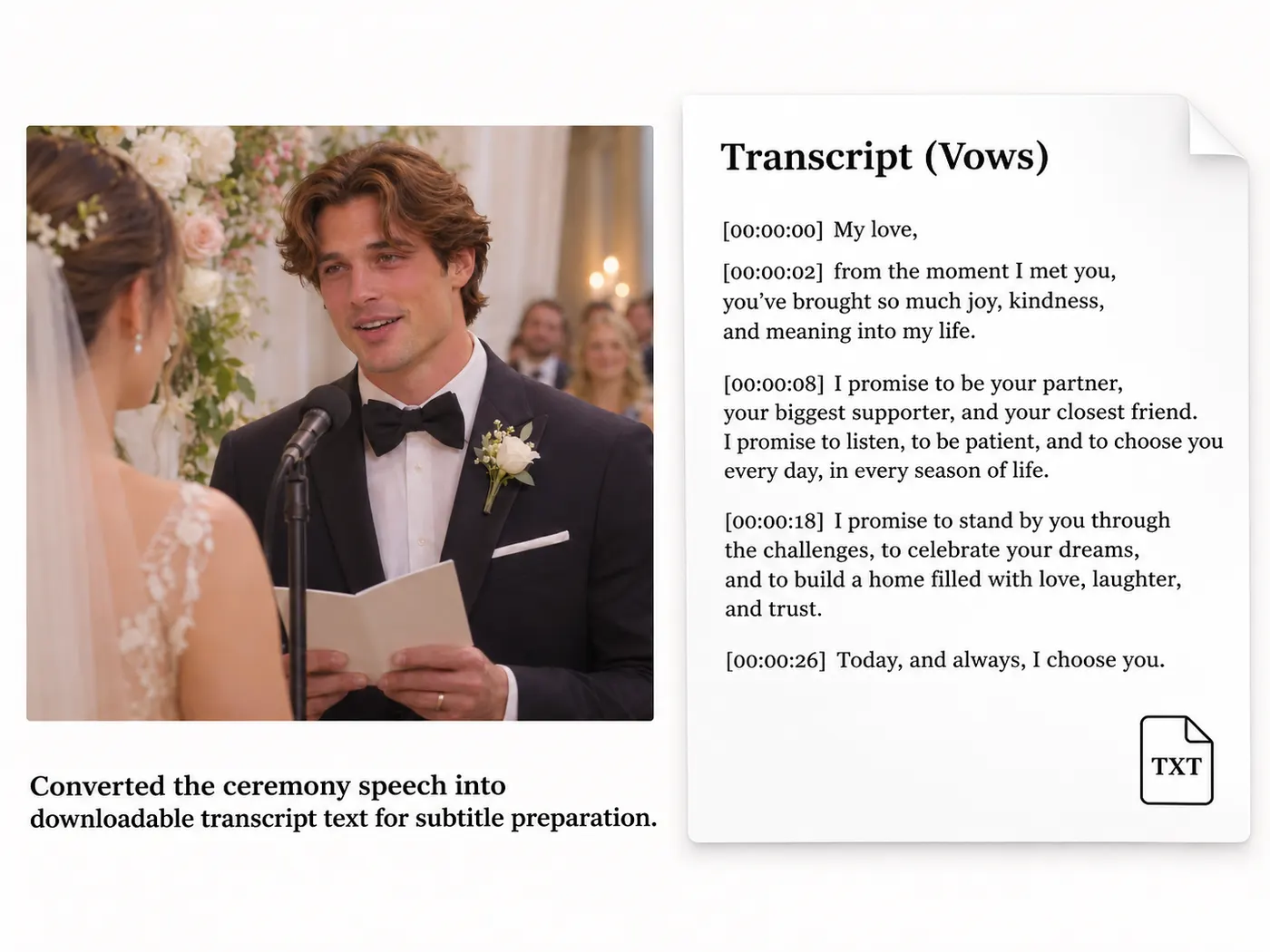
Example transcript
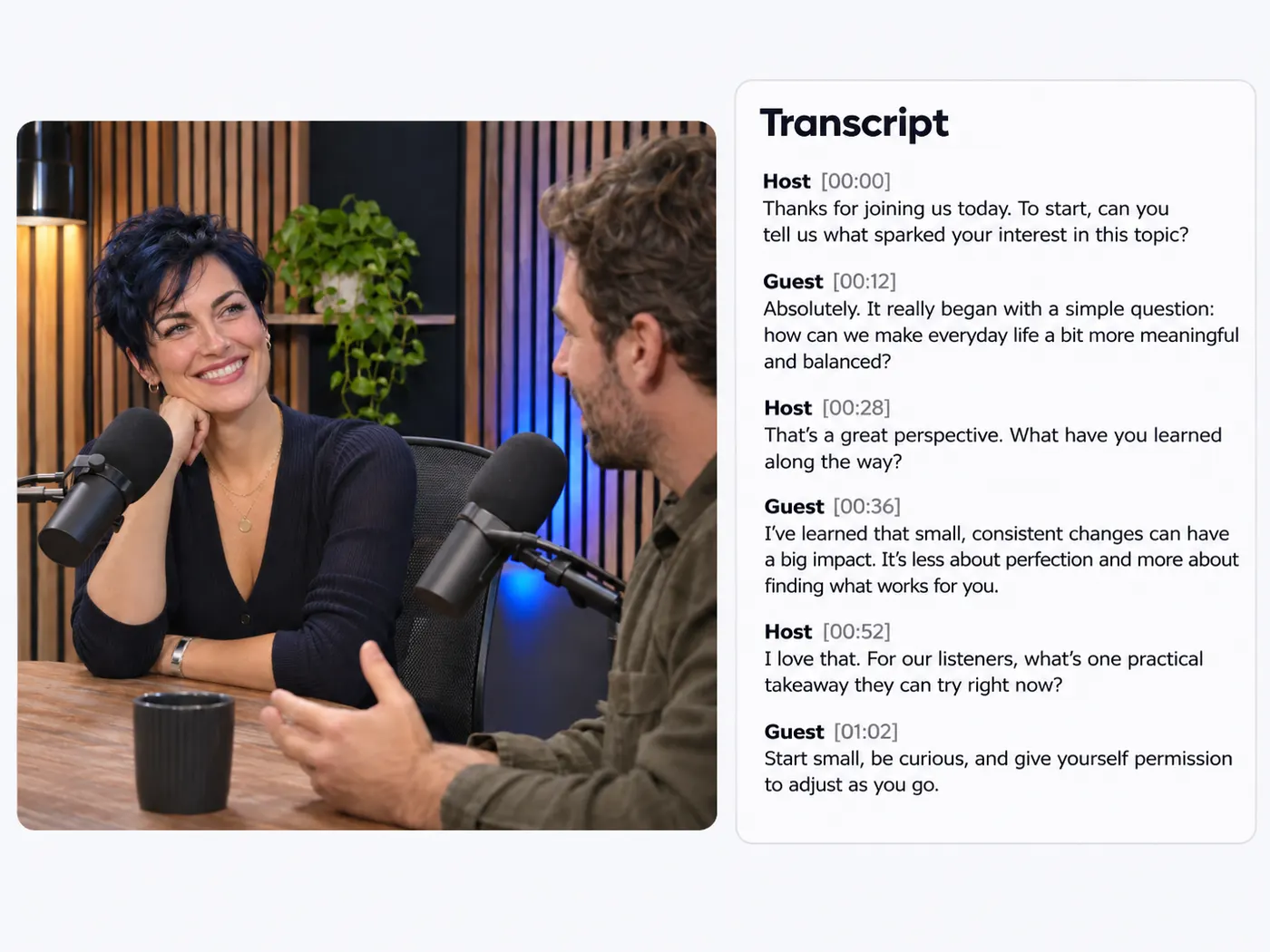
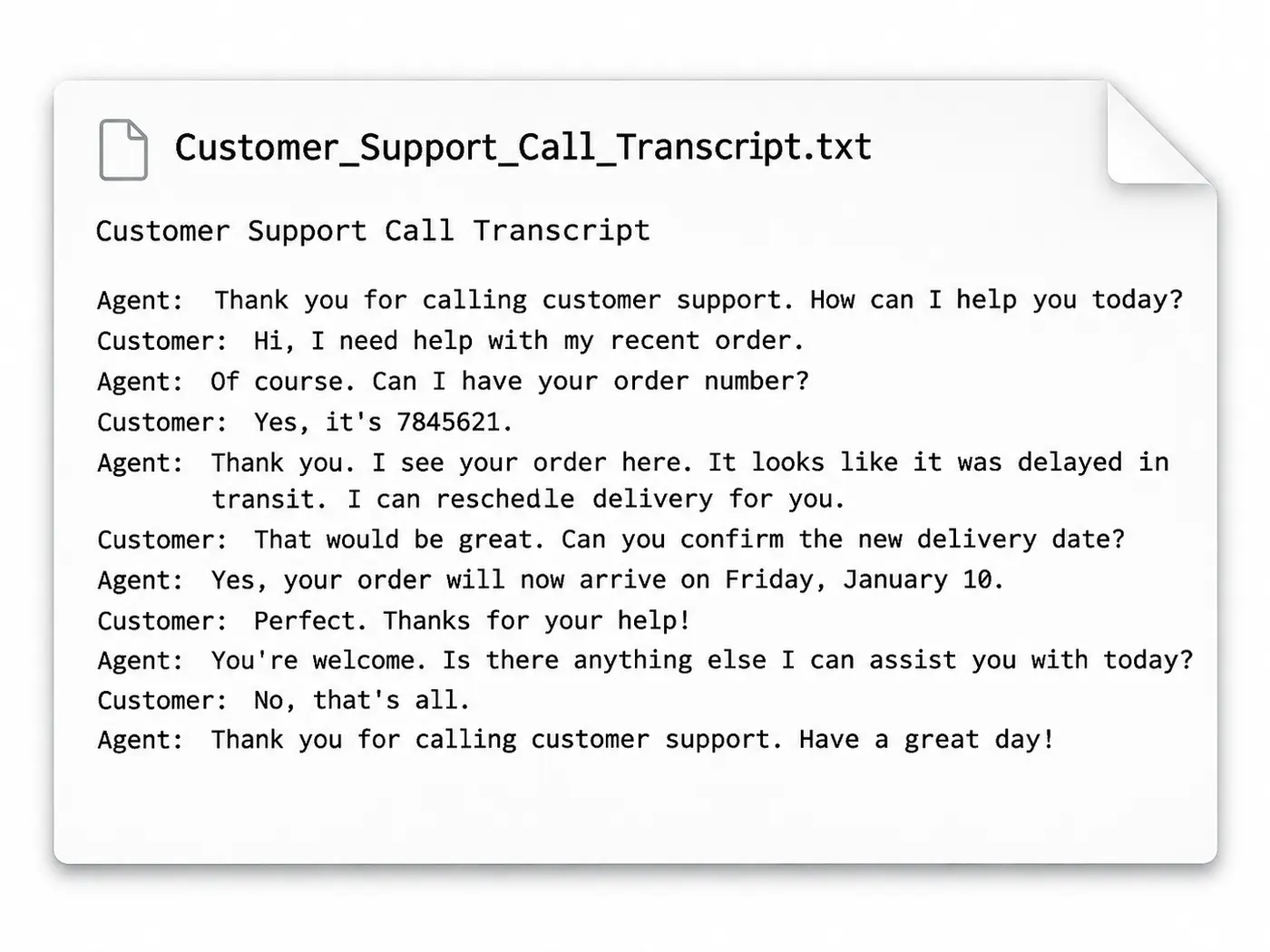
[00:00] Welcome to VidSnappy. [00:03] This is an example of what your transcript will look like — each sentence on its own line, with timestamps. [00:10] Upload your video below to get started.
Extract spoken content quickly
Video to SRT extracts the spoken content from one uploaded file and gives you a transcript to review. The result is useful when video to srt is your first step toward subtitles, because you can work from the dialogue instead of replaying every line. This keeps the initial transcription task focused and practical.

Work with common media formats
Choose a source from the formats your project already uses. Video to SRT accepts MP4, MOV, WebM, M4V, MP3, WAV, and M4A, so a camera clip, screen recording, or separate audio track can enter the same workflow. You do not need to install dedicated transcription software before uploading the file. For video to srt, format choice stays straightforward.

Start subtitle preparation with text
After video to srt returns the transcript, download it as a .txt file. Read through names, punctuation, and timing needs, then use the text as source material while preparing an SRT subtitle file in the workflow that fits your project. The tool provides transcript text, not a finished timed subtitle file.

A clear transcript before you build subtitles
Use video to srt as the bridge between spoken media and subtitle planning: upload the source, receive readable transcript text, and download it before arranging subtitle timing.
How to get transcript text
Step 1
Choose your file
Select one video or audio file from your device. Supported extensions include MP4, MOV, WebM, M4V, MP3, WAV, and M4A.
Step 2
Start transcription
Video to SRT listens to the spoken content in the uploaded file and converts that dialogue into transcript text for review.
Step 3
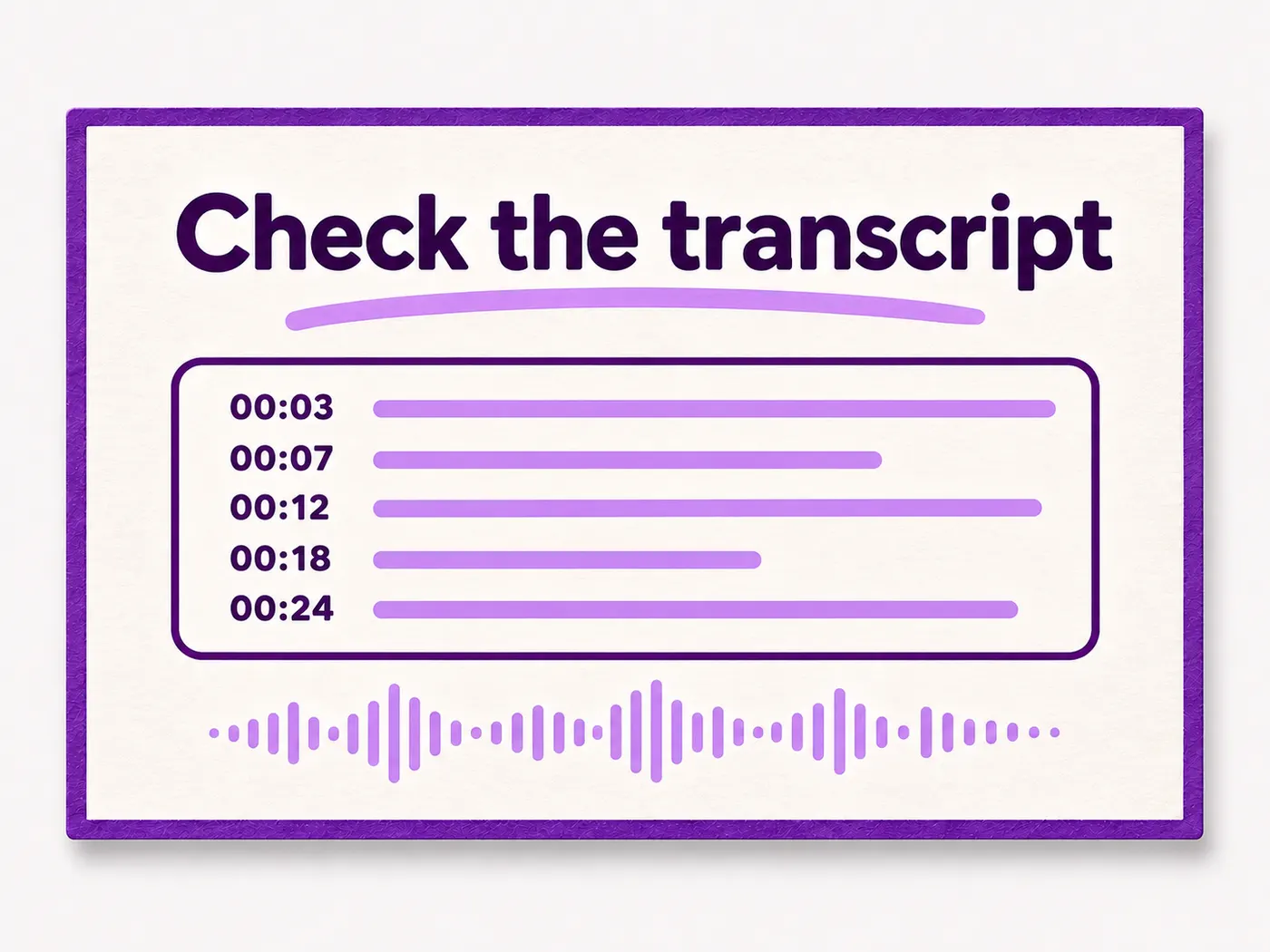
Check the transcript
Read the returned text and identify names, wording, or sections that need attention before you use the transcript for subtitle planning.
Step 4
Download the text
Use video to srt to create a downloadable .txt transcript, then take that source text into the subtitle workflow you prefer.

One-file workflow
Upload a single video or audio source and keep the transcription task easy to follow.
Video and audio input
Use supported video files or standalone audio files when the spoken content is not stored in a video.

Readable source text
Video to SRT gives subtitle preparation a clear text starting point instead of requiring repeated playback.
Downloadable TXT output
Save the returned transcript as a .txt file for reading, editing, or moving into another subtitle step.

Practical subtitle preparation
Extract dialogue first, then handle subtitle timing and formatting with the tools suited to your project.
From media to usable text
Follow the simple path from selecting a supported file to downloading transcript text that can guide your subtitle work.

Made for everyday transcript tasks

Content creators
Turn spoken footage into text before preparing captions for a published video.

Students
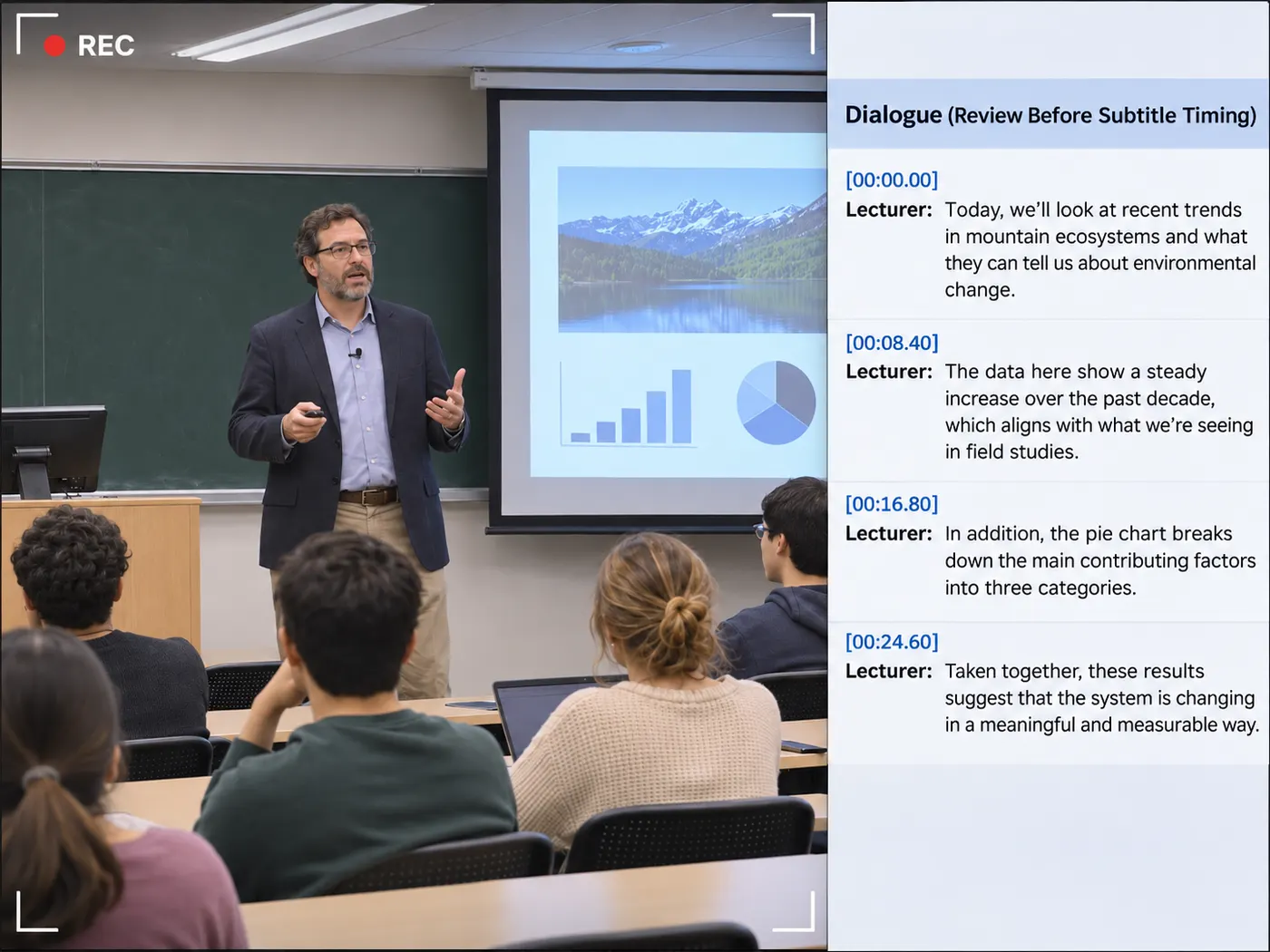
Video to SRT can turn a class recording into text that is easier to review before you plan captions.

Small businesses
Create a text starting point from spoken product, training, or announcement recordings.

Gamers
For game footage, video to srt helps separate spoken dialogue from the original recording before subtitle preparation.
Questions about video transcripts

What file types can I upload for transcription?
Yes. Video to SRT accepts MP4, MOV, WebM, M4V, MP3, WAV, and M4A files. If your file matches one of these extensions, video to srt can use it as the single uploaded source for transcription. The accepted formats cover common video files and standalone audio recordings.
What does the transcription tool return?
Video to SRT returns the spoken content as a transcript that you can download as a .txt file. In a video to srt workflow, that text is the source for reviewing dialogue and preparing subtitles. The direct download is transcript text, not a completed SRT file with timed caption entries.
Can I upload both a video and an audio file together?
No. Video to SRT is configured for one video or audio file per transcription. When video to srt is needed for another recording, finish or download the current transcript, then start a separate upload with the next supported file. This keeps each returned transcript connected to one source.
Do I need separate transcription software installed?
No separate transcription application is required for this upload workflow. Select a supported video or audio file, start the transcription, and download the resulting .txt transcript. You can then review the dialogue and use it as source text while preparing subtitles in the editing process you already use.
Does the tool create a finished SRT subtitle file?
No. The tool returns spoken content as a downloadable .txt transcript. That text helps you prepare subtitles, but it does not include the timed caption blocks of a finished SRT file. Review the transcript first, then create or format subtitle entries in the workflow appropriate for your video.
Why use a transcript before making subtitles?
A transcript gives you the spoken wording in one readable document before you work on subtitle timing. You can check dialogue, identify sections, and use the downloaded text as a reference while building captions. This separates the initial speech extraction task from the later formatting and timing work.
Free tools, and a plan when you need more

The everyday tools are free and run in your browser. The AI tools and the full editor run on credits — pick a plan when you need them.
- Free
- $0
- Every browser tool
- Starter
- $12/mo
- 120 credits
- Pro
- $29/mo
- 310 credits
Turn spoken media into text
Upload a supported file and download the transcript you need for subtitle preparation.
Transcribe video