Private browser conversion with no upload
Convert mkv to mp3 in Your Browser
This private browser tool turns an MKV video into an MP3 file without uploading the source. An mkv to mp3 conversion suits a one-off task: select one MKV video, trim unwanted sections, choose 128, 160, 192, 256, or 320 kbps, and download the extracted audio. The process stays in your browser, so the original remains on your device.
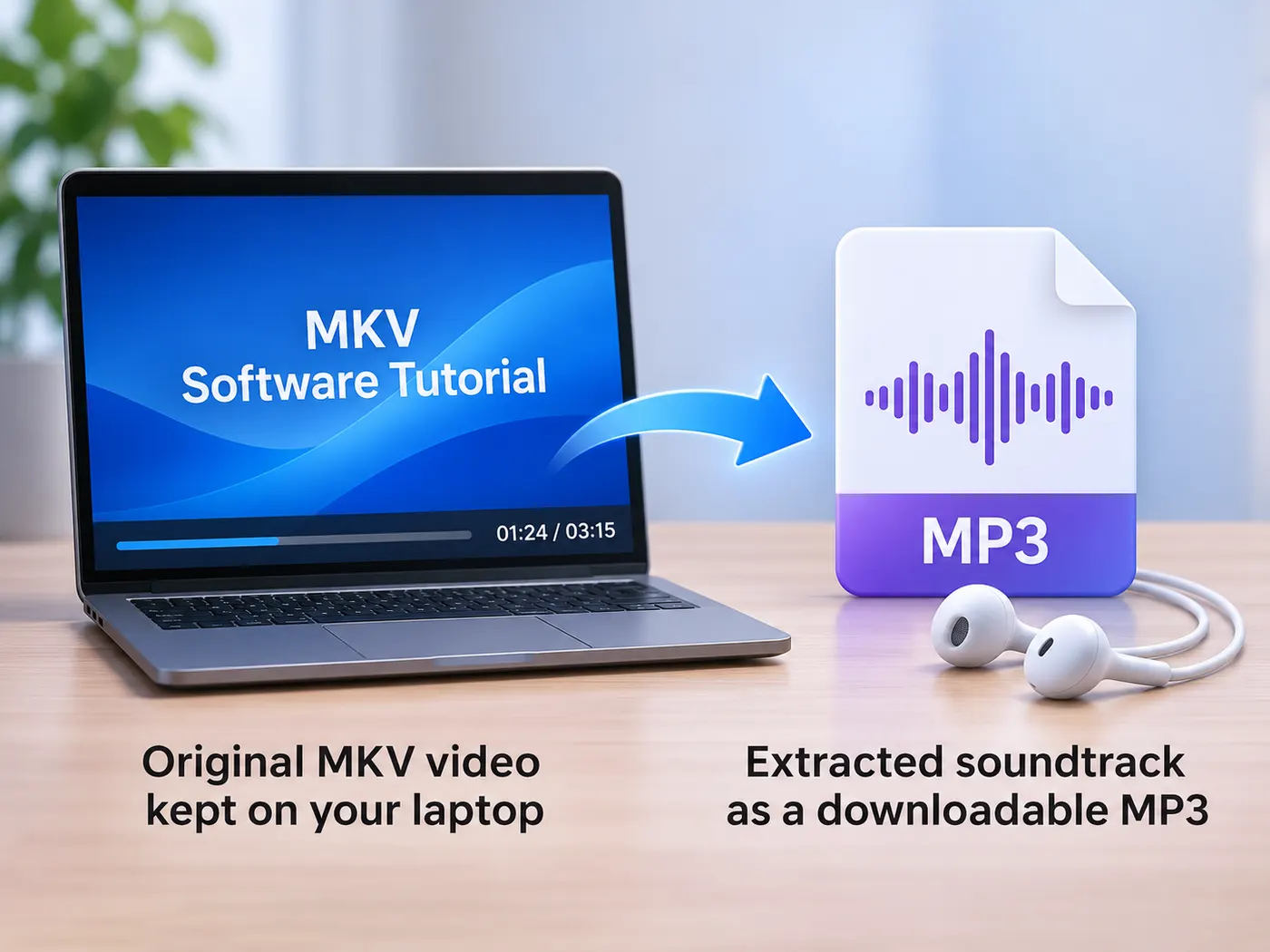
MKV audio is extracted in your browser; nothing is uploaded.
Extract only the audio you need
Keeping only the audio you need makes an mkv to mp3 conversion useful when you want a soundtrack, dialogue, interview, lecture, or other audio without the full video. Select your MKV video in the browser and create an MP3 that is easier to play in common audio apps. The source stays on your device throughout the conversion, making this a practical choice for private, one-off audio extraction.
Trim before creating the file
Trim the source before starting an mkv to mp3 task when you want a useful section instead of every minute of the video. Set the portion you need, whether that means removing introductions, credits, silence, or unrelated scenes. The selected range becomes the basis for the MP3 download, so you can prepare a focused audio file without opening desktop editing software.

Choose a bitrate for your use
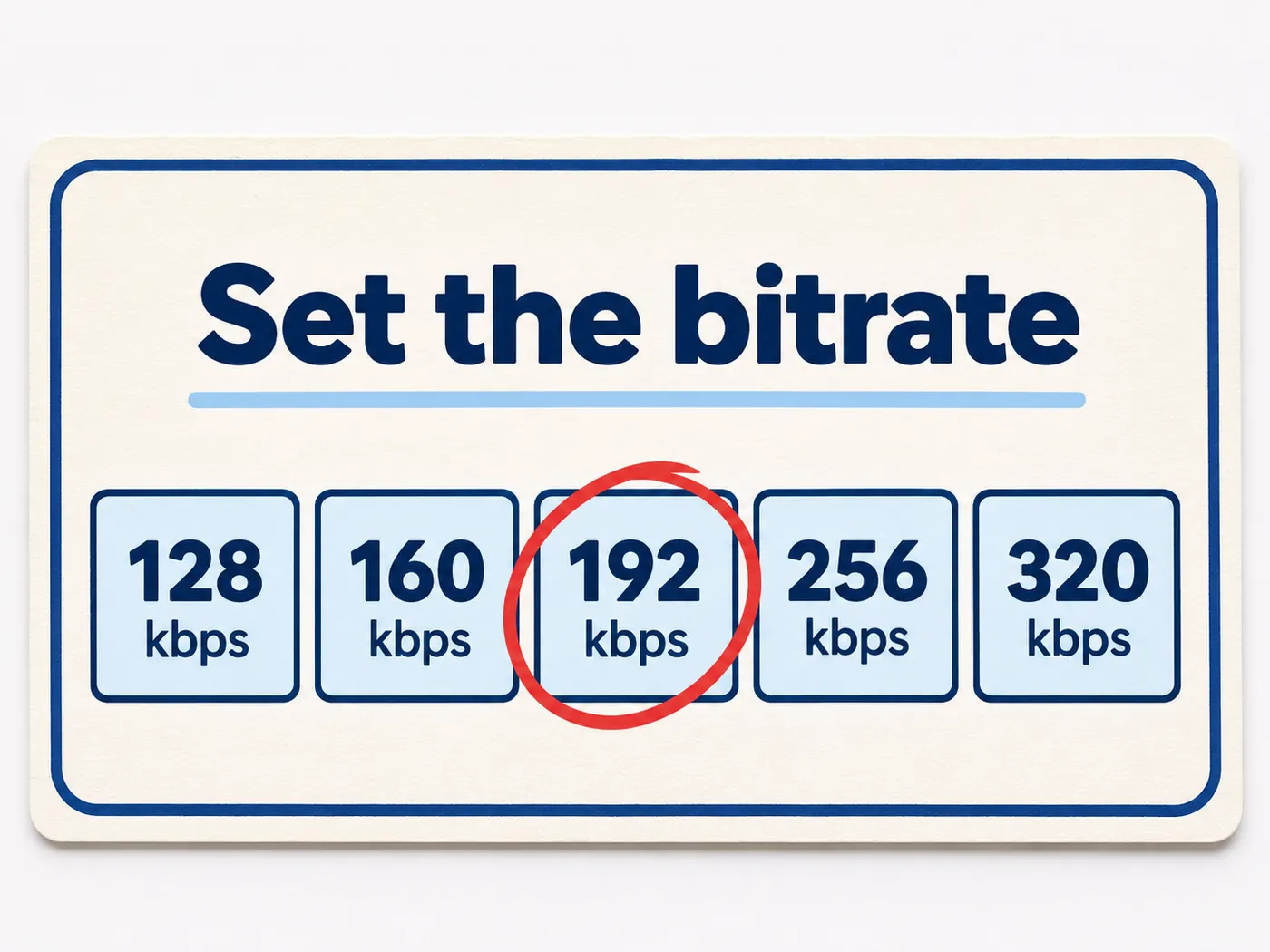
Bitrate choices in the mkv to mp3 workflow include 128, 160, 192, 256, and 320 kbps. Choose a lower setting when a smaller download matters, or select a higher setting when you want to preserve more detail from the extracted track. After mkv to mp3 conversion, the result is available as an MP3 file that matches the bitrate you selected.

A private audio workflow from video
The mkv to mp3 workflow keeps the task focused: choose an MKV video, adjust the range, select a bitrate, and download the MP3. No desktop installation is required, and the browser handles the audio extraction while the original file remains on your device.
Convert your video in four steps
01
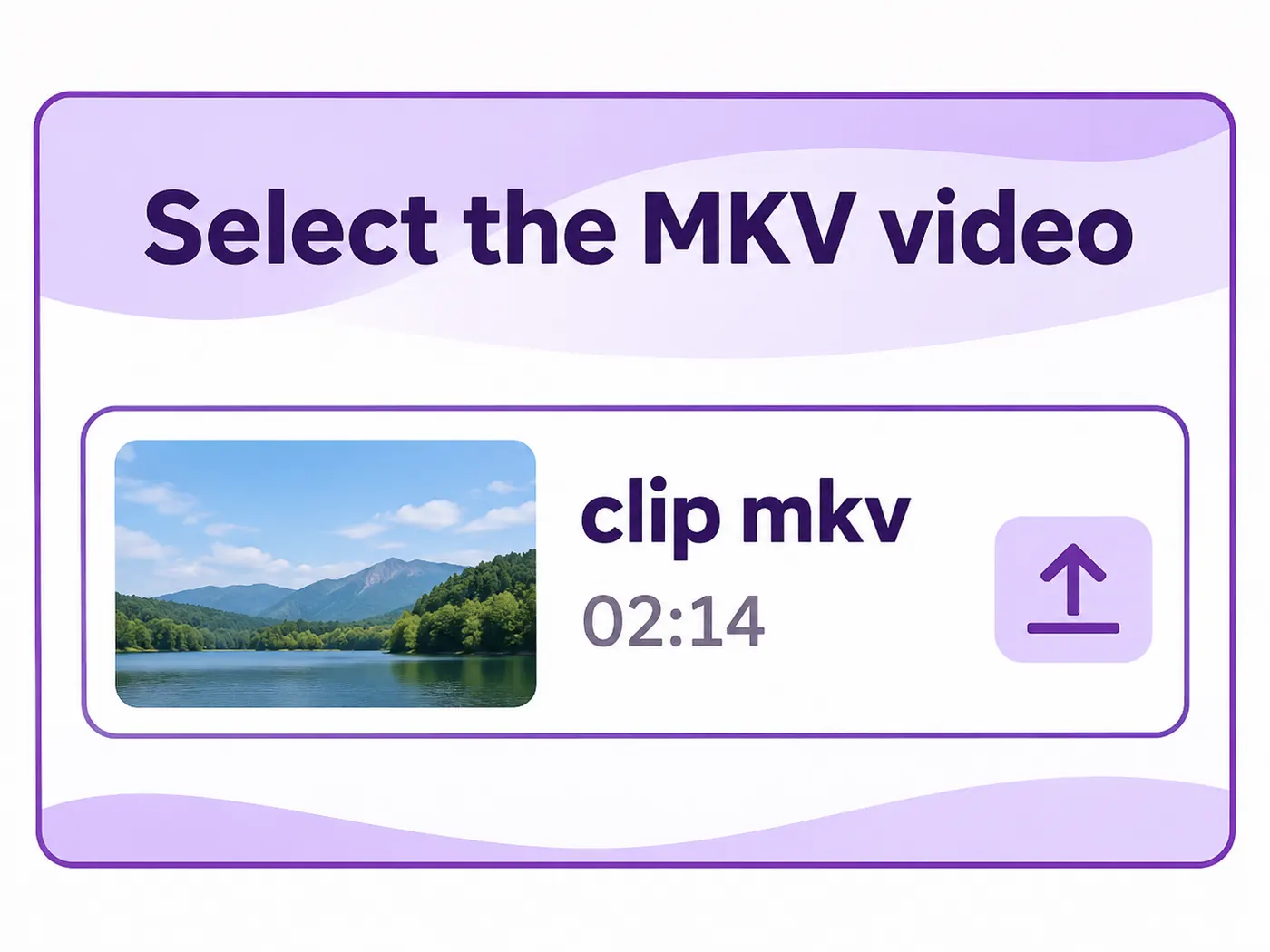
Select the MKV video
Start the mkv to mp3 process by choosing one MKV video from your device. The tool accepts the MKV format and uses it as the source for audio extraction.
02
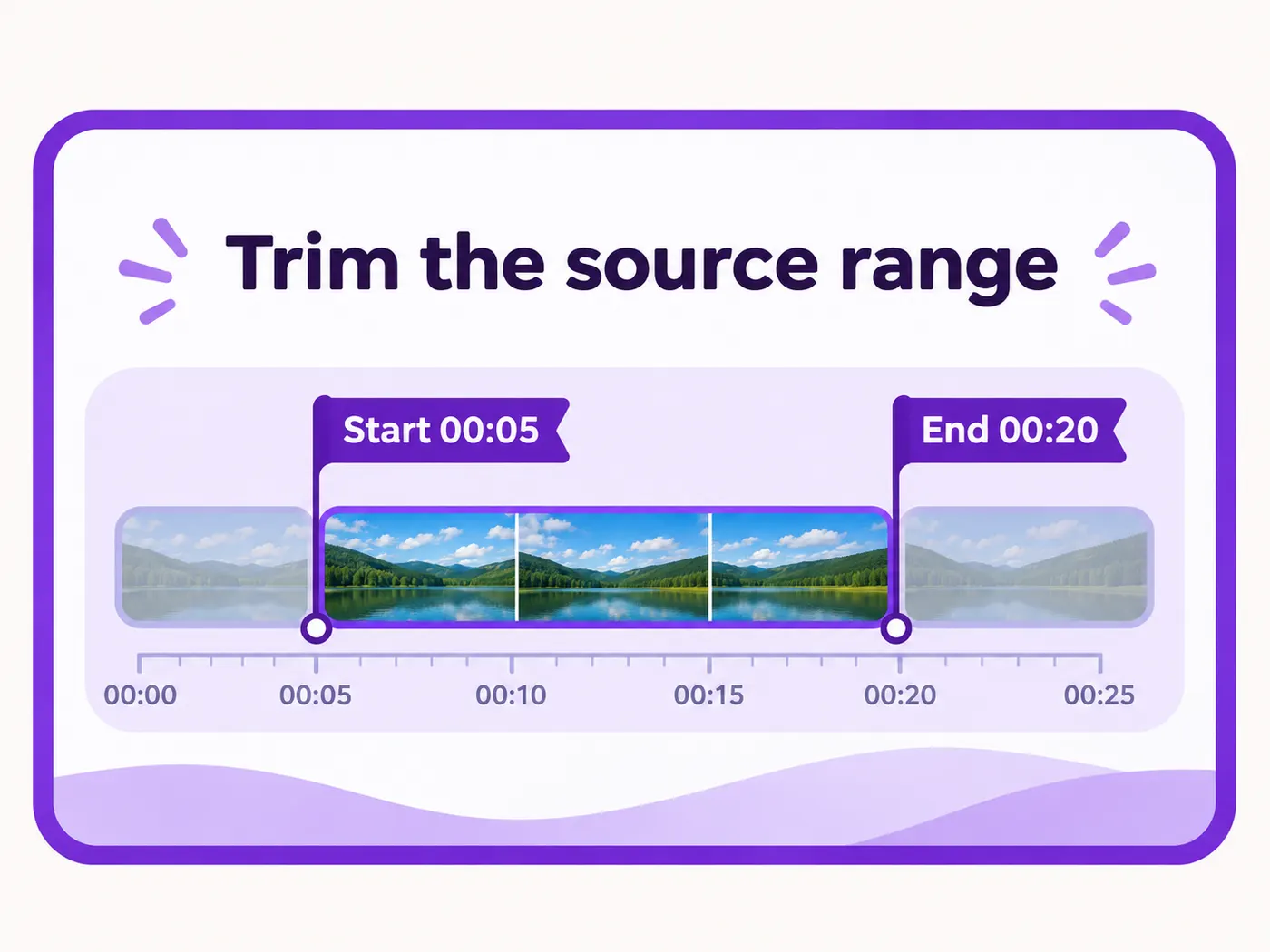
Trim the source range
Use the trim control if you want only part of the video. Leave the full range selected when the complete soundtrack should become the MP3.
03
Set the bitrate
During mkv to mp3 conversion, choose 128, 160, 192, 256, or 320 kbps. A higher bitrate generally creates a larger file with more retained audio detail.
04
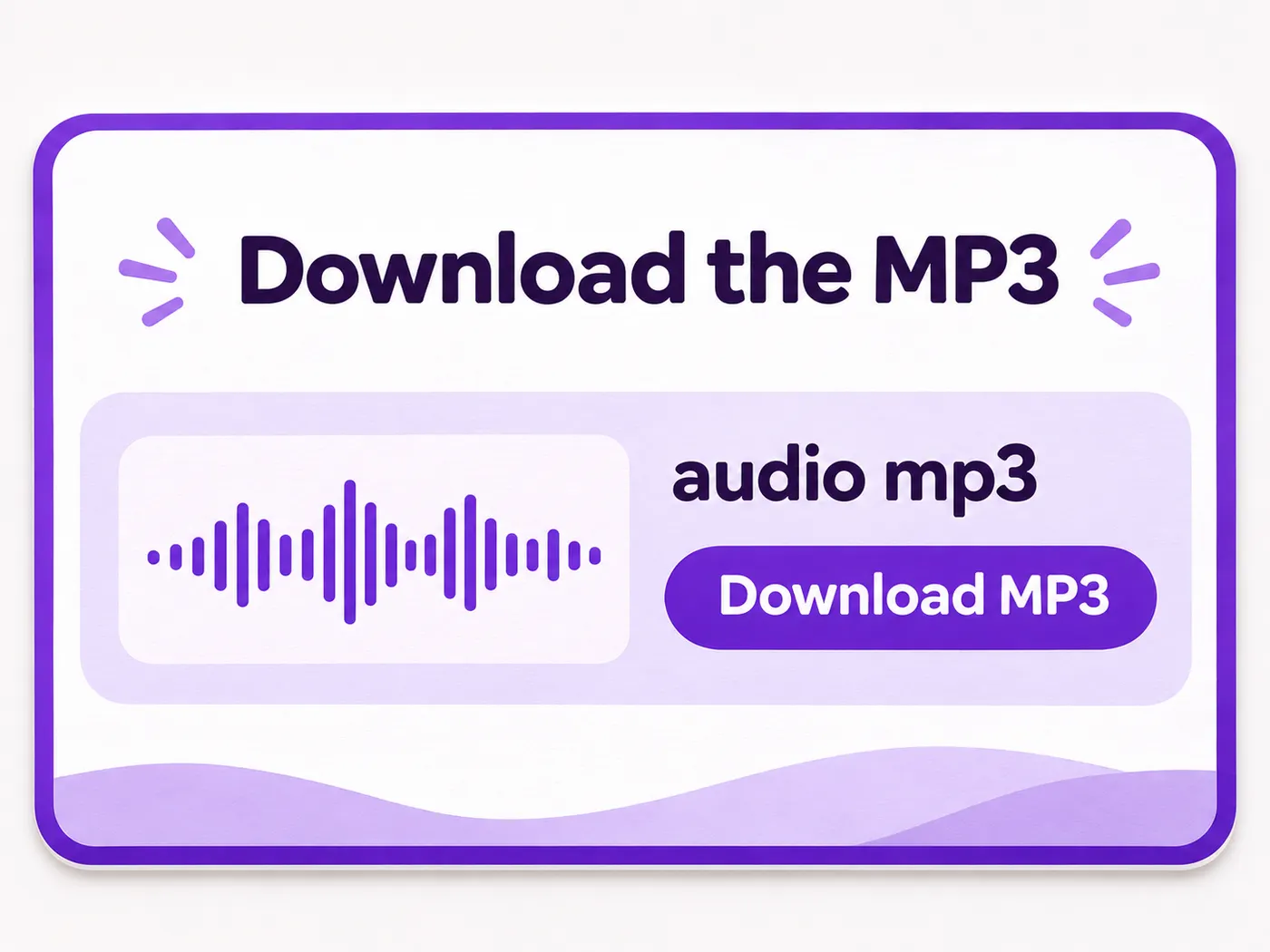
Download the MP3
Start the conversion, wait for the browser to finish extracting the selected audio, then use Download MP3 to save the result to your device.

Browser-based
This mkv to mp3 converter runs in your browser for a straightforward one-file workflow.
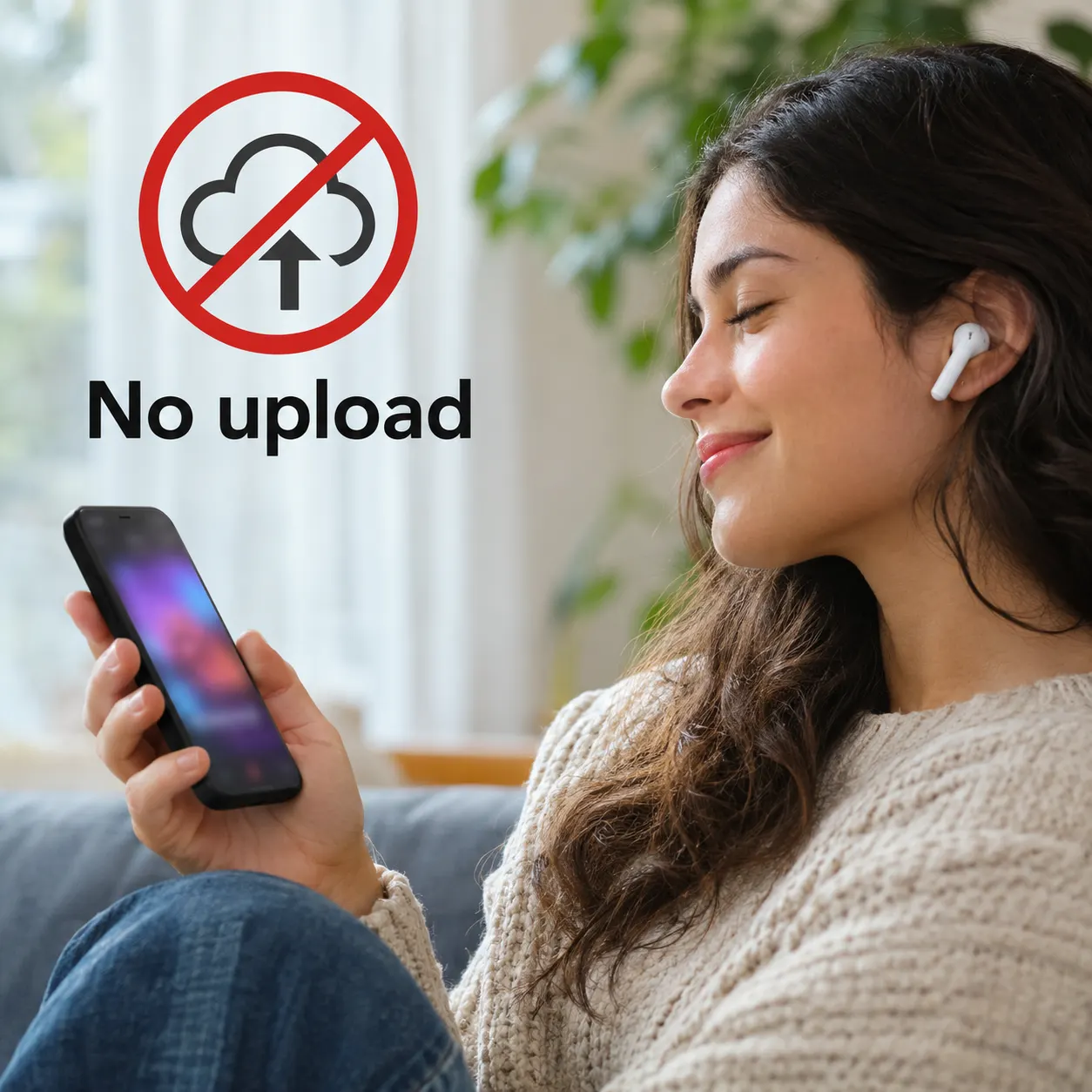
No upload
The privacy line states that the MKV audio is extracted in your browser and nothing is uploaded.

Trim control
Remove unwanted sections before the audio file is created.
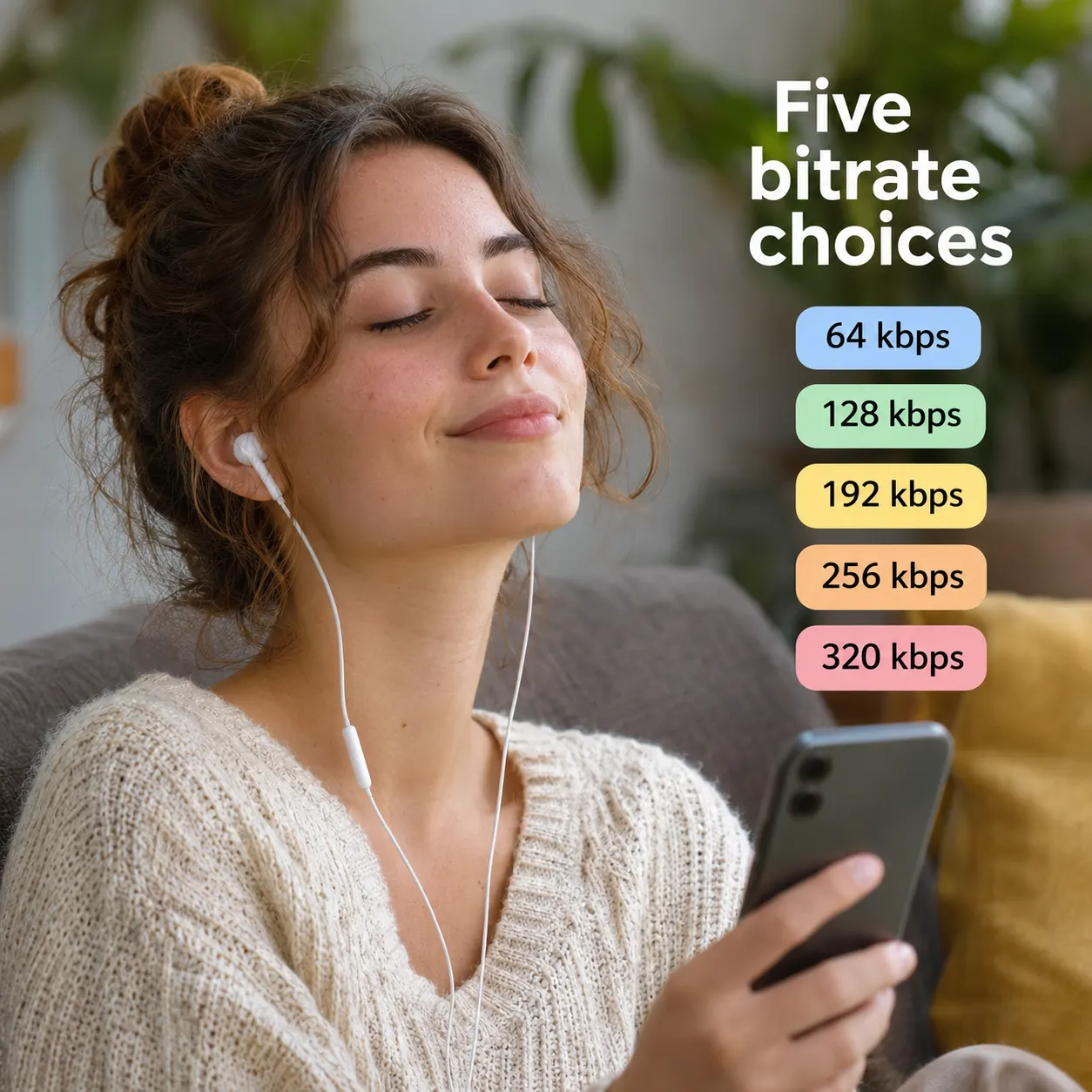
Five bitrate choices
Select 128, 160, 192, 256, or 320 kbps for the MP3 output.

Downloadable MP3
Convert the selected range and save the finished audio file directly from the tool.
Audio files for everyday listening
A browser conversion turns video sound into a convenient listening format. Use mkv to mp3 when you want to hear a film soundtrack, review a podcast recording, isolate music practice, or keep an edited audio excerpt.

Useful for focused audio tasks

Film soundtracks
Use mkv to mp3 to keep a film’s audio available for listening without opening the full video.

Podcast review
Extract the audio from an MKV recording so a podcast segment is easier to review with earbuds.

Music practice
Create an MP3 from a video source when you need to listen to the musical track away from the video.

Editing excerpts
Trim a selected section before downloading when only one conversation, lesson, or performance is needed.
Questions about MKV audio conversion
Can I convert an MKV video to an MP3 file in the browser?
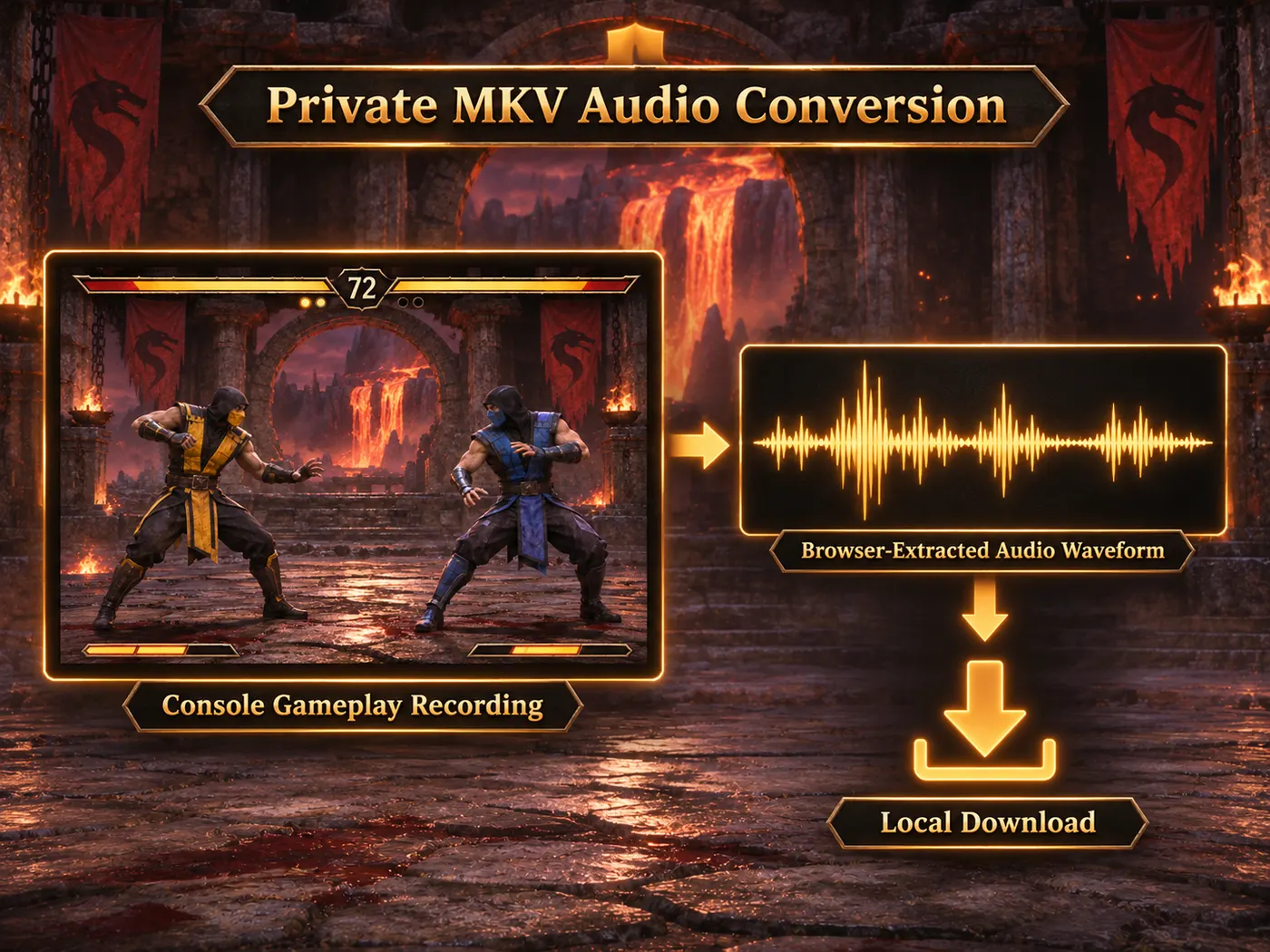
Yes. This mkv to mp3 tool accepts one MKV video and extracts its audio directly in your browser. Select the file, optionally trim the range, choose a bitrate, and start the conversion. When mkv to mp3 conversion finishes, download the MP3 file without installing desktop conversion software or sending the source video to an upload service.
Is my MKV video uploaded during conversion?
No. The mkv to mp3 conversion is performed in your browser, and the tool states that nothing is uploaded. Your original MKV remains on your device while the browser extracts the selected audio. This makes the workflow suitable when you want a private one-off conversion without transferring a personal video to a remote server.
Can I convert only part of an MKV video?
Yes. For an mkv to mp3 conversion, use the trim control before starting to select the portion you want in the MP3. You can remove unwanted introductions, credits, silence, or other sections and keep the relevant range. If you need the entire soundtrack, leave the full source range selected instead.
Which MP3 bitrates are available?
The tool offers five bitrate choices: 128, 160, 192, 256, and 320 kbps. During mkv to mp3 conversion, select the setting that fits your needs. This mkv to mp3 workflow supports lower bitrates for smaller files and higher choices for more audio detail and potentially larger downloads.
What is a good bitrate for a typical audio file?
A 192 kbps setting is a practical middle option for many listening tasks, while 128 or 160 kbps can suit smaller files. Choose 256 or 320 kbps when preserving more detail matters. For an mkv to mp3 task, the tool lets you choose among all five listed settings before conversion, so the decision remains yours.
How do I download the converted audio?
Start the conversion after selecting the MKV, trimming if needed, and choosing a bitrate. When the browser finishes, use the Download MP3 control to save the result. The mkv to mp3 download contains the extracted audio from the selected range, rather than the original video container or an additional video track.
Free tools, and a plan when you need more
The everyday tools are free and run in your browser. The AI tools and the full editor run on credits — pick a plan when you need them.
- Free
- $0
- Every browser tool
- Starter
- $12/mo
- 120 credits
- Pro
- $29/mo
- 310 credits
Ready to extract your audio?
Choose an MKV video, set the range and bitrate, then download the MP3 privately in your browser.
Convert to MP3